
BLACK IRON SPINE STUDIOS · VERSION 1.1 · UNREAL ENGINE 5.8 · WINDOWS
RPG Inventory & Bag System
Buyer Guide
Start with your first inventory, define your own items, and connect your game’s effects and menus. Follow the editable Blueprint examples with exact settings, connection steps and expected results.
Start here: choose your first test
RPG Inventory & Bag System: Plug&Play 1.1 supplies local inventory storage, item actions, bag capacity, saving and a native inventory window. It works without LVE, Action Bar Kit or another BIS product. Your game handles item effects, saving health and deciding what the server allows in multiplayer.
Install in your existing Unreal project
- Use the Unreal Engine 5.8 version for Windows (Win64). Install through Fab, or put the single InventoryKit folder under your project’s Plugins folder for manual source installation. Source builds require Unreal’s supported C++ toolchain, including for a Blueprint-only host.
- Open Edit > Plugins, search InventoryKit, enable it and restart when requested. Enable Show Plugin Content in the Content Drawer to find InventoryKit Content > InventoryKit > Examples.
- Choose one first test below. Automatic startup uses a local PlayerController inventory. The placed buyer example owns a different inventory component; do not accidentally test one while reading the other.
Ordinary plug-and-play inventory
Leave Project Settings > Plugins > Inventory Kit > Quick Start > Auto Start enabled. Press Play with a local player. Press I or B. For a new player the inventory starts with 30 empty slots; a valid existing save may restore different stock. Open Inventory Settings and choose Add Preview Items to try the included fixtures. Preview items are not automatically granted.
Buyer-owned gameplay example
- For this separate test, turn Auto Start off under Quick Start. Place one BP_IK_BuyerInventoryOwner in your existing playable level. Use local Player 0.
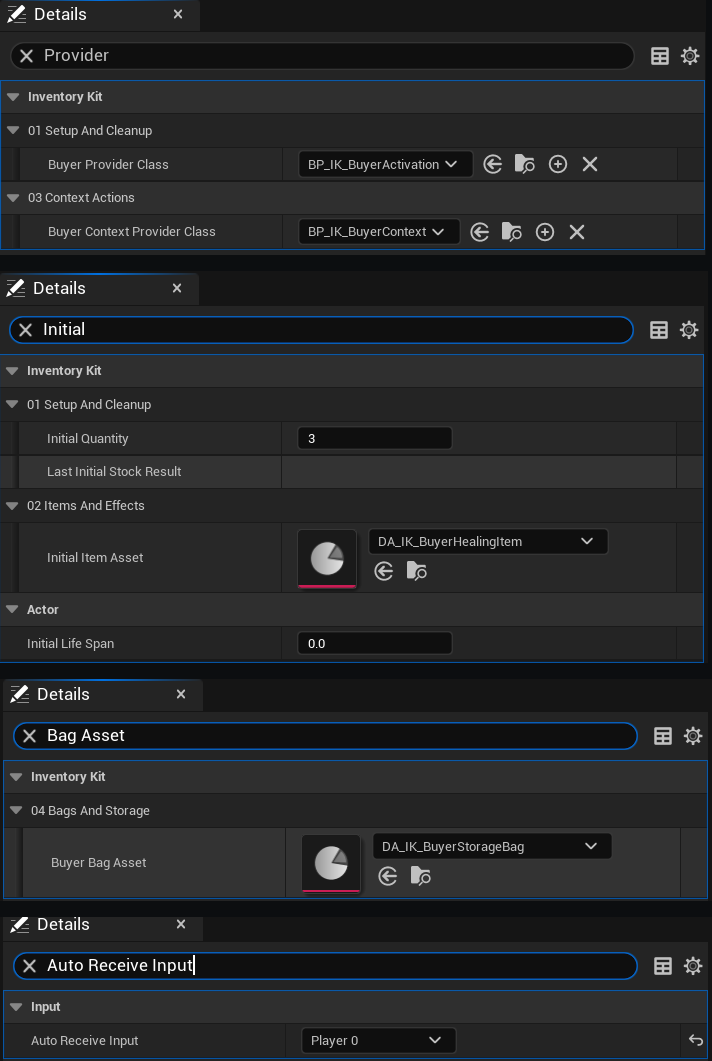
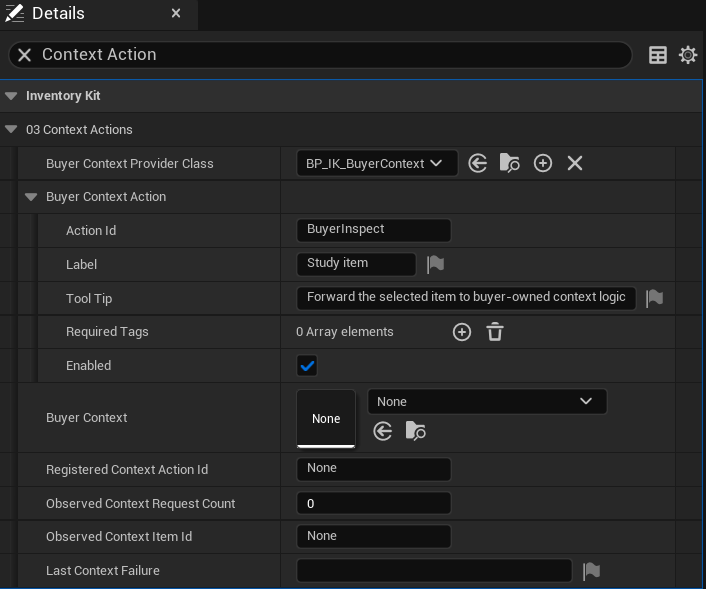
- Keep Buyer Provider Class = BP_IK_BuyerActivation, Buyer Context Provider Class = BP_IK_BuyerContext, Initial Item Asset = DA_IK_BuyerHealingItem, Initial Quantity = 3 and Auto Receive Input = Player 0. See screenshots 14 and 15.
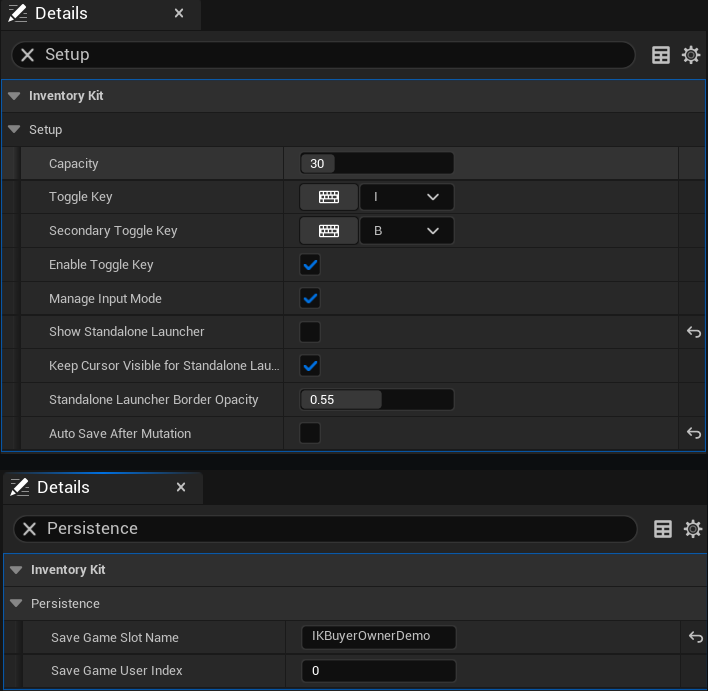
- Keep a separate test save slot. The example uses IKBuyerOwnerDemo, User Index 0, with Auto Save After Mutation off. It does not automatically save sample health.
- Play and press H twice with the inventory window closed. Inspect Observed Health and Observed Item Count on the running owner: 75 / 2, then 100 / 1. A third H request is refused at full health and preserves the remaining item.
- Press J to request Study item for slot 0. Inspect the context request count and item ID. An accepted request records one result and does not consume, place or equip the item.
The BeginPlay item grant is a teaching example each time the actor starts. Before production use, replace it with your new-profile/load policy. Reconnecting or loading must not call Seed Buyer Items again.
Use items, stacks and bags
- Select a slot to inspect its item. Drag to an empty slot to move, onto a matching stack to merge, or onto a different item to swap.
- Shift-drag a stack to an empty slot to move half. For an exact quantity, right-click and choose Split quantity. The target must have room; a stale or invalid request must leave quantities unchanged.
- Use search and category filters to find items. Clear both to restore the full grid. Filtering does not change storage indices or capacity.
- Choose an Order and sorting direction. Ascending packs toward the top; Descending packs toward the bottom. Sorting includes items hidden by filters. Query the current slot again after sorting.
- Equip a Bag-category item in an empty displayed bag socket. To unequip, supply an empty destination that remains inside the smaller capacity. An capacity reduction that would lose items is refused rather than deleting stock.
There are two different sample bags: DA_IK_BuyerStorageBag is the integration example and adds 8 slots (30 to 38). The built-in Vintage Leather Backpack preview item, stable ID GiantSack, adds 10 (30 to 40). Bag bonuses add together, with five sockets and a total capacity limit of 120. Connecting the buyer example does not automatically grant its bag: call Add Buyer Bag from your own grant or menu flow.
Controls and window behavior
- I or B: toggle the ordinary inventory. H and J belong only to the editable buyer owner example; replace them with your controller, Enhanced Input or menu events.
- Shift-drag the window background/header to move the window. Drag in the 3D inspection view to rotate; use the mouse wheel to zoom. The 3D button shows or hides the inspection column.
- Tab / Shift-Tab or controller bumpers traverse controls. Arrows, D-pad or left-stick directions navigate slots. Enter, Space or the bottom face button opens the focused item’s actions.
- M or the left face button picks a move source; navigate and activate again for the destination. Escape or the right face button cancels the move or dismisses menus/panels before closing inventory. Ctrl-F focuses search.
- Manage Input Mode applies the inventory’s convenience cursor policy. Close restores captured cursor/click/hover flags, but does not reconstruct your previous input mode or focus stack. If your game owns those transitions, disable Manage Input Mode before opening and perform them in the host.
The standalone launcher has a separate Keep Cursor Visible For Standalone Launcher setting. Disable that policy too when your game needs exclusive control of pointer locking. Validate physical controller and local-player routing in your own project.
Appearance, settings and feature switches
Inventory Settings controls scale, slot size, columns, spacing, back art/glass, slot and window borders, tooltips, counts and bag presentation. Window scale is 0.6–1.6; grid columns are 3–10. Slot size is shared with bag sockets. Read back actual values after setters because limits are clamped.
Use Configure Buyer UI with Scale, Columns and Preview Enabled, then Read Buyer UI State for the observed values. Show Buyer Inventory UI and Close Buyer Inventory UI use the existing component. Query actual visibility; a completed void call is not proof that a valid viewport exists.
Save Settings persists inventory, equipped bags and presentation. Reset Appearance restores presentation defaults and may perform capacity-safe preview cleanup; it is not a production inventory wipe. Center Window changes only the offset.
Project Settings > Plugins > Inventory Kit controls automatic startup and preview definitions. Component Details controls that particular inventory’s capacity, toggles, saving and sounds. Class Defaults on the owner controls its provider objects, assets and input. These are three different places.
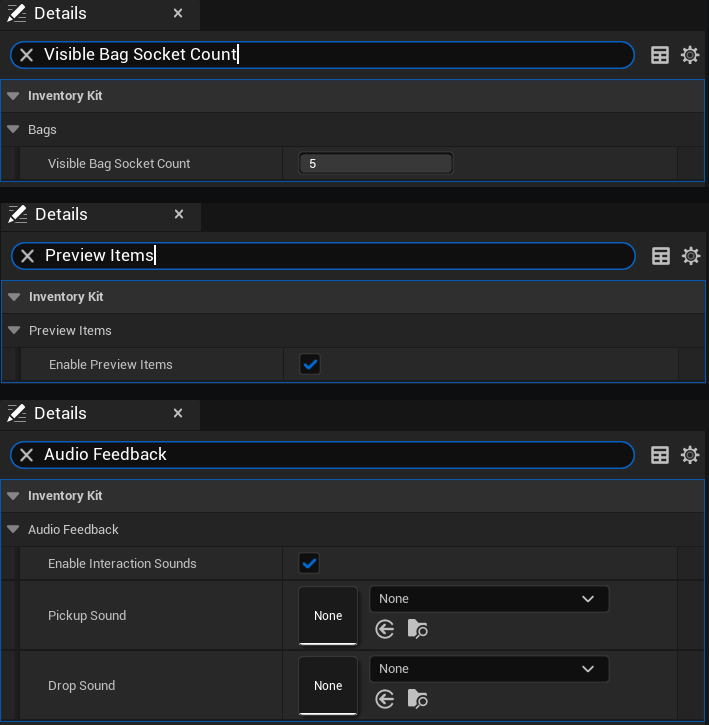
The example component has 30 capacity, I/B toggles, Manage Input Mode on, standalone launcher off, Auto Save After Mutation off, five visible sockets and preview items enabled. Interaction sounds are enabled but Pickup Sound and Drop Sound are unassigned, which is a supported silent configuration.
Create your own items and connect gameplay
- Duplicate the three buyer Blueprints and two Data Assets into your game’s Content folder before customizing them. Update the owner’s provider-class and asset references to your copies.
- Give each item a unique stable Item Id, display name, category and stack size. IDs are saved identity; do not casually rename IDs already used in player saves. Tags are exact Name values, not a required Gameplay Tags plugin.
- For the sample healing rule, use tag BuyerHealing, explicit Primary Action Use and Consume on Use enabled. Explicit Use takes precedence over the older Usable checkbox, which is unchecked in the supplied sample.
- Assign your own Icon and optional Inspection Mesh, then adjust framing and preview text. The two buyer Data Assets intentionally have no icon or inspection mesh assigned. They are integration definitions, not the built-in preview models.
- In BP_IK_BuyerActivation, replace the readiness query with your game’s checks that do not change anything. Return empty Text for available, a useful reason for rejection. Replace the accepted-effect callback with your health/ability operation; return true only after it applies the effect.
- Inventory Kit performs configured consumption after an accepted activation. Do not remove the same item in your effect callback or grant another effect from an inventory notification. A false result after a committed effect needs diagnosis, not a blind effect retry.
- Check the result from Add Item or Add Item Asset: how many you requested, how many were added and how many remain. If only some items fit, deal with the items left over. Do not add the full quantity again.
Add your own context-menu action
- In owner Class Defaults, expand Buyer Context Action. Choose a unique Action Id, readable Label and Tool Tip, optional Required Tags and Enabled. The sample is BuyerInspect / Study item, with no required tags.
- Connect Buyer Context retains the object, copies the configured ID into Supported Action Id, connects the same BuyerInventory and registers the action. A duplicate ID is refused by this owner wrapper; registration failure disconnects its new binding.
- In BP_IK_BuyerContext, Can Execute Inventory Context Action is a check of whether the action is allowed; it must not change anything. Execute Inventory Context Action calls your gameplay operation that finishes before returning and returns its actual acceptance.
- From input or your menu, pass the current Slot Index to Request Buyer Context. It verifies the connected provider is this object you keep in a variable and requests the registered action. Read Last Context Failure and the observed result.
- The sample Record Buyer Request records acceptance only. Custom context actions do not automatically consume inventory. Your game must perform any placement, equipment transfer or item removal needed by that action.
- Finish each callback before returning its result. Disconnect on cancellation, replacement or EndPlay. Disconnect prevents later requests; it does not undo an already accepted synchronous operation.
Built-in action IDs Place, Drop, Hold, Use, Split and SellPost are reserved. Every Required Tag must match. Generic Register Item Action can replace an existing definition; the illustrated owner adds a collision guard and should remain the sole owner of its unique registration.
Save, load and reconnect safely
- Set Save Game Slot Name and Save Game User Index on the actual BuyerInventory component. Choose a separate identity per intended player/profile; keep development test slots separate from existing player data.
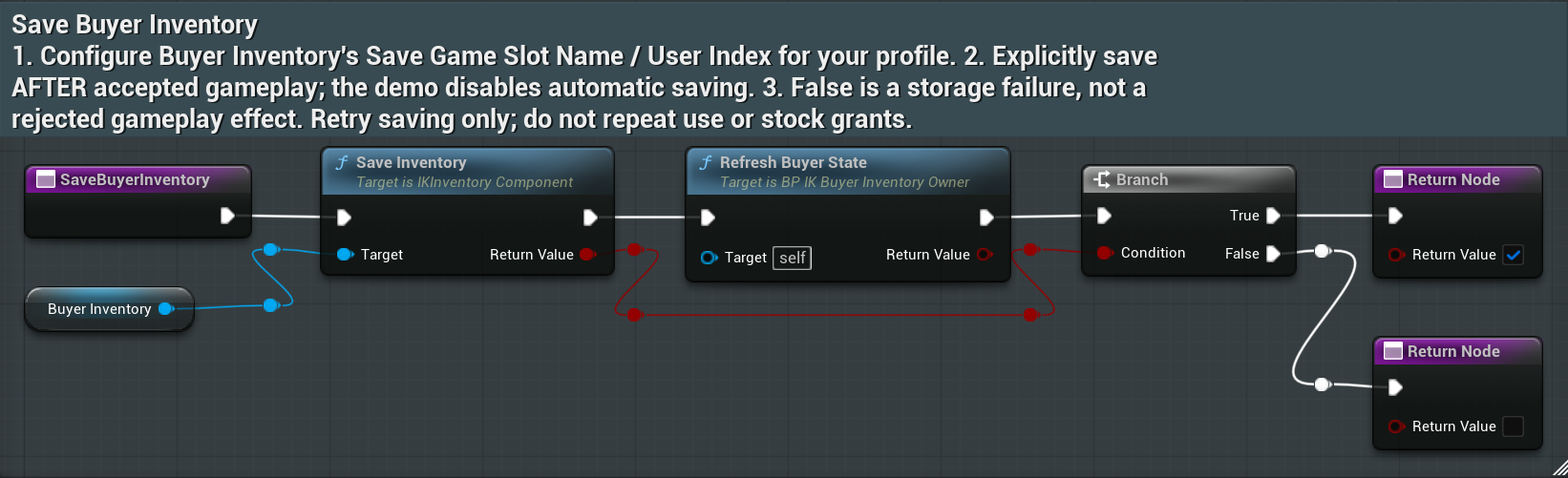
- The buyer actor disables automatic mutation saving. Call Save Buyer Inventory explicitly after accepted gameplay when required. Branch on the save result. If storage fails, retry saving only; do not repeat healing, a grant or an equipment operation.
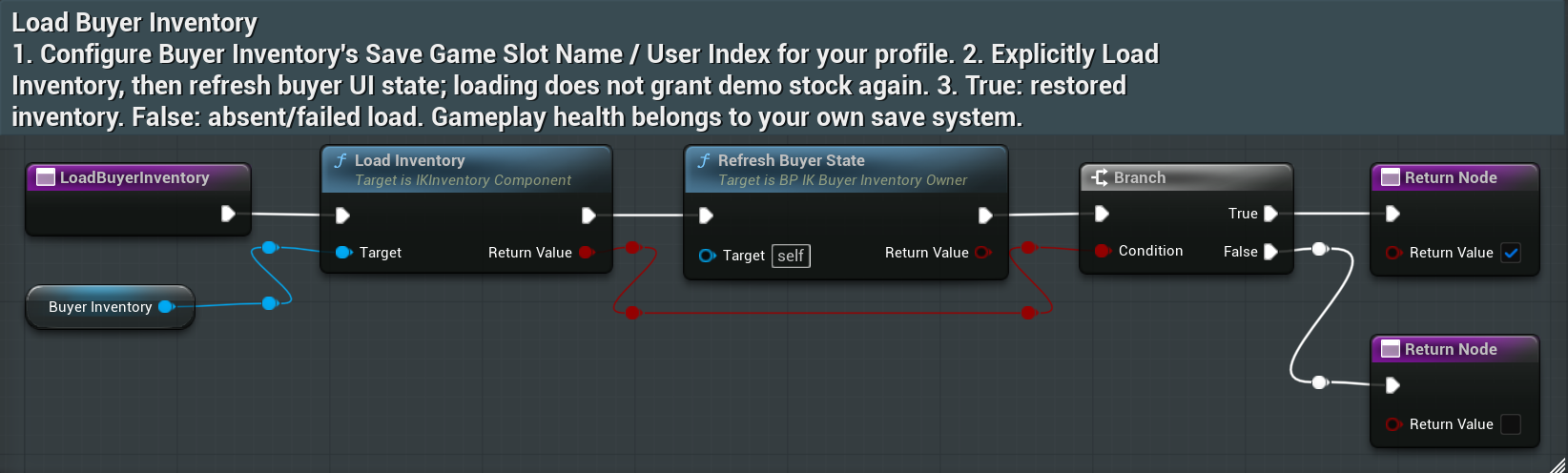
- Call Load Buyer Inventory to restore inventory and refresh observed state. It does not restore your game’s health system and must not reseed demonstration items. Back up saves before changing schema or item identities.
- Keep the retained gameplay/context objects across reconnects. Disconnect only the owned bindings and this actor’s outgoing event subscription. Do not clear another owner’s provider or registration.
- For production startup, decide whether this is a new profile or a load before granting stock. The sample’s unconditional BeginPlay grant is not a persistent grant-once policy.
The ordinary Quick Start save is InventoryKitPlayerInventory; the separate buyer actor sample uses IKBuyerOwnerDemo. Schema 15 includes tags and definition metadata. If a future or incompatible save cannot be loaded safely, preserve it and resolve migration before enabling mutation auto-save.
Content, cooking and optional integrations
InventoryKit is a standalone runtime code plugin for Unreal Engine 5.8 on Win64, with no required external BIS product or third-party library. Keep plugin content under its InventoryKit pack folder. Include buyer-authored assets referenced by your host in the cook and verify their materials, textures and optional meshes in the packaged game.
LVE integration is optional runtime discovery. Inventory remains responsible for inventory quantities; the commerce owner remains responsible for purchases and sales. Action Bar Kit is a separate product and optional bridge integration. Inventory does not install or configure an action bar.
This product does not supply replicated server inventory authority, a health save system, online hosting or asynchronous transaction cancellation. Implement those in your host when needed. Definition metadata is not a unique-instance durability or random-affix system; distinct definitions need distinct stable IDs.
If the first test does not work
- No inventory window: confirm InventoryKit is enabled, a local player is possessed, and you selected either ordinary Auto Start or the placed owner route. Check actual component visibility and host input policy.
- H/J do nothing: check Auto Receive Input = Player 0, the active local player, and the BuyerInput graph. Read Last Failure / Last Context Failure on the running owner; Class Defaults is not the runtime result.
- Healing is refused: check a valid current slot, BuyerHealing tag, explicit Use action, a connected activation provider and health below maximum. Full health rejection is expected.
- Study item is unavailable: verify the action is enabled, its unique ID was registered, required tags match and the provider object you keep in a variable owns this same component. Inspect the returned failure rather than binding a second owner.
- Bag equip/unequip fails: check Bag category, bonus, empty socket/destination, displayed socket count and resulting capacity. Move items into retained slots before shrinking.
- Details shows Variable Name and a None reference: you selected BuyerInventory under My Blueprint. Open Window > Components and select BuyerInventory in the component tree instead.
- Save fails: inspect profile slot/user configuration and storage access. Keep the gameplay changes already made; retry only the storage operation.
Check your integration before shipping
- Use copied buyer assets and your own item IDs, input events, gameplay provider and UI. Remove the unconditional demonstration grant and choose an explicit new-profile/load policy.
- Check accepted use and refusal, no double consumption, partial grants, valid and unsafe bag shrink, save/load, reconnect without new grants, and owner-safe cleanup.
- Check actual packaged content and physical keyboard/controller input in each supported local-player arrangement. Test focus, cursor and viewport behavior with your game’s UI.
- Keep profile backups and verify that health and other gameplay state are saved by your own system. Restore project/plugin and save backups together when rolling back a migration.
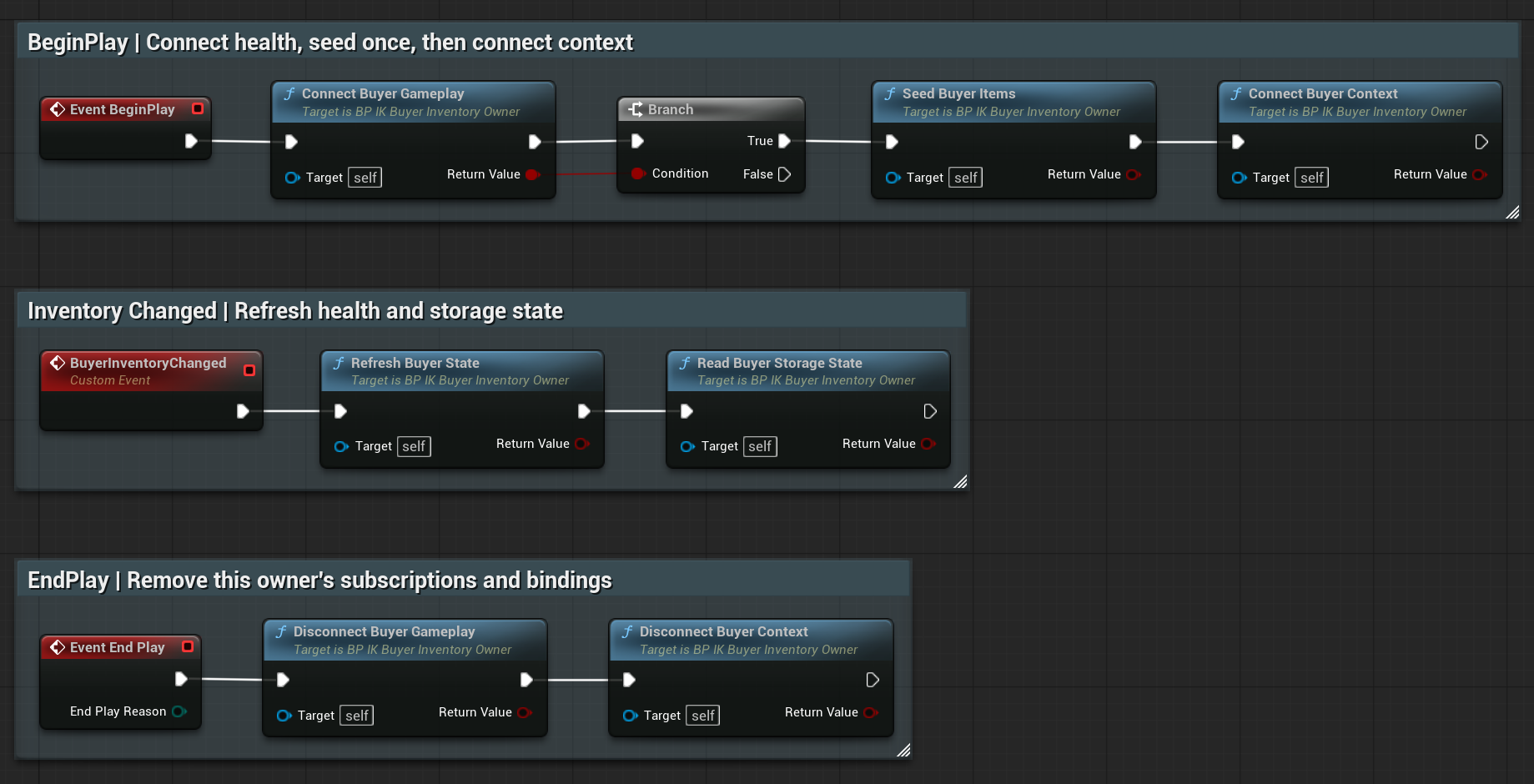
01. Initialize, refresh and clean up
/InventoryKit/InventoryKit/Examples/BP_IK_BuyerInventoryOwner
My Blueprint > Graphs > BuyerLifecycle
What to connect and what happens
- BeginPlay calls Connect Buyer Gameplay. Its Return Value drives Branch; only True continues to Seed Buyer Items and Connect Buyer Context.
- BuyerInventoryChanged calls Refresh Buyer State followed by Read Buyer Storage State. Connect your own UI refresh after those reads.
- EndPlay calls Disconnect Buyer Gameplay, then Disconnect Buyer Context. Reconnect and Load must not run the seed step again.
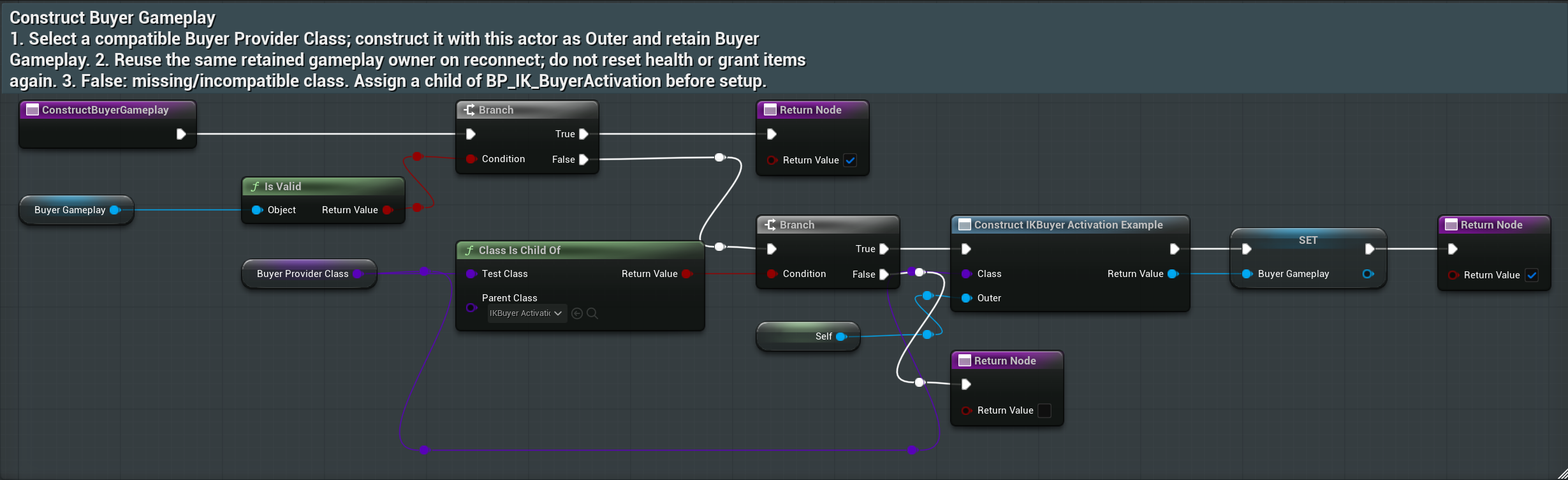
02. Keep the gameplay object for later calls
/InventoryKit/InventoryKit/Examples/BP_IK_BuyerInventoryOwner
My Blueprint > Functions > ConstructBuyerGameplay
What to connect and what happens
- If Buyer Gameplay is already valid, return True and reuse it.
- Otherwise validate Buyer Provider Class, construct it with Self as Outer and retain the object in Buyer Gameplay.
- Use a compatible child of BP_IK_BuyerActivation. An invalid class returns False; stop setup and report the configuration problem.
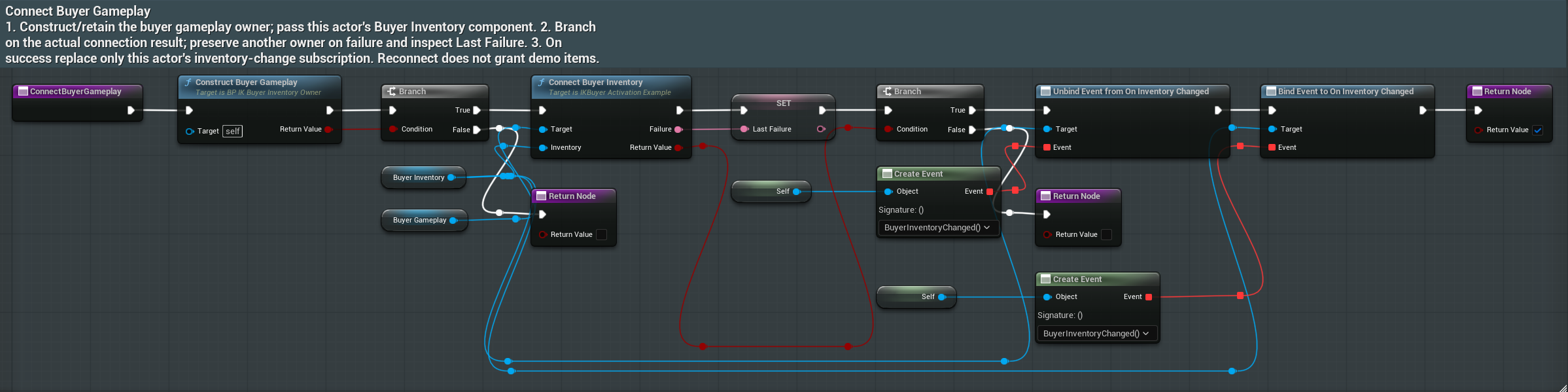
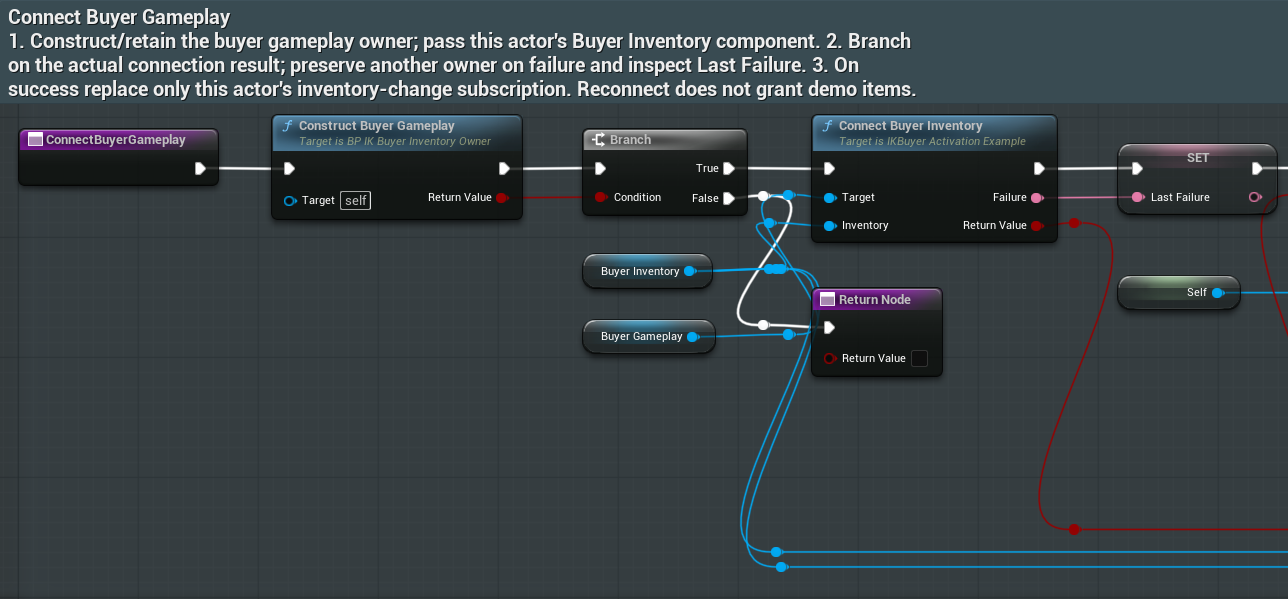
03. Connect gameplay and inventory events
/InventoryKit/InventoryKit/Examples/BP_IK_BuyerInventoryOwner
My Blueprint > Functions > ConnectBuyerGameplay
What to connect and what happens
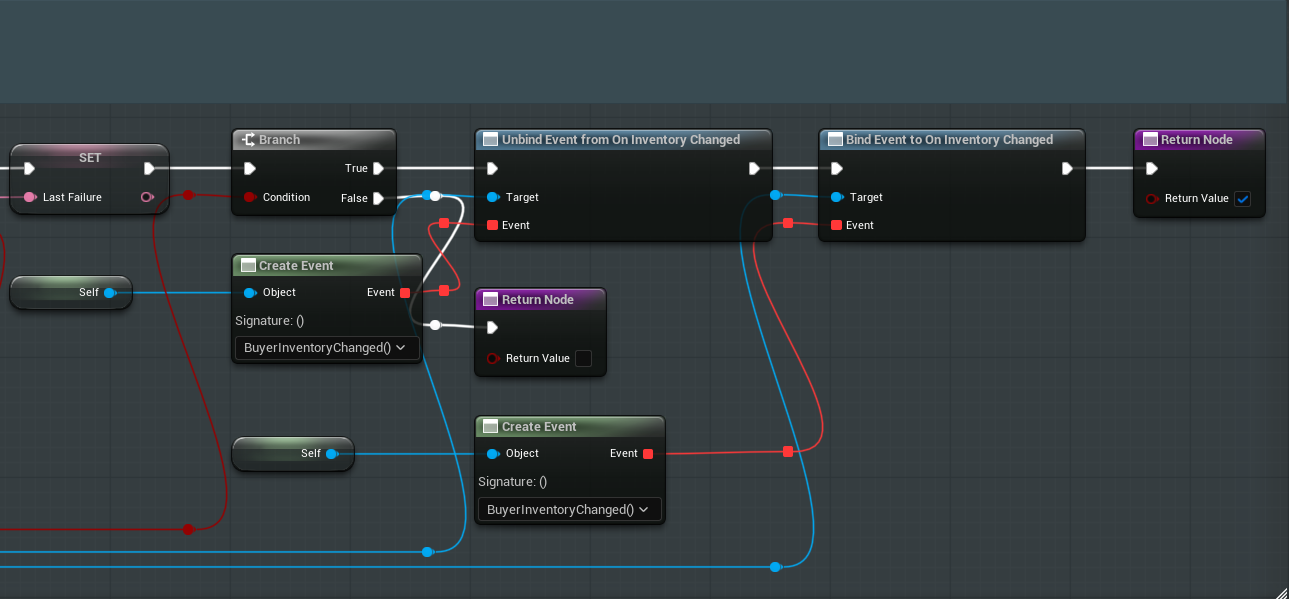
- Construct Buyer Gameplay first. Pass the Buyer Gameplay object as Target and Buyer Inventory as Inventory into Connect Buyer Inventory.
- Store Failure in Last Failure and branch on the actual connection result. Stop on False; another owner must be preserved.
- On True, unbind and bind this actor’s BuyerInventoryChanged callback on On Inventory Changed. Do not clear all listeners.
04. Connect your controller or menu input
/InventoryKit/InventoryKit/Examples/BP_IK_BuyerInventoryOwner
My Blueprint > Graphs > BuyerInput
What to connect and what happens
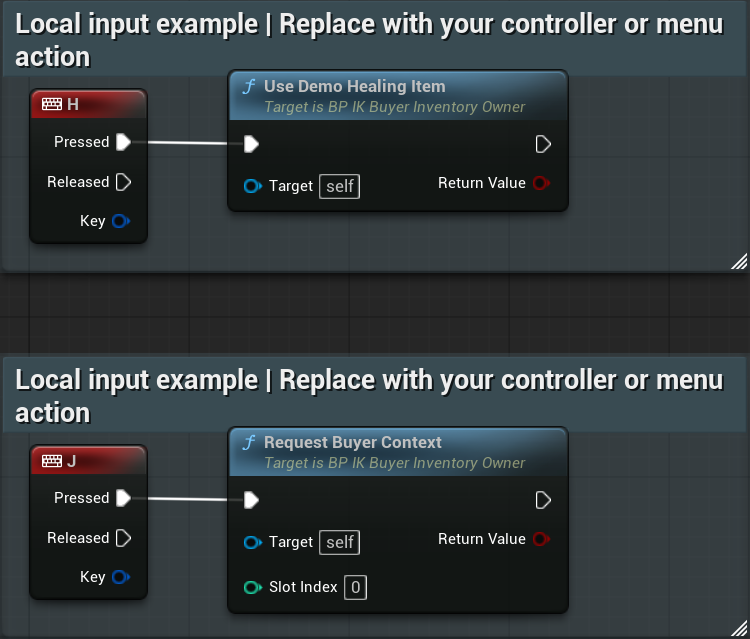
- H Pressed calls Use Demo Healing Item on Self. J Pressed calls Request Buyer Context with Slot Index 0.
- Replace these demonstration keys with your own owning controller, Enhanced Input or menu calls.
- Use your current selected slot for production. Keep health changes and consumption out of the input graph.
05. Request use and inspect the actual result
/InventoryKit/InventoryKit/Examples/BP_IK_BuyerInventoryOwner
My Blueprint > Functions > UseDemoHealingItem
What to connect and what happens
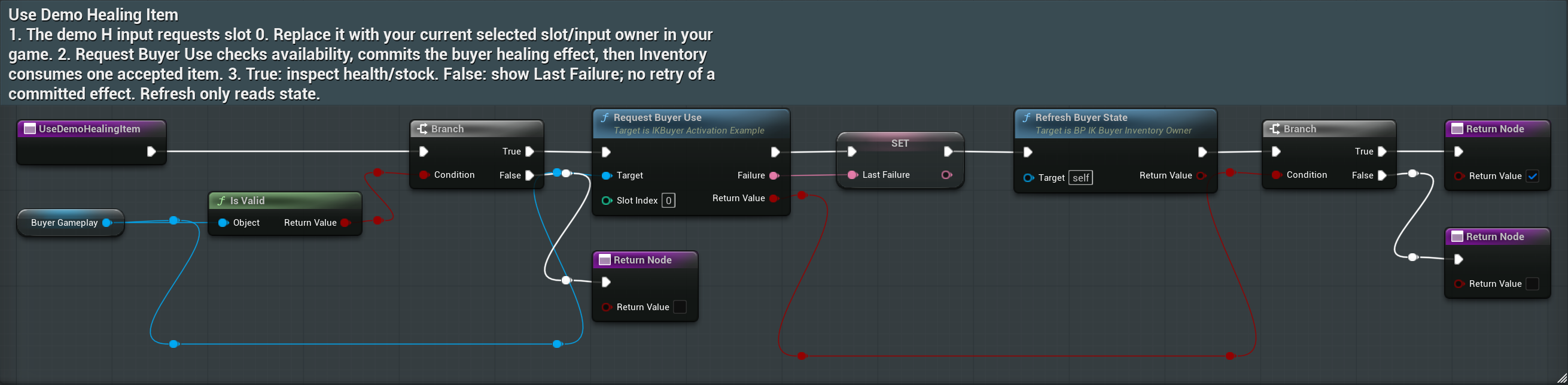
- Validate Buyer Gameplay object, then call Request Buyer Use with the current slot. The sample uses slot 0.
- Store Failure in Last Failure, call Refresh Buyer State and branch on Request Buyer Use’s Return Value.
- Display failure on False. Do not retry a committed gameplay effect to recover from an unrelated save failure.
06. Connect and register a unique context action
/InventoryKit/InventoryKit/Examples/BP_IK_BuyerInventoryOwner
My Blueprint > Functions > ConnectBuyerContext
What to connect and what happens
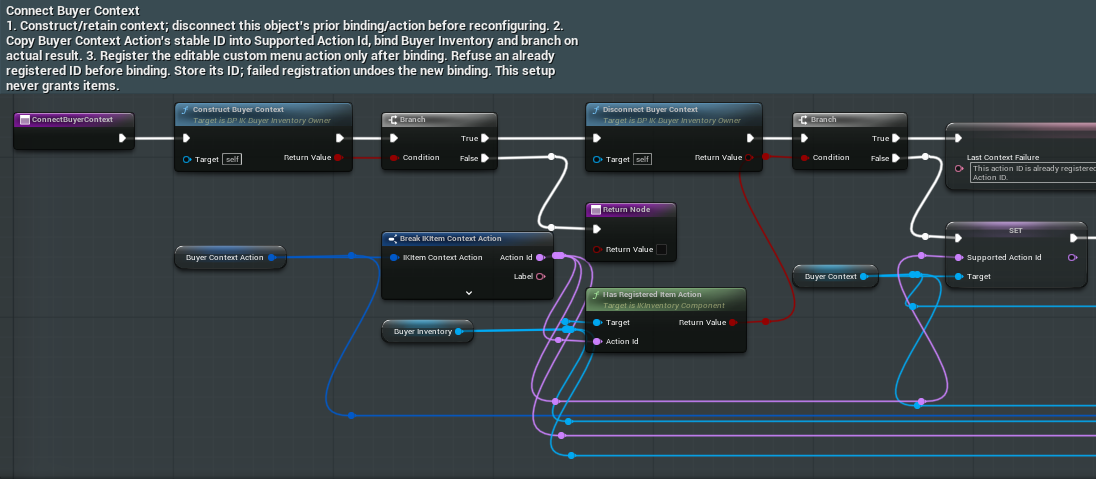
- Construct or reuse Buyer Context and disconnect its previous owned binding before reconfiguration.
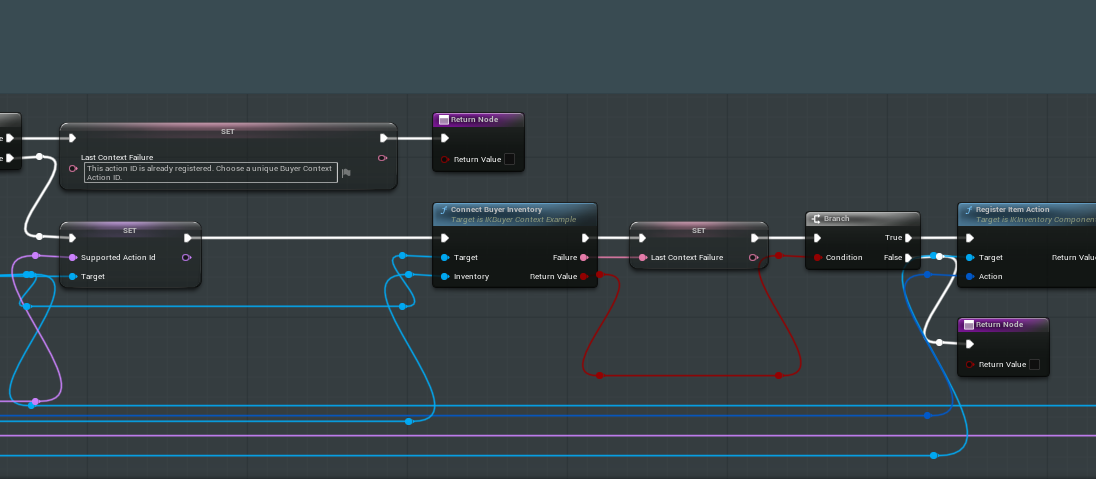
- Break Buyer Context Action to read its Action Id. Refuse an ID already registered by another action; report Last Context Failure.
- Set Supported Action Id on the context object and connect Buyer Inventory. Store and branch on the returned connection result.
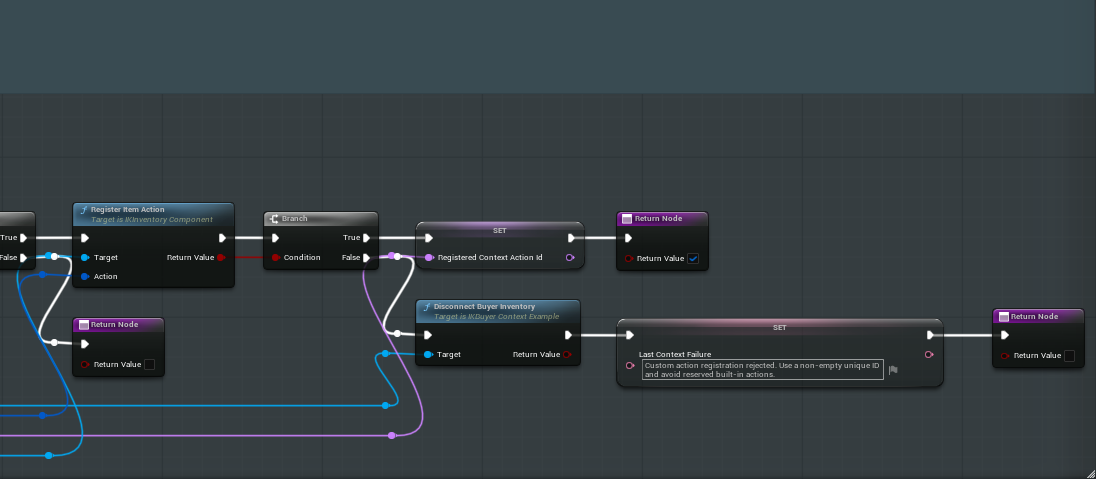
- Register Item Action only after connection. On success store Registered Context Action Id. On registration failure disconnect the new binding and return False.

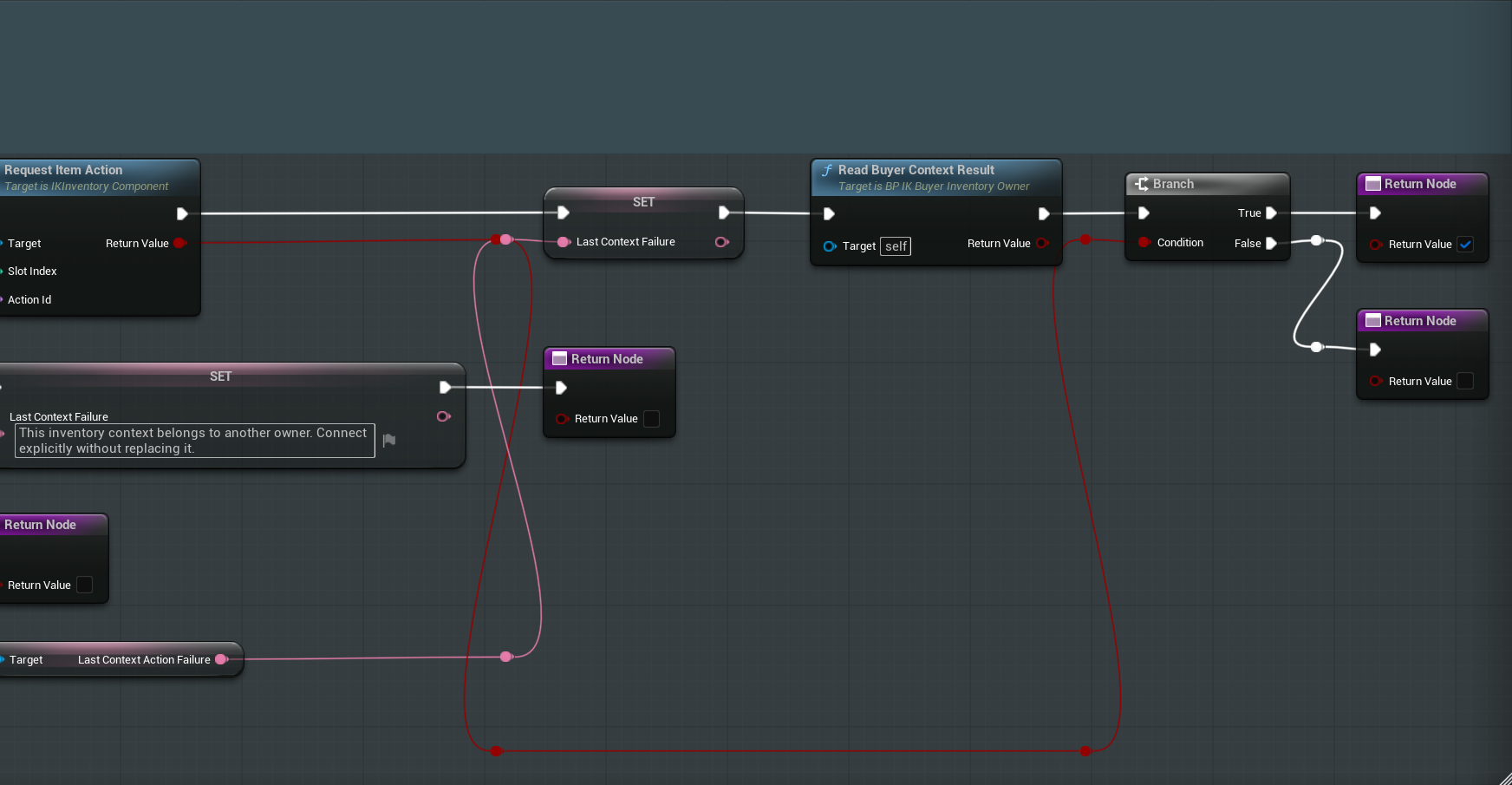
Read the enlarged graph from left to right: 1, 2, then 3. Each view overlaps the next so you can follow the same wires across the cuts.
07. Request the selected context action
/InventoryKit/InventoryKit/Examples/BP_IK_BuyerInventoryOwner
My Blueprint > Functions > RequestBuyerContext
What to connect and what happens
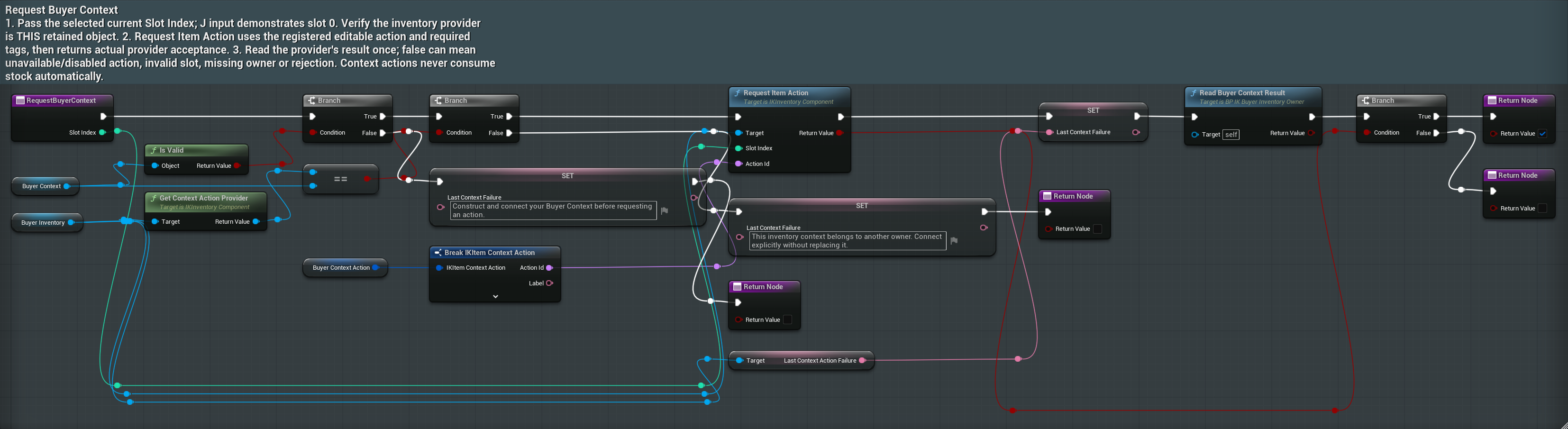
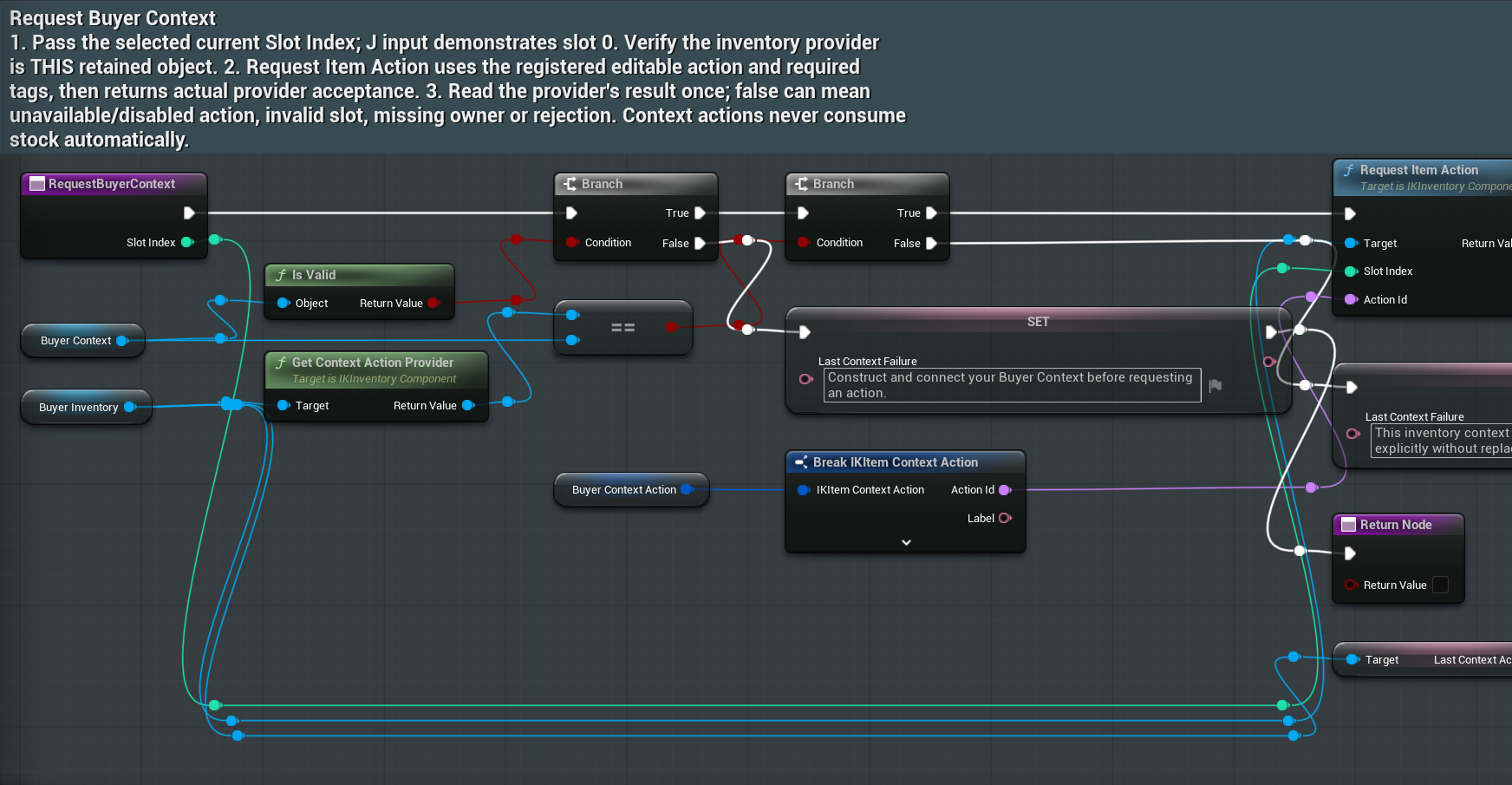
- Pass Slot Index from the current selection. Validate Buyer Context and compare Get Context Action Provider with that object you keep in a variable.
- Missing or different ownership returns False with a useful Last Context Failure.
- Break Buyer Context Action for Action Id and call Request Item Action on Buyer Inventory. Store Last Context Action Failure.
- Read Buyer Context Result, then return the Request Item Action acceptance. The sample counts a request without consuming stock.
08. Remove this owner’s gameplay connection
/InventoryKit/InventoryKit/Examples/BP_IK_BuyerInventoryOwner
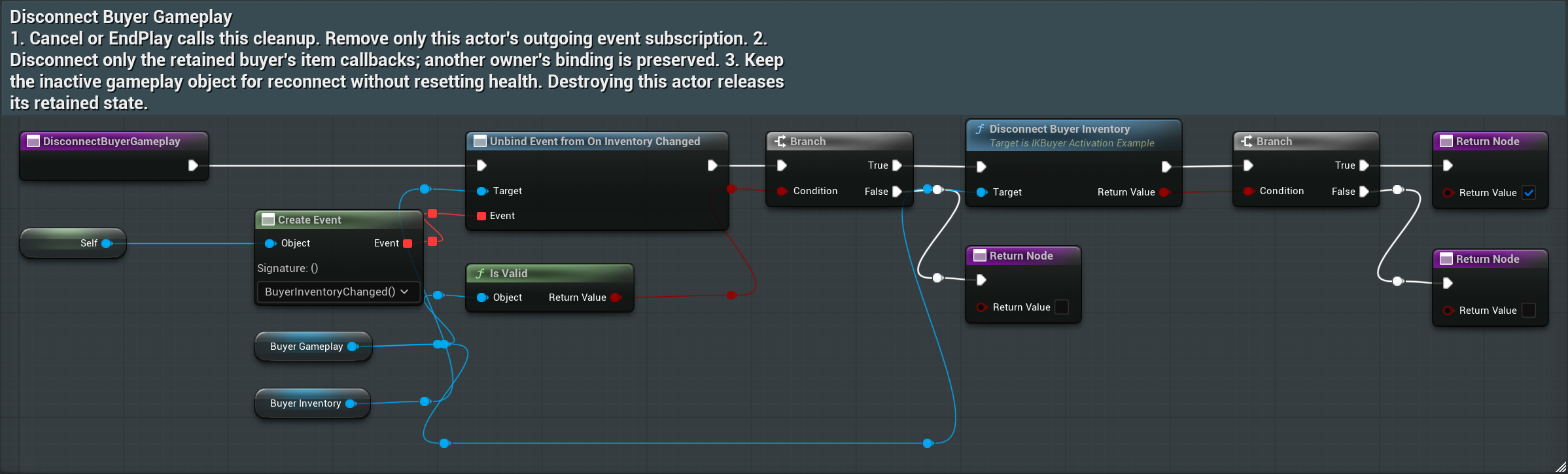
My Blueprint > Functions > DisconnectBuyerGameplay
What to connect and what happens
- Remove this actor’s BuyerInventoryChanged event binding from Buyer Inventory.
- Validate Buyer Gameplay and call Disconnect Buyer Inventory on that object you keep in a variable.
- Return the actual result. Keep the object for a later explicit reconnect rather than resetting its health.
09. Remove this owner’s context registration
/InventoryKit/InventoryKit/Examples/BP_IK_BuyerInventoryOwner
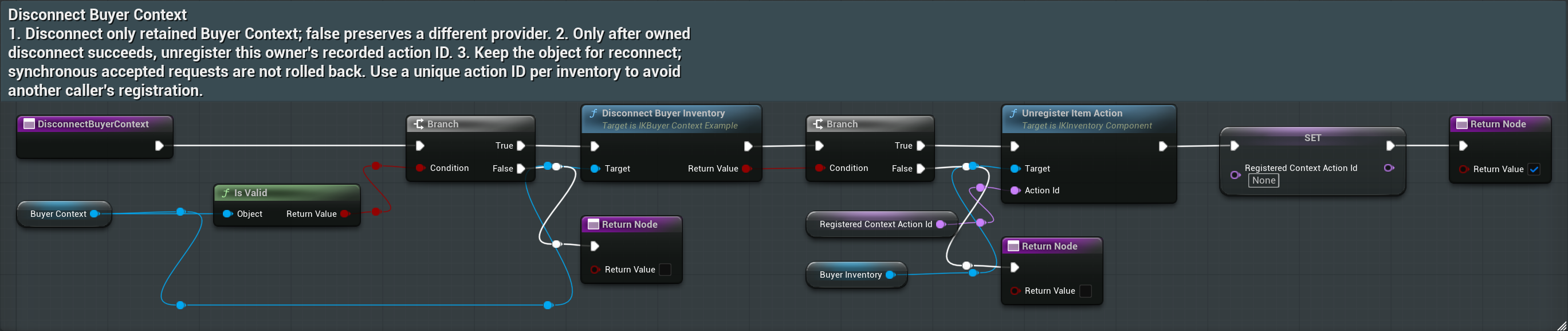
My Blueprint > Functions > DisconnectBuyerContext
What to connect and what happens
- Validate Buyer Context object and call its Disconnect Buyer Inventory.
- Only after an owned disconnect succeeds, unregister Registered Context Action Id on Buyer Inventory.
- Clear the recorded ID and return True. False leaves another provider connected; it is not permission to clear someone else’s registration.
10. Equip a bag into an empty socket
/InventoryKit/InventoryKit/Examples/BP_IK_BuyerInventoryOwner
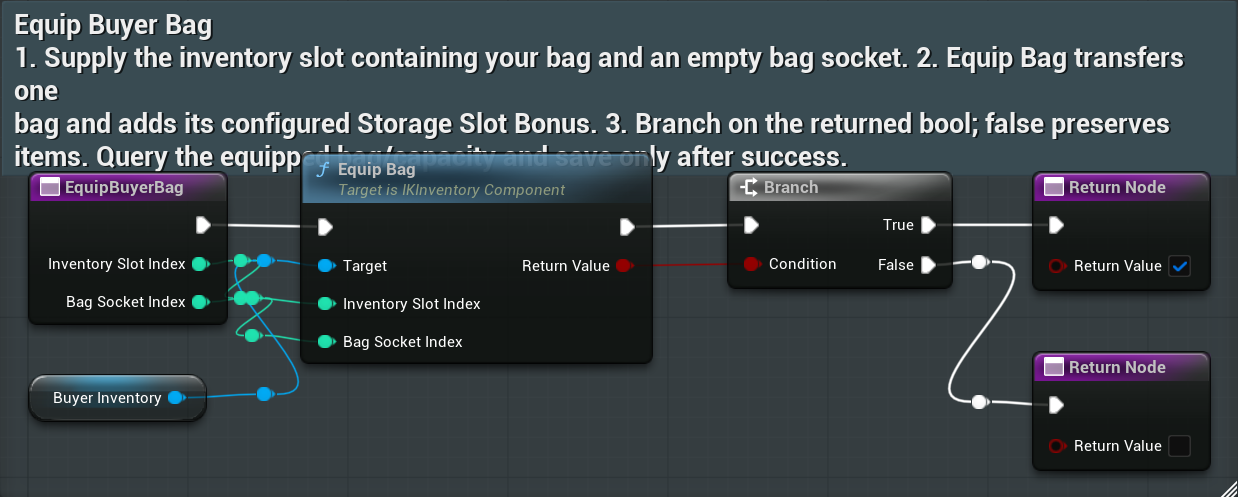
My Blueprint > Functions > EquipBuyerBag
What to connect and what happens
- Supply the Inventory Slot Index containing the bag and an empty Bag Socket Index.
- Call Equip Bag on Buyer Inventory with those inputs. Branch on Return Value.
- After True, query Get Equipped Bag and Read Buyer Storage State; save separately if required.
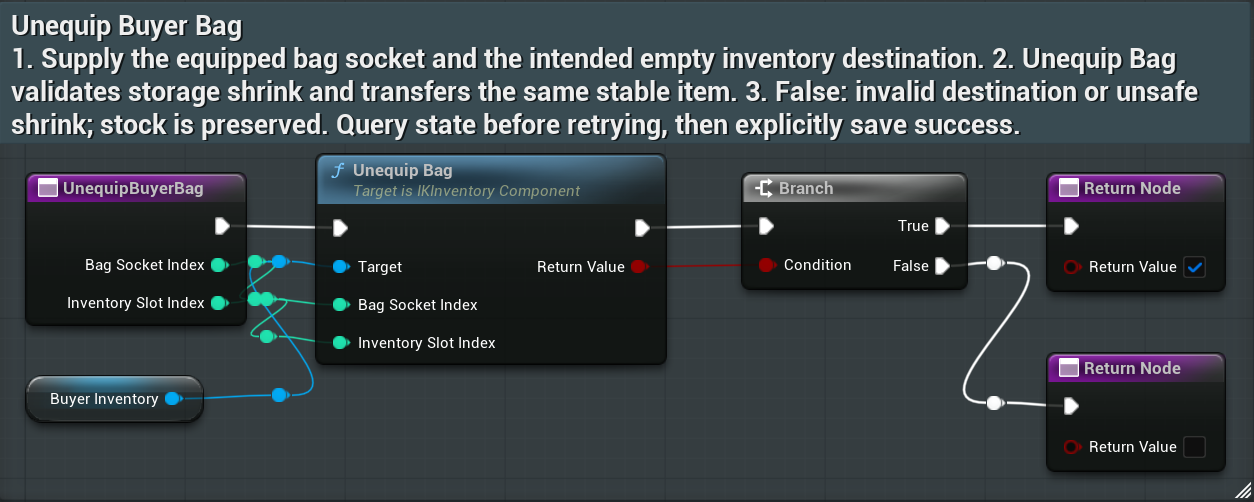
11. Return the same bag without losing items
/InventoryKit/InventoryKit/Examples/BP_IK_BuyerInventoryOwner
My Blueprint > Functions > UnequipBuyerBag
What to connect and what happens
- Supply the equipped Bag Socket Index and an empty Inventory Slot Index that will remain inside the reduced capacity.
- Call Unequip Bag on Buyer Inventory and branch on Return Value.
- If refused, read occupancy and destination before retrying. After success, refresh state and save as required.
12. Save after an accepted operation
/InventoryKit/InventoryKit/Examples/BP_IK_BuyerInventoryOwner
My Blueprint > Functions > SaveBuyerInventory
What to connect and what happens
- Configure the component’s Save Game Slot Name and User Index for the intended profile.
- Call Save Inventory on Buyer Inventory, refresh buyer state, then branch on the Save Inventory result.
- On False, report a storage failure. Retry saving only; do not repeat use, equip or item grants.
13. Load inventory and refresh observed values
/InventoryKit/InventoryKit/Examples/BP_IK_BuyerInventoryOwner
My Blueprint > Functions > LoadBuyerInventory
What to connect and what happens
- Use the same save slot name and user index used to save.
- Call Load Inventory on Buyer Inventory, then Refresh Buyer State.
- Return the Load Inventory result. Do not call Seed Buyer Items after loading or reconnecting.
14. Configure the owner’s defaults
BP_IK_BuyerInventoryOwner > Class Defaults > Inventory Kit
- Assign Buyer Provider Class and Buyer Context Provider Class to your copied activation and context Blueprints.
- Assign Initial Item Asset and Initial Quantity (3 for this test), plus Buyer Bag Asset. Set Auto Receive Input to Player 0 for the local teaching actor.
- Expand Buyer Context Action: Action Id BuyerInspect, Label Study item, Tool Tip Forward the selected item to buyer-owned context logic, no Required Tags and Enabled checked.
- Runtime references such as Buyer Context may be None in Class Defaults. Construction fills those at runtime; do not manually assign an unrelated object.
15. Configure the inventory component
BP_IK_BuyerInventoryOwner > Components > BuyerInventory > Details
- Select BuyerInventory in Components, not Variables under My Blueprint. If the panel is hidden, enable Window > Components.
- Search Setup: Capacity 30, Toggle Key I, Secondary Toggle Key B, toggle and Manage Input Mode enabled. This sample disables Show Standalone Launcher and Auto Save After Mutation.
- Search Persistence: Save Game Slot Name IKBuyerOwnerDemo and User Index 0. Replace with your profile identity for production.
- Search Visible Bag Socket Count, Preview Items and Audio Feedback. The supplied sample has five sockets, preview items enabled and optional sounds enabled with no sound assets assigned.
16. Query readiness without changing gameplay
/InventoryKit/InventoryKit/Examples/BP_IK_BuyerActivation
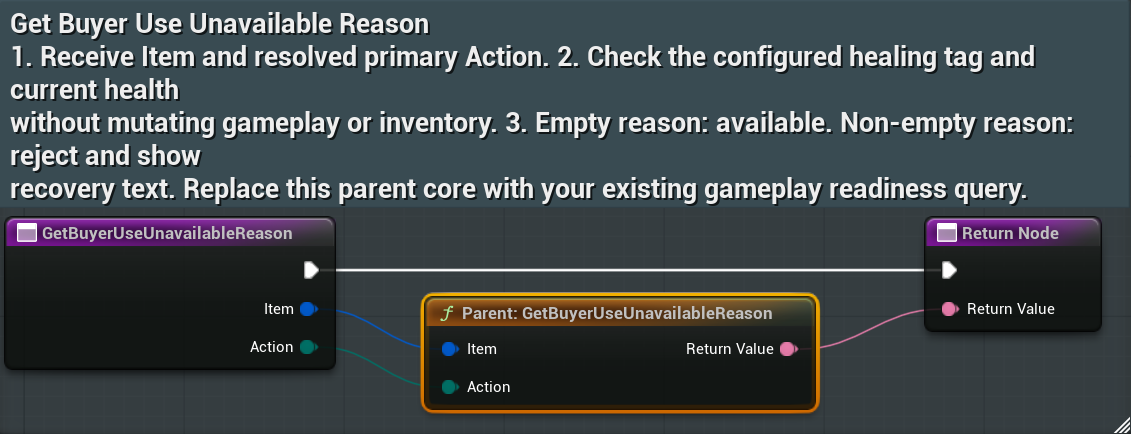
My Blueprint > Functions > GetBuyerUseUnavailableReason
What to connect and what happens
- Receive Item and the resolved Action from Inventory. Pass both to the parent query for the supplied healing rule.
- Replace the parent query with your own checks that do not change the game when integrating your game.
- Return empty Text when available or a useful non-empty reason when refused. Never heal, consume, spawn or grant here.
17. Apply your gameplay effect once
/InventoryKit/InventoryKit/Examples/BP_IK_BuyerActivation
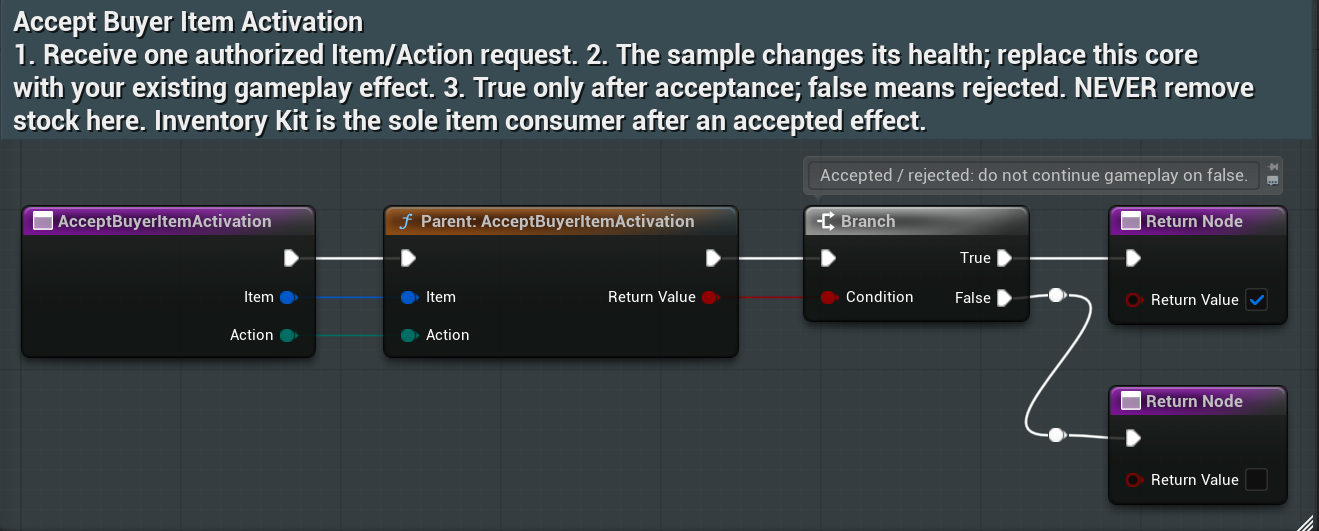
My Blueprint > Functions > AcceptBuyerItemActivation
What to connect and what happens
- Receive the authorized Item and Action. Pass them to the parent healing operation, or replace that core with your own gameplay owner.
- Branch on the operation’s true/false result. Return True after acceptance and False after rejection.
- Never remove stock in this callback. Inventory performs configured consumption after acceptance.
18. Query context availability
/InventoryKit/InventoryKit/Examples/BP_IK_BuyerContext
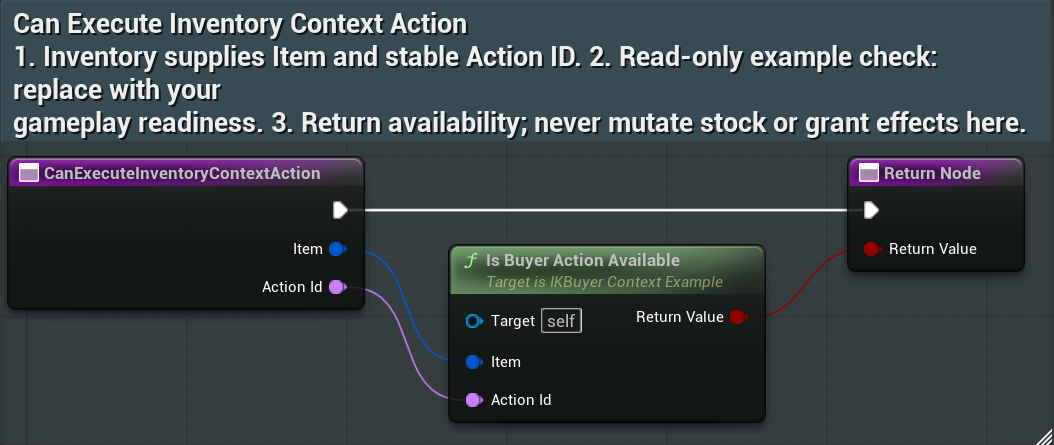
My Blueprint > Functions > CanExecuteInventoryContextAction
What to connect and what happens
- Pass incoming Item and Action Id to Is Buyer Action Available on Self.
- Forward its Boolean directly to Return Value. Replace the helper with your own check of whether your game allows the action if needed.
- Do not mutate stock or apply effects during availability queries.
19. Run the context action and return its result
/InventoryKit/InventoryKit/Examples/BP_IK_BuyerContext
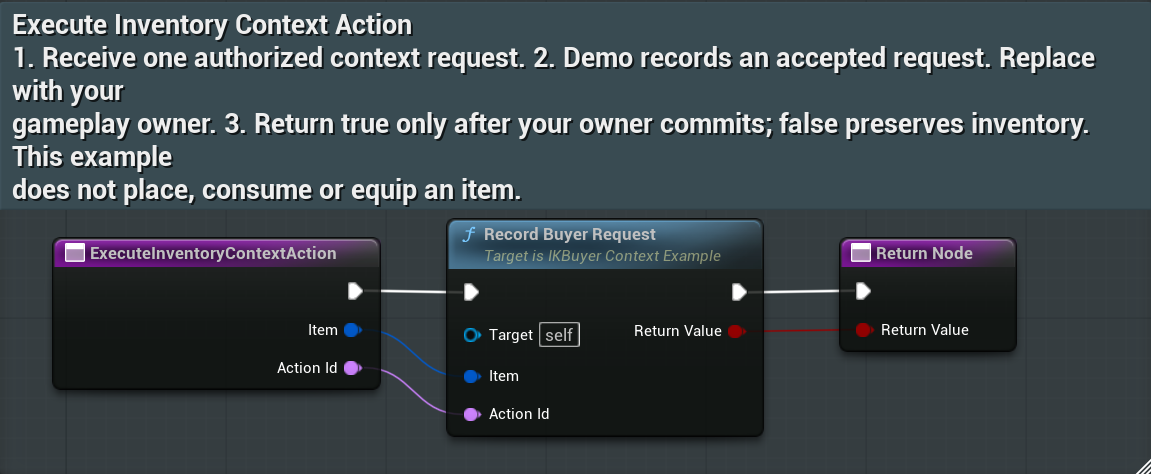
My Blueprint > Functions > ExecuteInventoryContextAction
What to connect and what happens
- Pass Item and Action Id into Record Buyer Request on Self for the demonstration.
- Replace that call with your actual gameplay operation that finishes before returning for production.
- Forward the actual result to Return Value. Return True only once your game completes the operation; do not infer acceptance from entry into the graph.
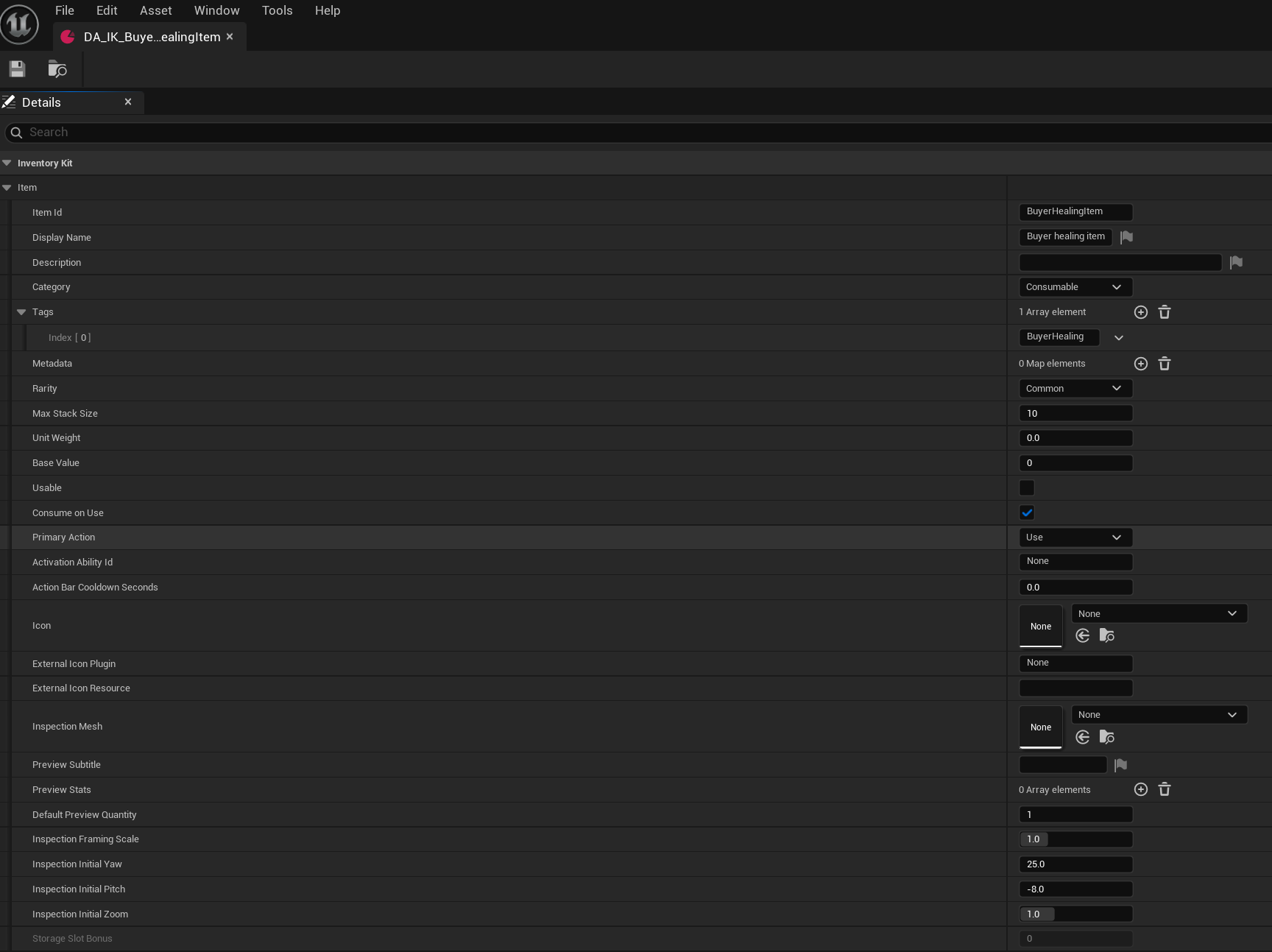
20. Define the buyer healing item
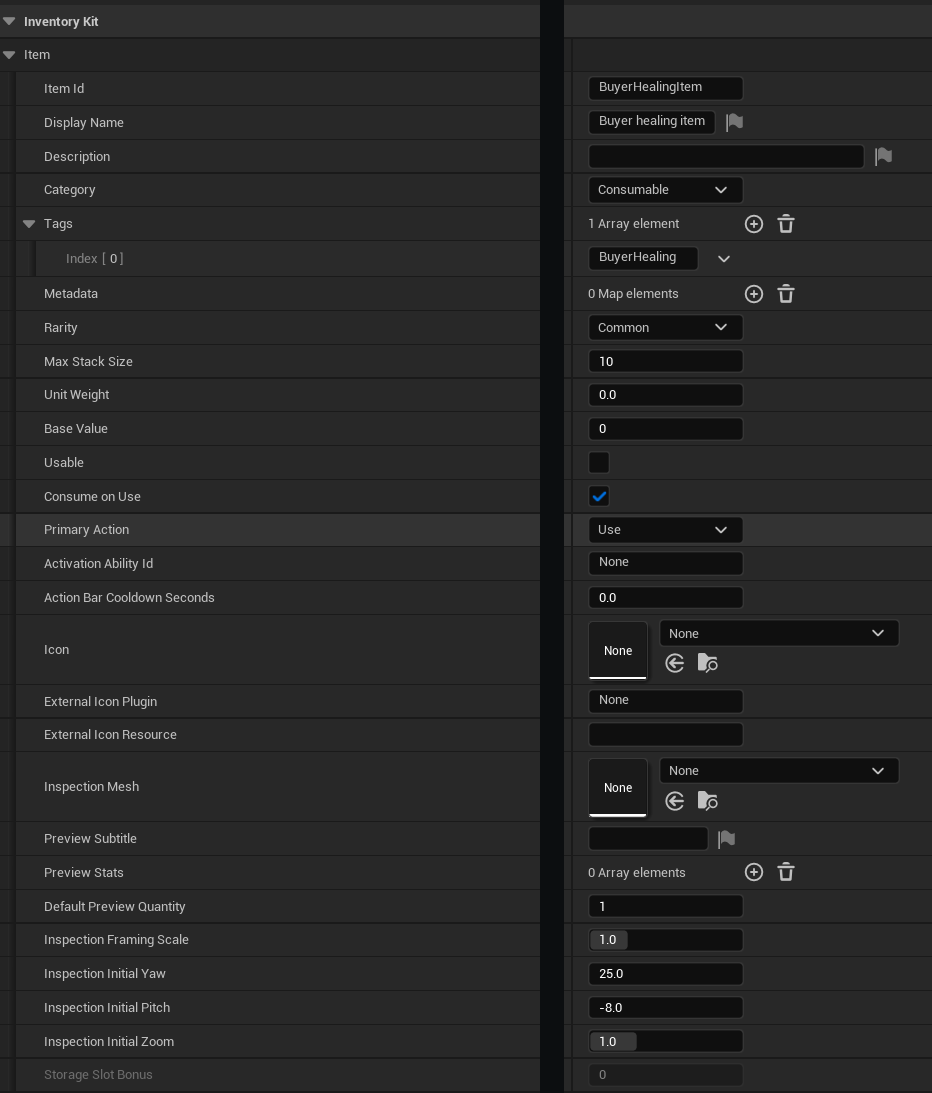
/InventoryKit/InventoryKit/Examples/DA_IK_BuyerHealingItem > Details > Inventory Kit > Item
- Duplicate the asset and choose a stable unique Item Id. Sample: BuyerHealingItem, display name Buyer healing item, Category Consumable.
- Expand Tags and retain BuyerHealing for the supplied rule. Max Stack Size is 10; Primary Action is explicitly Use; Consume on Use is enabled.
- The legacy Usable checkbox is off. Explicit Primary Action Use resolves the action, so do not treat that checkbox alone as the use policy.
- Assign your own icon and optional mesh and preview presentation. The integration sample leaves them None. Point the copied owner’s Initial Item Asset at this definition.
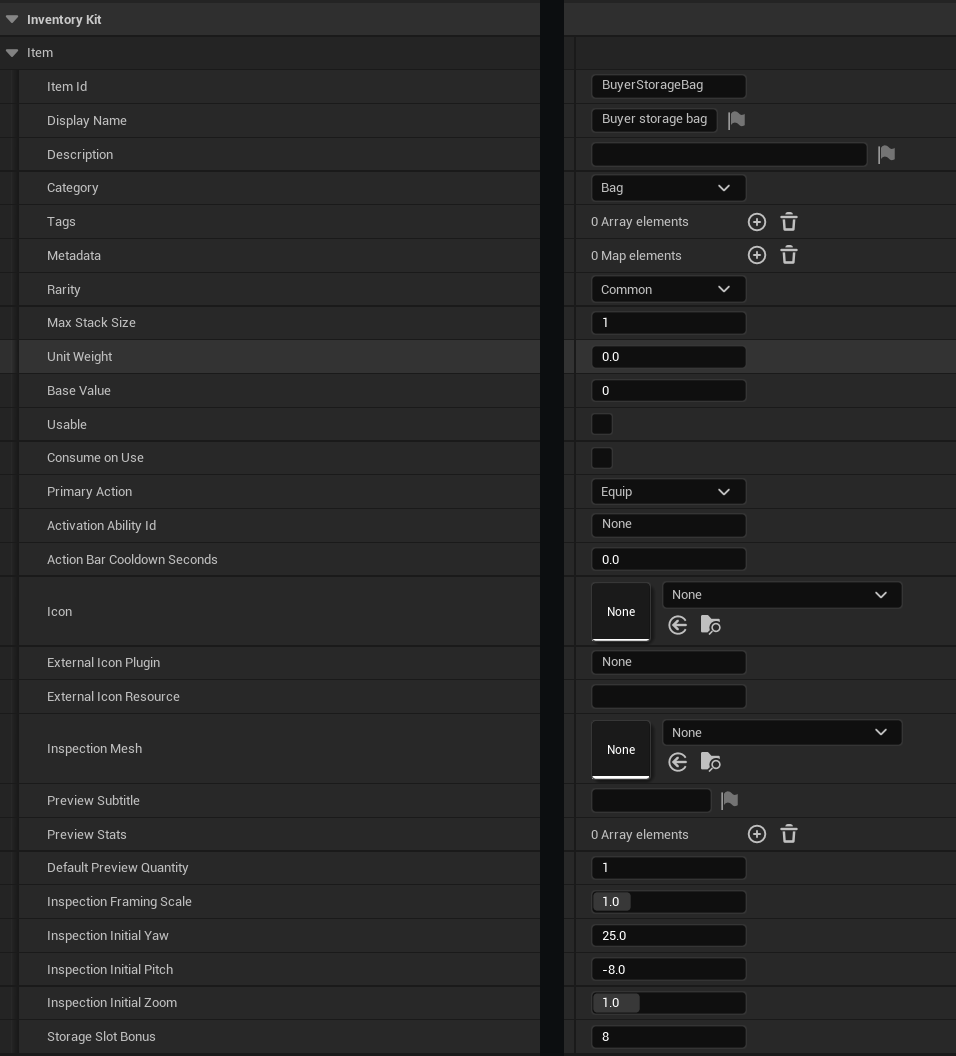
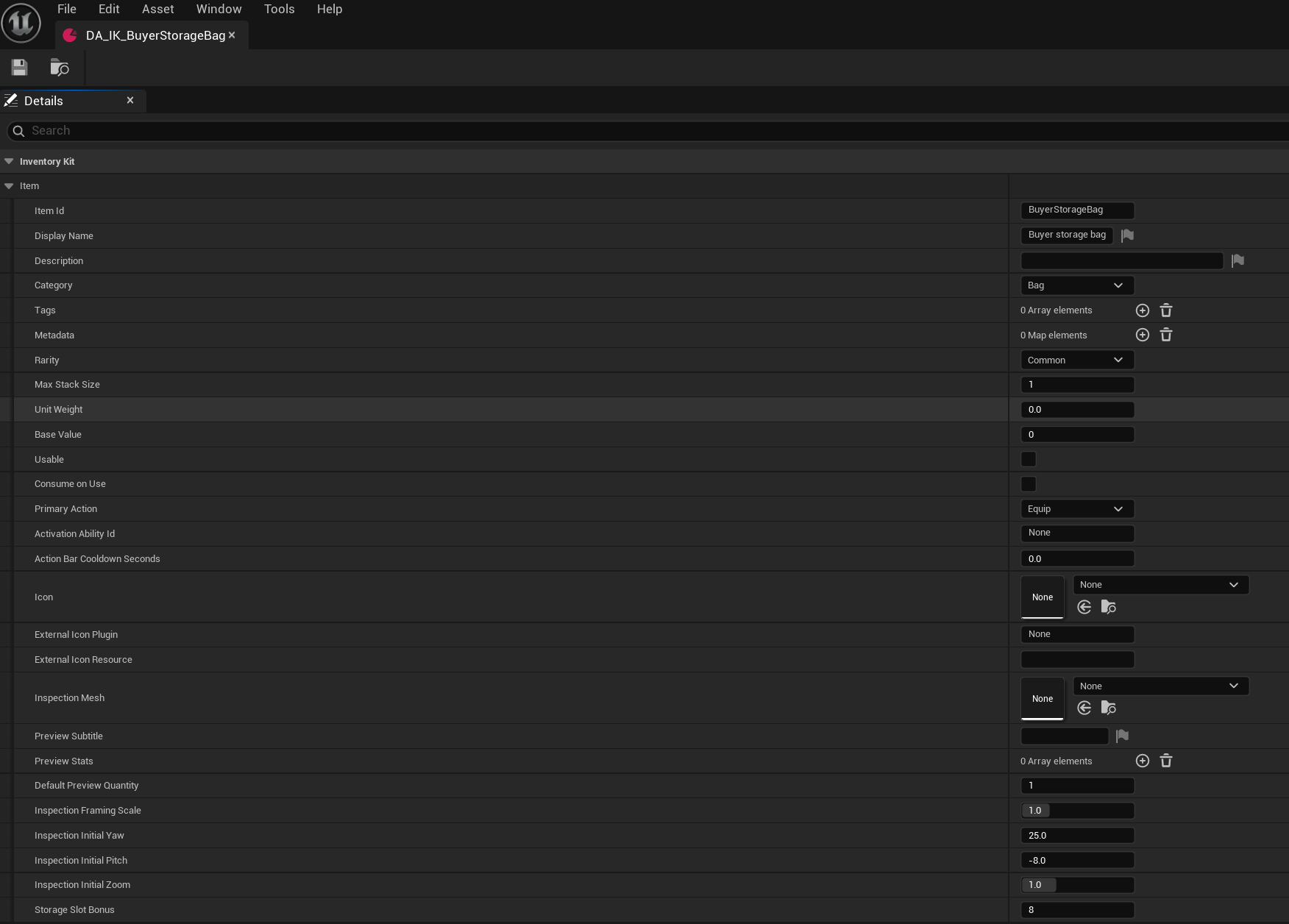
21. Define the buyer storage bag
/InventoryKit/InventoryKit/Examples/DA_IK_BuyerStorageBag > Details > Inventory Kit > Item
- Duplicate the asset and give it a stable unique ID. Sample: BuyerStorageBag, Category Bag, Max Stack Size 1.
- Set Primary Action Equip and Storage Slot Bonus 8 for the example. Consume on Use is off.
- Assign the definition to Buyer Bag Asset. Call Add Buyer Bag explicitly, inspect the add result, then equip the resulting slot through Equip Buyer Bag.
- For your own bag, set its bonus within the supported total capacity and test both accepted equip and refused capacity reduction that would lose items.
Additional owner hooks for your UI
These functions are on BP_IK_BuyerInventoryOwner. Search their exact names in My Blueprint. They use the same same inventory component and providers shown above.
- SeedBuyerItems: reads Initial Item Asset, calls Add Item and retains Last Initial Stock Result. Handle remaining quantity explicitly.
- AddBuyerBag: adds one Buyer Bag Asset and records Last Bag Add Result. Connection alone does not grant the bag.
- RefreshBuyerState / ReadBuyerStorageState: read current health, item count, capacity, equipped bonus and occupied slots for your UI.
- MoveBuyerItem / SplitBuyerStack: pass current source/destination indices and, for a split, a valid positive quantity smaller than the source. Branch on the mutation result.
- SortBuyerInventory: supplies Mode and Descending to Sort Inventory By and reads storage state. The sort node has no success output. Read the resulting inventory rather than treating the wrapper result as proof of a transfer.
- ConfigureBuyerUI / ReadBuyerUIState / ShowBuyerInventoryUI / CloseBuyerInventoryUI: apply settings or visibility to the existing component, then read actual values. Save separately when required.
- CopyBuyerPreviewBag: developer aid for a configured preview ID and empty socket. Use AddBuyerBag and EquipBuyerBag for your real pickup flow.
Equivalent C++ integration
- Add InventoryKit to your game module’s Build.cs dependencies. Public integration headers include IKInventoryComponent.h, IKInventoryTypes.h, IKBuyerActivationExample.h, IKBuyerContextExample.h and IKItemContextActionProvider.h.
- Retain provider UObjects with reflected ownership for the connection lifetime. Construct with a valid gameplay owner as Outer; do not let a temporary provider disappear while bound.
- Use the same ConnectBuyerInventory, RequestBuyerUse and DisconnectBuyerInventory flow exposed to Blueprint. For context, implement the provider interface and register/request the unique item action on the same inventory component.
- Read add-result quantities and true/false result/failure outputs. Keep availability read-only and effects synchronous. Inventory remains the sole configured consumer after accepted item activation.
- Remove your event subscriptions and owned provider bindings at EndPlay. Keep health saves, server authority and asynchronous operations in your game.
The included NativeBuyerExample folder contains a public-header integration example and its README. It is a separate optional development probe, not a required runtime plugin. Use the example as reference without modifying InventoryKit source.
Support and version 1.1
For support, contact support.blackironspine@proton.me. Include the engine version, Inventory Kit version, which example/component you used, exact reproduction steps, returned failure text and relevant logs. Do not send account credentials or private save data.
This 1.1 guide covers installation, daily use, owner setup, Blueprint activation/context hooks, bag storage and persistence. The illustrations show the editable examples, including the simplified activation and context graphs.