Version 1.0.0 · Unreal Engine 5.8 line · source-only plugin; manual installation requires the compatible C++ toolchain. See installation and integration boundaries below.
Dialogue & Interaction: start here
Item reach, pile-safe drops and physical collision: see Item safety and physics for the exact settings and visual test checklist. World interaction has a configurable reach limit; bag items remain usable after walking away from their original spawn.
Adding NPC menus? Start with NPC integration examples for a first Blueprint reply, branching dialogue, custom services, C++ equivalents and exact setup paths. See NPC Conversation Halo for the complete configuration reference.
Adding your own items or connecting an inventory? Start with Connect your own items — Blueprint guide. It includes BP_CatalogExample, DA_BuyerItems, arbitrary catalog IDs, the exact pickup/placement test and the buyer-owned inventory contract. The built-in Preview Collection below is optional sample content, not a required item-ID list.
Try it in your level
Connecting an action or equipment system? See Action and equipment examples
for the editable BP_CustomActionExample and BP_EquipmentCatalogExample graphs,
success/refusal/cancellation checks, and optional public-header C++ counterparts.
These demonstrate integration contracts, not a full shop, combat or equipment system.
Fresh Third Person installation
- Install the single DialogueInteractionSystem folder into your project's
Plugins folder. Keep Unreal's built-in Interchange Assets plugin enabled. No other BIS plugin is required. A source-only install requires the Unreal-compatible C++ build toolchain; a successful source build is not evidence for a separately distributed binary package.
- Enable Dialogue & Interaction and restart the editor if requested. Use a playable level with a possessed local character, such as the stock Third Person template.
- Press Play and use + Items in the Demo Bag to try pickup and placement. No BIS UI inventory, equipment or host module is required for this demonstration.
- To try the optional Rowan spawn button, enable Project Settings > Plugins > Dialogue & Interaction > Preview Tools > Enable Rowan. This is off in the plugin factory defaults. The studio's standalone demonstration enables it, but this download supplies a plugin folder, not a standalone project. Restart Play, click + Rowan, approach him and tap E.
- For your own NPC or catalog, follow the linked Blueprint guides above. Enabling a demo does not connect your production inventory, equipment or commerce system.
Enable the plugin in a project with a playable character, then press Play. The temporary Demo Bag opens immediately in the sample setup. Click + Items, or open settings with L or the launcher and choose SPAWN ITEMS. The collection drops directly in front of your character. The header control becomes − Items and removes only this tool's sample actors. The underlying Test Bag Blueprint APIs retain their existing names; Demo Bag remains an optional temporary demonstration, not a production inventory.
With Enable Rowan turned on in your project, + Rowan appears in the Demo Bag header, alongside the item spawn control. Click it and approach Rowan: E or right-click opens the optional NPC Conversation Halo. The button becomes − Rowan and removes only the Rowan created by this tool. Nothing spawns automatically. BIS UI keeps its existing inventory/suite Rowan spawn control instead of displaying duplicate DIS controls. Item features remain usable without conversation. L opens Settings without opening a sample dialogue; conversation appearance controls are under PRESENTATION.
Pick up a sample with right-click when the BIS hand appears, or tap E nearby. To move a world item, point at it, hold E for 1 second and release. Continue holding for 2 seconds total instead to take it into hands. Left-click and drag its Demo Bag icon outside the bag to drop it on the ground in front of your character; releasing inside the bag cancels the drag. Right-click the icon for the existing Place, Hold or Drop menu. The matching text controls in the Demo Bag header toggle Rowan and the physical collection; tooltips explain the actions. Hold F for 1 second to drop the held item; release early to cancel. Aim placement at a surface, then left-click to place. Escape cancels without consuming the item [in Play in Editor, Escape may stop Play]. Wheel turns, Shift + wheel raises clearance, Ctrl + wheel tilts, and Alt + wheel rolls. Right-button camera dragging does not place an item.
The display bench blocks the character and supports landing on top; small loose items do not block walking. Both spawn buttons play the same 1.8-second item-spill sound once after a successful spawn. Removing the collection and unsuccessful spawn attempts are silent. Under Project Settings > Plugins > Dialogue & Interaction > Preview Audio, change Spawn Items Sound, clear it for silence, or adjust Spawn Items Volume (default 0.7). This is a button cue, not per-item physics impact audio.
Bag drag-out and Drop use your character's current location and facing, even after you walk far away from where the item was collected. Loose pieces fall a short distance, tip and settle under physics. If there is no surface below the forward drop point, the item stays in the bag. Change Item Drop Distance and Item Drop Height under Project Settings > Plugins > Dialogue & Interaction > Preview Physics; mass and damping are editable per item in Preview Collection. Initial-spill settling assistance is optional and disabled by default for natural movement. The display bench retains separate stability assistance.
There are no table slots or three-mushroom placement limit. Collision must describe a real surface; the preview is not an unsupported mid-air placement tool. Mushrooms stack up to five in the demo bag. The bag and carrying state are temporary examples, not a production inventory or save system.
Write your first conversation
- In the Content Browser, choose Miscellaneous > Data Asset and select DISDialogueDefinitionAsset.
- Give DialogueId a unique name. Set StartNodeId to Greeting.
- Add a Nodes entry with NodeId Greeting, a SpeakerName and a Line of dialogue.
- Add a choice: give it a unique ChoiceId and readable Text. Set NextNodeId to the name of another node, or enable Close After Selection to finish.
- Add that next node. Every next-node name must match an existing node. Leave RequiredTags empty until you need conditional answers.
- Add a DIS Interactable Component to your NPC actor. Choose the dialogue interaction type, assign the asset, set its prompt/range, and use the Talk cue. Ensure the actor's collision can be hit by a Visibility query.
- Play and walk within range. Test every answer and its return/close path. Invalid dialogue definitions are rejected with feedback.
Portraits can render the NPC actor. Adjust Portrait Focus Bone, Offset and Camera Distance for your rig; a custom skeleton may need explicit framing. Do not assume every custom rig has a bone named head.
Make an object usable
For a door, shop or other game action, add the same component but choose the custom-action interaction type. Set a stable InteractionId and ActionId, and a Pickup or Use cue as appropriate. On the owning local player's DISDialogueSubsystem, bind OnInteractionRequested. Your game performs the action, then calls CompleteInteraction with success or failure. Leave Auto Complete Demo Action disabled for buyer gameplay.
For the included local placement example, use RegisterPlaceableMesh or RegisterPlacementSurface as described in PlacementAndHolding.md. Registration alone does not add a real inventory, multiplayer authority or saved placement.
Connect quests, services or cinematics
Choose a Quest, Service or Custom intent on an answer and set its ActionId. Bind the corresponding OnQuestChoiceRequested, OnServiceChoiceRequested or OnCustomChoiceRequested event. Your own system decides what that action does. There is no mandatory Quest, Inventory, Targeting or GAS dependency. A cutscene remains controlled by your game.
For quest conversations, optionally set a node's Quest Title and Quest Objective in its Dialogue Definition. They appear beneath the spoken line. These fields are presentation only: your quest system still owns acceptance, progress, rewards, and completion. Leave both empty for ordinary conversation.
Keep only the features you need
The subsystem exposes setters for built-in dialogue UI, portraits, launcher, activity feed, center feedback, pickup icons, pointer interaction, proximity interaction, persistent cursor and precision placement. Hiding the built-in dialogue UI leaves dialogue state/events available for your own presentation. Save Appearance Settings persists the supported presentation choices; it does not save quest or inventory state.
Open Dialogue & Interaction Settings with L or the launcher, then choose SPAWN ITEMS. The preview set is anchored directly in front of your character, rather than searching around for a flatter ramp. The display bench is included even on uneven ground and falls under physics along with the loose pieces. At an edge with no ground directly ahead, the items still spawn at that forward point and may fall away. Hover a piece to see its name, type and available interaction, then use E or right-click to pick it up. The same button changes to REMOVE COLLECTION and clears only actors owned by this preview system.
Developer preview switches
Before starting Play, open Edit > Project Settings > Plugins > Dialogue & Interaction, then the Preview options. These are project-level decisions, not player appearance preferences.
- Enable Preview Tools is the master switch: turn it off to disable the built-in example spawning and test bag, and hide their settings controls.
- Enable Rowan gates the Spawn/Remove Rowan settings row and preview API. It is enabled in the standalone DIS project's DefaultGame.ini; the shared plugin default remains off for composed hosts. Integrated suite coordination hides the duplicate DIS row.
- Enable Sample Items controls the collection-spawn tools. The compatibility switches still gate Fly Agaric, Silverblade, Nightfall and the bench.
- Preview Collection is the editable item catalog. Each entry has a stable ID, display name, soft mesh/material/icon references, scale, an optional size-reference item, copies, mass, damping, flat-rest preference, CCD, behavior flags and an optional collision-proxy size. Disable or replace entries without changing C++.
- Enable Test Bag permits the temporary bag and is enabled by default in the sample setup. Turn it off when supplying your own inventory.
- Show Preview Buttons hides the preview controls from the in-game settings panel while leaving enabled preview functions available to your own Blueprint or code.
Stop and restart Play after changing these project settings. Disabled features cannot be re-enabled by a player's saved appearance preferences. Your own dialogue definitions, NPCs and registered objects remain separate from these built-in previews. Disabling a feature does not delete its asset files or automatically exclude them from a packaged game.
The Preview folder and Test Bag are optional teaching content. The bag is temporary, is not saved or replicated, and is not a production inventory system. Loose preview actors prefer usable authored simple collision and otherwise use centered local box proxies; the plugin never rewrites a shared mesh BodySetup at runtime. Landing points are traced at the player's forward-facing collection anchor and each loose item's intended position; physics is released in short stages so pieces can fall and settle. Pickup and holding stop physics, while Drop restores collision and simulation. The included Rowan has editable presentation fields in BP_RowanConversation. Existing tagged BIS NPCs retain their host-owned appearance and animation; no separate Rowan Core plugin is needed for the included example. The core dialogue and interaction APIs do not require Preview content. Disable unwanted catalog entries before removing their asset folders, then check your project's cooking rules and validate a clean install before distributing your build.
Before shipping your game
The Activity log shares the Back glass opacity control with the dialogue and settings panels. Its single black fill defaults to22%; the border remains a separate outline. Mouse-wheel scrolling, the right-hand scroll bar and Shift-drag repositioning remain available.
Test mouse and keyboard/controller navigation, cancel/retry, your own meshes and collision, multiple UI windows, camera restoration, and packaged asset loading. This document is a setup guide, not certification that every host or custom rig is already tested.
Connect your own items — Blueprint guide
This plugin supplies local interaction, a physical static-mesh item representation, pickup feedback, simple holding, precision placement and dropping. It does not supply your game's inventory, equipment rules, stats, crafting, save/load, multiplayer authority or character animations. The sample bags are temporary teaching tools.
Engineering validation used Unreal Engine 5.8.3, Win64: official Editor/Game Development/Game Shipping builds, strict cook and bounded buyer integration checks passed. Complete buyer examples, visual acceptance and final package/listing checks remain separate; these results are not release approval. The release report records the exact tested archive and checks. The descriptor declares Unreal's built-in Interchange Assets plugin. No Quartermaster Rowan Core, Inventory Kit or equipment plugin is required by the buyer catalog example.
You do not need to edit sample C++, use our sample item numbers, or add a switch statement for every item. A catalog can contain any number of definitions, subject to normal memory/performance limits. The sample bags have their own capacity limits; those are not catalog limits.
First successful test with the included items
- Enable Dialogue & Interaction and its declared dependencies. Use a level with a playable character and a floor that blocks Visibility traces. The character must be possessed by a local Player Controller.
- Press Play and use the existing SPAWN ITEMS control in Dialogue & Interaction settings. The included collection contains Weathered Tonic. No separate buyer sample actor or hotkey is needed.
- Pick up Weathered Tonic with E or right-click. Open the Test Bag (or BIS inventory when it owns the bag). Use its existing Place action, or hold E over a world item for at least one second and release before two seconds.
- Aim the hologram at a valid floor/table surface and left-click to place. Pick up the tonic again and use the existing bag Drop action or drag it out of the bag. It should land near the character's current position.
- Start placement once more and cancel. The hologram should clear without losing the item. In Unreal Editor, Escape can also stop Play; use Cancel Precision Placement from your own UI for an unambiguous cancellation test.
The full controls are in PlacementAndHolding.md. BP_CatalogExample does not change any keys or spawn an item on Begin Play. The included Weathered Tonic already demonstrates the normal item controls.
To inspect the buyer hookup, turn on Show Plugin Content and open DialogueInteractionSystem Content > DialogueInteractionSystem > Examples. DA_BuyerItems lists all 17 existing sample definitions: 16 loose items and the Weathered Display Bench placement surface. This is an editable catalog, not an additional spawn collection. BP_CatalogExample has three labelled sections: register the catalog on Begin Play, optional SpawnOneCatalogItem, and the ConnectTablePlacement / SpawnPlacementSurface table example. Item ID to Spawn in Class Defaults selects any catalog ID (WeatheredTonic initially). Optional events add nothing until called. The provider's Try Accept Item, Can Release Item, Try Release Item and Resolve Table Placement Item graphs identify replacement points. Example helpers maintain a session-only eight-item array; replace them with your own inventory operations. The bench is a placement surface, not a normal bag pickup. For your own table and inventory-only loot reconstruction, follow MarauderLootAndPhysicalPlacement.md.
What the example's optional events do
- SpawnOneCatalogItem stores the returned actor in Spawned Item. A failed spawn stores None and shows the Failure text; it does not add anything to the example bag. Correct the item ID/reference and call it again.
- ConnectTablePlacement installs this example as the table's inventory provider only when no different host provider or external resolver already owns that connection. Its Branch checks the result; failure leaves the existing owner alone and displays a hookup message. In BIS UI, do not replace the real inventory owner with this teaching provider.
- SpawnPlacementSurface creates one WeatheredBench by default. Change the Definition Id pin to your own registered Placement Surface ID. The returned actor is checked before showing failure feedback, so a successful spawn is not reported as a failure. This event does not put the table in a bag.
These events are examples you explicitly call from your own gameplay, not additional hotkeys. The table still uses Resolve Table Placement Item, Can Release Item and Try Release Item to choose and commit one eligible unit; cancellation keeps that unit owned by the bag.
Add your first item
- Duplicate DA_BuyerItems into your own project's Content folder and rename it, for example DA_MyItems. Alternatively choose Miscellaneous > Data Asset > DISItemCatalog.
- Open it, expand Items, and add an entry.
- Set Stable ID to your permanent item number/name, such as Potion.Small or 10027. Use a unique value. Unreal Name comparisons are case-insensitive, so
Potion and potion are the same ID.
- Set Display Name, optional Description, Mesh, and Icon. The ID is what your code stores; the display name is what players read. Renaming display text does not change identity.
- Set Scale, Mass Kg, Linear/Angular Damping, Simulate Physics, CCD, and Collision Proxy Extent if needed. Zero proxy extent derives a simple box from the mesh bounds. Values are centimeters/kilograms. Positive scale is required.
- Set Block Pawn if a loose item should obstruct the character. Placement Surface makes an item a stable placeable surface that blocks pawns and permits stepping up. It is a surface, not a normal bag pickup. Weapon is a simple holding/rest-orientation hint, not combat functionality.
- For the optional local holding demonstration, configure Hand Socket and Hand Transform for your character. A static mesh's pivot and hand fit matter. This does not retarget animation or implement equipment.
- On BP_CatalogExample, select your new catalog and change Item ID to Spawn to your new Stable ID. Connect its optional SpawnOneCatalogItem event to a button or gameplay action you own. Placing the Blueprint alone only registers the catalog; it does not spawn an item or bind a key.
Copies is used by the old sample collection button only. Spawn Catalog Item always creates exactly one unit per call. Match Scale To Item is optional and must reference a definition registered in the same batch or an earlier catalog. Leave it empty initially.
Ecosystem Item ID is an optional external inventory/hand-fit identifier. Leave it empty unless your adapter needs a different key. The catalog registry still looks up Stable ID, and the instance ID still identifies one unit; none of these identifiers is the display name.
The generic factory creates a centered box collision proxy and a visual static mesh. It uses PhysicsBody, blocks Visibility/world collision, ignores Camera, and optionally blocks Pawn. It does not edit the source mesh's collision asset. This is intentionally simple physics, not cloth, articulated armour, arbitrary collision profiles, or a complete equipment simulation.
Connect a catalog you already own
Get your local Player Controller's DIS Dialogue Subsystem (Get Local Player Subsystem). Keep that reference in your manager or provider Blueprint.
Choose one registration route:
- Register Item Catalog takes a DISItemCatalog Data Asset.
- Register Item Data Table takes a Data Table whose row structure is DISPreviewItemDefinition. This legacy structure name is retained for compatibility. Each row's Stable ID is the item identity; the Data Table row name is not substituted for it.
- Register Item Definitions takes an array of DISPreviewItemDefinition. Use Blueprint Make / Set Members nodes to translate rows from your existing catalog into this structure. This is the adapter path for a different item-number database.
Register once per local player/session, after that player's subsystem exists, before spawning. Multiple catalogs can be added if their IDs do not overlap. Registration validates the entire batch before storing anything. Check the boolean and display/log the Failure output. A duplicate ID or invalid row rejects the whole batch; it does not silently overwrite items. Registration stores snapshots, not a live view of an asset: stop and restart Play to test edited definitions.
Use Find Item Definition to look up a registered ID. Call Spawn Catalog Item with that ID, a world transform and your inventory provider object. Leave Instance ID empty to generate a GUID, or supply your own unique saved instance ID when restoring a world unit. Check the returned actor and Failure output.
A definition ID identifies a kind of item. An instance ID identifies one specific unit. Ten potions may share a definition ID but must have ten different instance IDs/actors. Do not use the definition ID as every spawned actor's instance ID.
For an actor you already spawned, use Register Catalog Item Actor instead. It needs a valid static mesh, a registered definition and a unique instance ID, and must not already be registered. This route uses your actor's existing root/collision geometry; configure that actor's physics yourself. Catalog scale/material/proxy generation is performed by Spawn Catalog Item, not by registering an existing actor. For skeletal or articulated equipment, keep a static placement proxy and implement the visible equipment/loose-body adapter in your own game, as BIS UI does for its armour.
Get DIS Item Instance Component from the returned actor to read its immutable definition snapshot, Instance ID and current State. The snapshot exposes mesh, icon, display name, description and settings to your inventory UI. Never use an actor's editor name or a sample actor tag as the inventory key.
Connect your inventory or equipment Blueprint
Create an actor or actor component Blueprint in your game. Under Class Settings > Implemented Interfaces, add DIS Item Inventory Provider. Pass that live actor/component into Spawn Catalog Item's Inventory Provider pin. Keep it alive for as long as it owns items, and in the same world as the items.
Implement these functions:
| Function |
Your responsibility |
| Try Accept Item |
Read the item's instance component. Check capacity/weight/rules. Add exactly one unit under its Instance ID. Return true only after that succeeds. On rejection, change nothing, return false and provide Failure text. |
| Can Release Item |
A read-only eligibility check. Confirm that the instance still belongs to this bag and is not equipped, locked, traded or otherwise reserved. Check the Place/Drop/Remove reason. |
| Try Release Item |
Recheck eligibility and atomically remove exactly one bag unit. Return true only after removal succeeds. False must leave the inventory unchanged. Called at actual placement/drop/removal commit, not just when the hologram starts. |
| Try Equip Item |
Optional. Your equipment system owns compatibility, slots, sockets, stats, animations and worn visuals. Return false with a reason when unsupported. Keep the bag/representation identity tracked; Can Release Item must reject equipped items until explicitly unequipped. |
| Item Representation Removed |
Unexpected actor destruction or representation cleanup: remove stale actor references. Decide whether a saved inventory unit should be reconstructed or discarded according to your game's policy. Do not blindly grant another unit. |
These callbacks are synchronous. Do not use Delay, asynchronous inventory requests, actor destruction, or calls back into pickup/place/drop/remove inside them. Can Release Item is read-only: true permits a later release; it never removes stock. For Try Accept Item and Try Release Item, false means no mutation; true means the requested one-unit operation has already committed. For networked games, implement a separate server-authoritative transaction adapter; this local sample is not a multiplayer framework.
Use the example provider graphs as the connection map. Replace Example Accept One, Example Can Release, and Example Release One with your system's operations. Leave their success/failure returns connected. Do not call both the example helper and your real inventory add/remove; that would transfer twice.
Use On Item State Changed for UI refresh/observation, not for granting inventory. It reports World, Carried, Held, Placing or Removed. Do not start another mutation during that notification; queue your next action after the callback returns. Holding state refers to DIS's own local hand demonstration. Equipment state inside a buyer provider belongs to that provider.
Catalog actors use their provider directly; the older On Interaction Requested custom-action event is not also fired for them. Continue using that older event plus Complete Interaction for non-catalog custom interactions such as a door or service.
Connect your bag buttons
- Pick up: call Pickup Item, or use the built-in interaction. It validates distance and checks actual carry success.
- Place: call Begin Carried Item Placement with the exact actor stored for that instance. The inventory keeps the unit while the hologram is open. Escape / Cancel Precision Placement retains it.
- Drop: call Drop Carried Demo Item with the actor. Despite its legacy name, it supports registered catalog items and their providers. It traces below the character's current forward drop point. No floor means no transfer.
- Hold/equip: call Hold Demo Item. With a provider, this calls Try Equip Item; without one, it uses the simple local hand-socket demonstration. It is not a combat system.
- Consume/remove: call Remove Catalog Item while the inventory still owns the unit. It asks Try Release Item with Remove, then destroys the representation. Do not remove the same inventory unit separately first.
Do not destroy an item actor after a successful pickup: DIS keeps it hidden as the representation used for placement/drop. If your inventory discards world actors or virtualizes large stacks, you must supply your own reconstruction and persistence policy. Create Carried Catalog Item reconstructs one hidden carried representation from an already registered Stable ID and an optional DIS Item Inventory Provider. It supports buyer catalogs as well as the samples; it does not register definitions or grant another inventory unit. Pass your provider, associate the returned actor with exactly one existing/reserved unit, and retain that association until release or cancellation. Your Can Release Item and Try Release Item callbacks must validate and commit that unit. Without a provider, the local demonstration bag owns the representation; do not use that fallback for buyer-owned inventory. A null return means reconstruction failed: keep the original inventory quantity unchanged. See MarauderLootAndPhysicalPlacement.md for the inventory-only stock workflow.
Do not put new buyer actors into the sample collection cleanup list. Remove Collection is for sample-owned actors only. Call Remove Catalog Item for each buyer-owned instance you actually intend to remove. Ordinary actor destruction is observable cleanup, not an atomic inventory removal request.
Ownership and safe failure
- Duplicate catalog IDs reject the full registration batch. Duplicate world instance IDs reject the new actor, not the original.
- A second pickup of an already carried unit cannot add another unit.
- A failed pickup keeps the visible world item. A failed drop retains the bag unit. A commit-time placement refusal clears the hologram and keeps the bag unit.
- If a world item was first picked up as part of placement, a provider-backed cancellation leaves that newly accepted unit in the bag. It does not silently undo the provider's transaction.
- A missing/destroyed provider fails closed: items do not switch to the temporary bag.
- Provider-owned items are excluded from the temporary Test Bag. In a production inventory integration, disable that sample bag in Project Settings as well.
- The example has no save/load. Definition snapshots and registrations are per-session. Reconnect catalogs/providers when creating a new local player/world and restore your own saved units exactly once.
- A provider must obey the atomic callback contract. DIS cannot undo unrelated gameplay mutations, a provider that lies about success, or code that destroys actors during callbacks.
If the first test does not work
- Nothing spawned: only one example actor should register that catalog. Check Failure text, Item ID to Spawn, a possessed local player, and that the mesh/icon/material can load.
- Pickup fails: move within Interaction Radius, check capacity/Reject Pickup on the example actor, and confirm the provider is live. Sample physics needs a valid floor.
- No item in BIS's bag: the isolated example intentionally uses its own small provider array. To use your actual bag, connect its add/remove operations; the plugin cannot infer your inventory schema.
- Optional example spawn does nothing: put one BP_CatalogExample in the level, confirm registration succeeds, choose a valid Item ID to Spawn, and call SpawnOneCatalogItem from your own button/gameplay. This Blueprint does not bind a key or spawn automatically.
- Hologram will not commit: aim at collision that blocks Visibility; move off other UI; release the initiating click. Verify that Try Release Item still accepts the unit.
- Hand fit looks wrong: adjust the definition's Hand Socket/Hand Transform for that rig, or supply your equipment adapter. Character-specific fitting is not automatic.
- Works in editor but missing in a packaged build: keep a hard reference to your catalog from a cooked Blueprint/asset and include its soft-referenced meshes, icons and materials in your project's cooking policy. Test the packaged game; editor loading alone does not certify packaging.
The shipped example, native BIS character bridge and standalone demo are different owners with explicit boundaries. Shared DIS plugin behavior remains identical in both projects; BIS character meshes, fitted armour physics, equipment rules and its inventory adapter remain BIS-only.
Actual Blueprint hookup screenshots
Open /DialogueInteractionSystem/DialogueInteractionSystem/Examples/BP_CatalogExample.
Duplicate it and DA_BuyerItems into your game before changing them. Choose the
copied Catalog and Item ID to Spawn in Class Defaults → Example.
Use full-size images to read pins on a small screen. These are actual editable
Unreal graph screenshots with numbered callouts, not generated Blueprint artwork.
For positive equipment and custom-action examples see BuyerActionExamples.md.
EventGraph section 1 — register your catalog
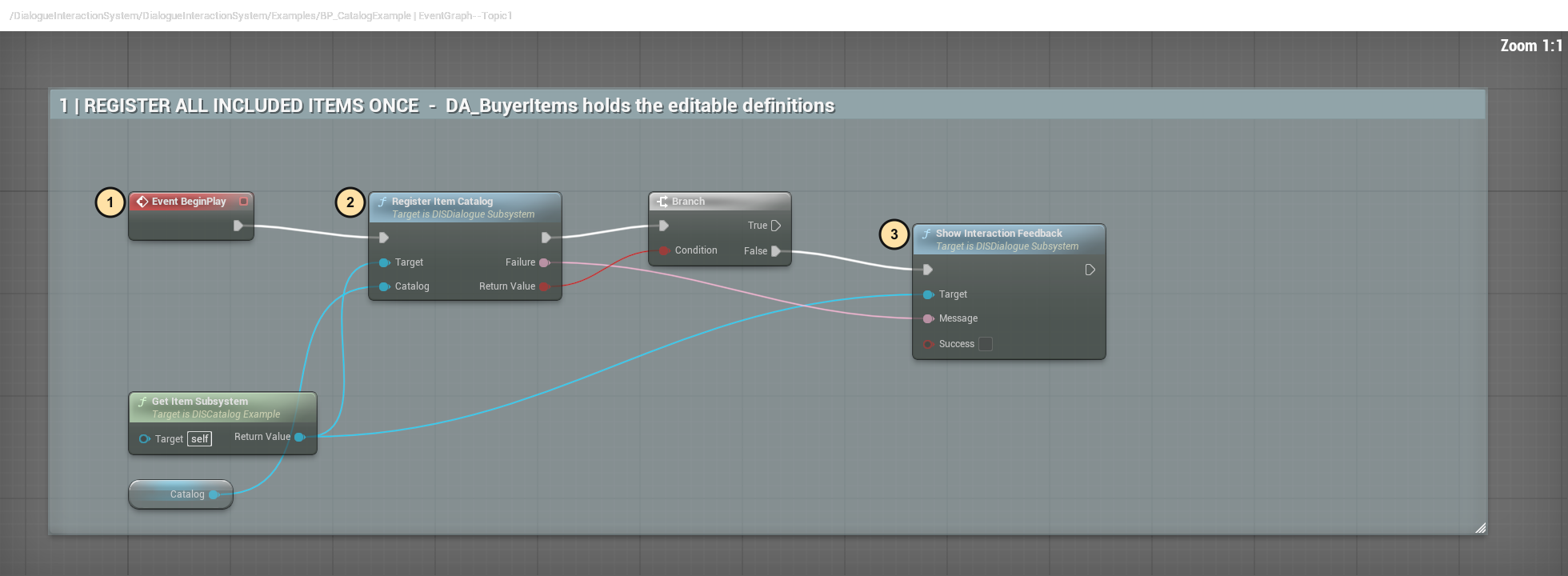
- Event BeginPlay obtains the local subsystem after possession.
- Register Item Catalog → Catalog receives your copied catalog. Its
Return Value drives the Branch; Failure explains invalid/duplicate data.
- Show Interaction Feedback runs on the false branch. Keep this refusal path;
do not spawn definitions from a failed registration.
EventGraph section 2 — explicit spawn
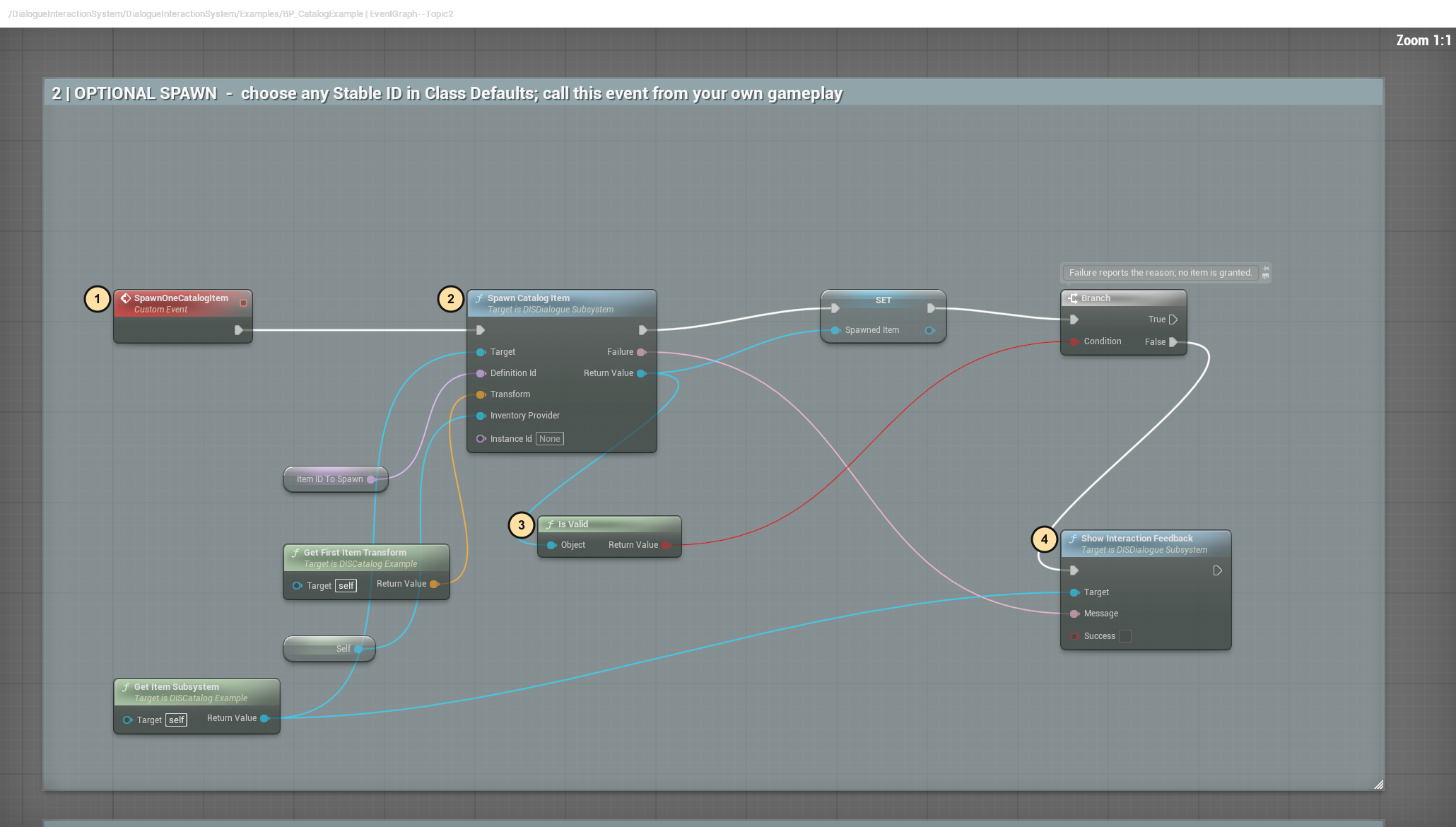
- Call SpawnOneCatalogItem from your own explicit test button/event.
- Spawn Catalog Item → Definition Id receives Item ID to Spawn. Pass
your subsystem to Target, desired Transform, and inventory provider.
The sample's Self supplies its small provider; replace it with yours.
- Is Valid → Object tests the returned actor before treating it as spawned.
- Show Interaction Feedback reports Failure without granting a unit.
Compile/Save, play, spawn, then perform the first pickup/placement test above.
TryAcceptItem — one pickup
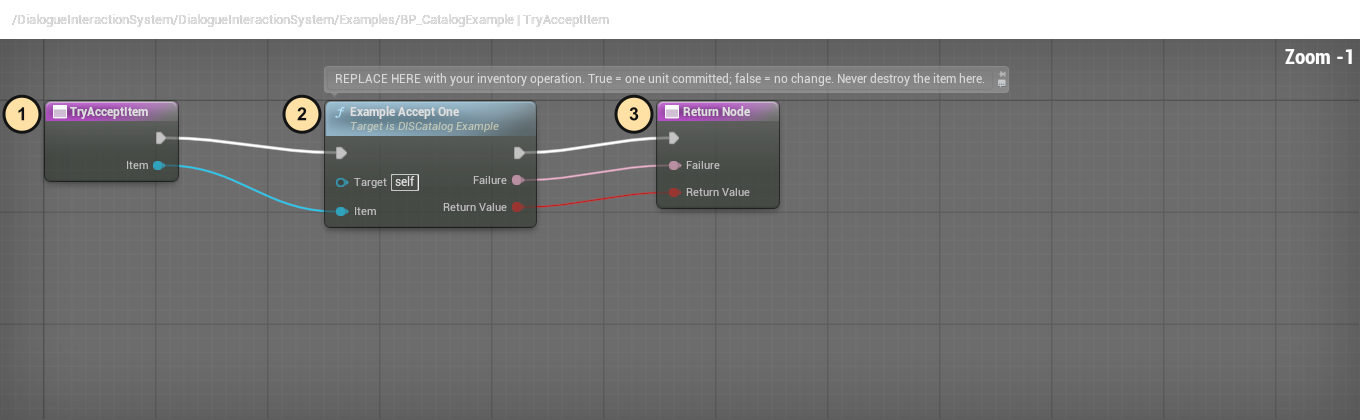
- TryAcceptItem → Item is the exact unit DIS wants your inventory to accept.
- Replace Example Accept One with your atomic add operation. True means one
unit committed; false means no change. Do not destroy its representation here.
- Return both Return Value and Failure. Test capacity/refusal and repeated
pickup: refusal keeps the world item, repeated pickup must not add a second unit.
CanReleaseItem — read-only permission
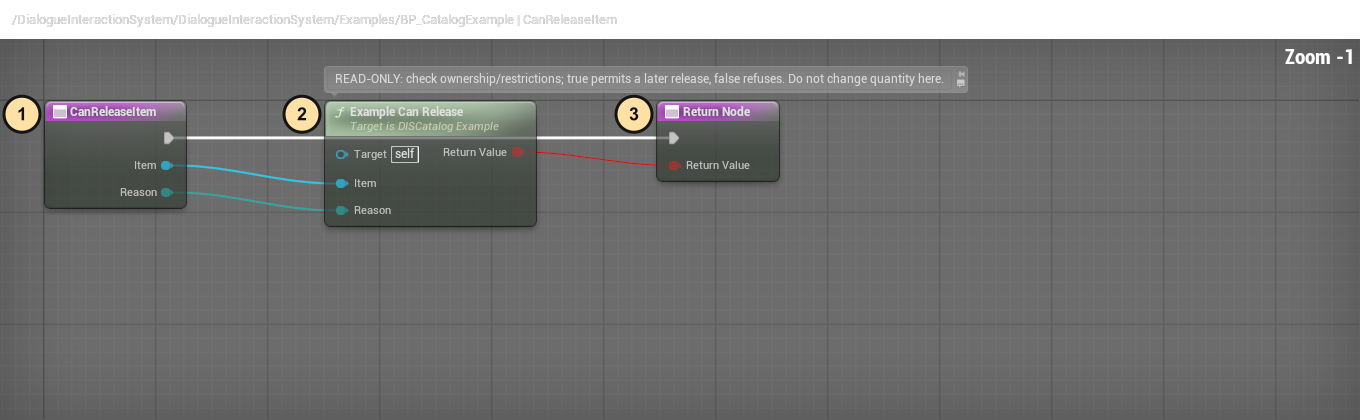
- CanReleaseItem receives Item and Reason.
- Replace Example Can Release with your read-only ownership/lock/equipment check.
Do not subtract stock here: this query can be called repeatedly.
- Return Node → Return Value permits or refuses the later transfer.
TryReleaseItem — one committed release
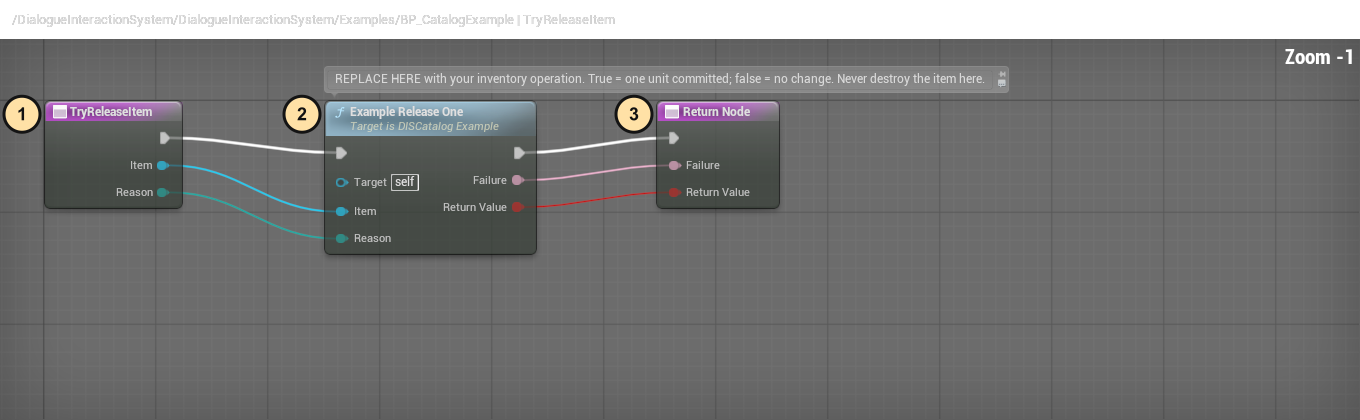
- TryReleaseItem receives the exact Item and Reason at commit.
- Replace Example Release One with your atomic one-unit debit. Revalidate
availability; true means committed, false leaves quantity unchanged.
- Return Failure and Return Value together. Test cancellation and a
commit-time refusal: the unit must remain owned, with no duplicate representation.
EventGraph section 3 — your own table
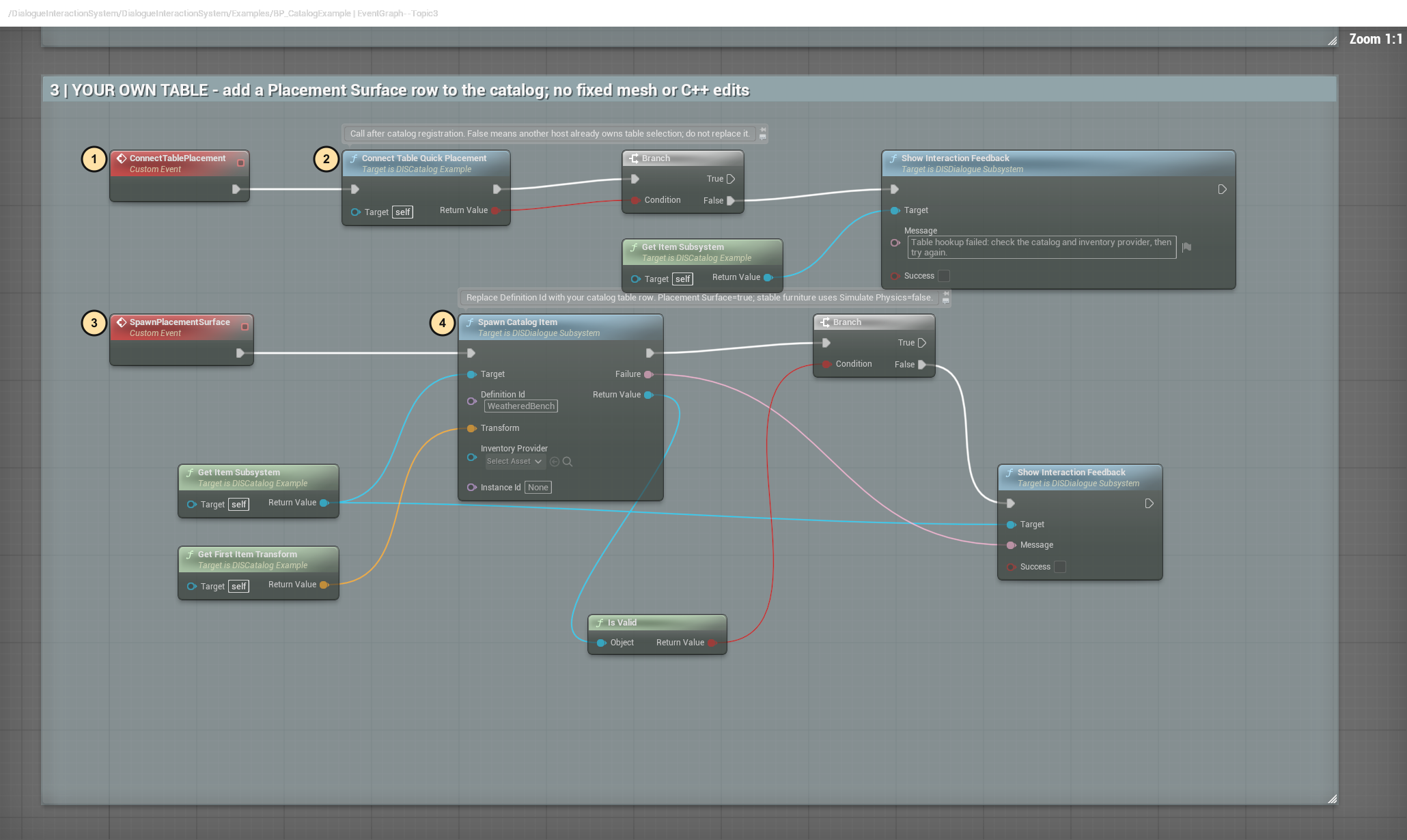
- Call ConnectTablePlacement only after your catalog/provider initialization.
- Connect Table Quick Placement binds the example's provider. False means the
setup failed or another host already owns table selection; do not replace it.
- SpawnPlacementSurface is an optional explicit test event, not a new key.
- Set Spawn Catalog Item → Definition Id to your table row's Stable Id.
Enable Placement Surface on that definition and configure appropriate
collision/physics. The sample WeatheredBench is an editable default, not a
required name. Preserve the returned-actor validity and feedback branches.
ResolveTablePlacementItem — select/reserve, not debit
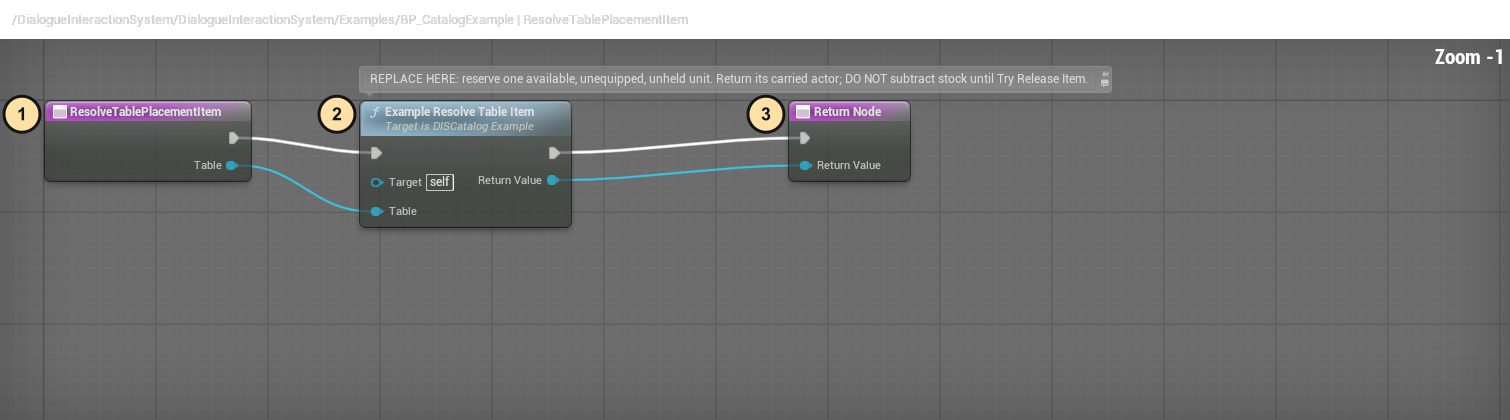
- ResolveTablePlacementItem → Table identifies the requesting surface.
- Replace Example Resolve Table Item with your explicit eligible-unit selector:
exclude equipped, held, locked and unavailable units. Reserve one stack unit.
- Return that unit's carried actor through Return Value, or null when unavailable.
Do not debit until Try Release Item commits. Cancellation must retain quantity.
Test quick placement, cancellation and occupied surfaces using your actual items.
Connect your own action or equipment system
These optional examples teach the connection. They do not add new hotkeys, spawn
automatically, replace your inventory, or supply a shop, quest, combat, wearable
mesh, save system or multiplayer authority. Use one catalog provider for a unit;
do not give the same item to both the demo bag and your own bag.
Custom action: first successful test
- Enable Show Plugin Content in the Content Browser. Open
/DialogueInteractionSystem/DialogueInteractionSystem/Examples/BP_CustomActionExample.
This is an Actor Blueprint; its editable EventGraph contains five numbered
comment sections. Duplicate it into your own game's Content before customizing.
- In Class Defaults → Example → Host, leave Accept Request enabled and
Defer Response disabled. Set Response Message to your own text.
- Select its Interaction component. Under Interaction → Action, set
Interaction Type to Request Host Action and give Interaction Id and
Action Id your own unique names. Under Interaction → Standalone Demo,
leave Auto Complete Demo Action disabled: this graph supplies the answer.
Set the prompt and interaction radius under Interaction → Basics.
- Put the duplicated actor near your player in your level. The included cube is
only an engine-provided visual marker; change ExampleMesh to your own mesh.
Compile and save, then play with a possessed local player.
- Interact using your existing interaction control. Section 1 binds the request
and result callbacks. Section 2 checks the target, both IDs and local player,
then calls Complete Interaction. Accepted Count should increase once,
Completion Count should increase once and Last Succeeded should be true.
Inspect those read-only Example → Result values on the live actor.
- Turn off Accept Request and interact again. The result should be false;
Accepted Count must not increase. This is a refusal, not a lost item.
The example getter uses the first local player in this teaching level. For a
split-screen or custom ownership setup, obtain the DISDialogue Subsystem from
the particular local PlayerController and use that same reference for binding,
requests, completion and cleanup. Do not route remote clients through another
player's subsystem or treat this example as a server-authoritative transaction.
Where your gameplay connects
- Section 1 — Setup: bind your own matching events once. If there is no
possessed local player, the false branch reports the missing setup. Initialize
after possession in your own architecture; do not repeatedly bind every tick.
- Section 2 — Request: replace Example Matches Request with equivalent
read-only target/ID/player checks if needed. Do not handle another actor's request.
Replace the tiny counter demonstration with your own validated operation.
- Complete Interaction → Succeeded is the host's success/refusal answer.
Return Value acknowledges that DIS accepted that completion. They are not
interchangeable. Acknowledged false means there was no valid pending request.
The example commits its counter only after acknowledgement and successful result.
Real item/wallet/quest mutations need your own reservation/rollback policy when
an asynchronous result arrives after cancellation or target destruction.
- Section 3 — Result observer: update UI/read-only observations here. Never
execute the action or grant its reward again from the result callback.
- Section 4 — Deferred response: enable Defer Response to leave one request
pending. Your own widget/gameplay calls the actor's Finish Pending Request
custom event exactly once; Accept Request chooses success/refusal. Call
Cancel Pending Request to report false without committing success. Repeated
or late completion takes the failure branch, not a second grant.
- Section 5 — Cleanup: EndPlay cancels a pending request and unbinds only the
two events belonging to this actor. Do not use Unbind All, which removes
other systems' observers too. Your own widget cancellation must also notify
the pending request; closing an unrelated widget is not automatic cancellation.
Interaction → Completion exposes Single Use, Hide Owner After Success,
Cooldown Seconds, Success Message and Failure Message. These policies
apply only after a successful completion. Do not destroy the actor before reporting
completion. Change its IDs before a request starts, not midway through a transaction.
Inventory and logical equipment
Open /DialogueInteractionSystem/DialogueInteractionSystem/Examples/BP_EquipmentCatalogExample.
This optional child of BP_CatalogExample inherits its catalog registration,
spawn event and inventory interface graphs. Open the parent to see the inherited
Try Accept Item, Can Release Item and Try Release Item connections.
The child adds a visible TryEquipItem function graph.
- Duplicate DA_BuyerItems and the example into your game. In the copied catalog,
add a unique Stable Id, Display Name and Mesh. Icon is optional.
Set collision/physics/scale to suit that item. Existing IDs are examples, not
a fixed list or catalog-size limit. Do not register duplicate IDs in one registry.
- On the copied Blueprint's Class Defaults → Example, choose your Catalog
and set Item ID to Spawn to the exact Stable Id. Have only the intended
example/provider register that catalog; a duplicate registration is rejected.
- Call its inherited SpawnOneCatalogItem custom event from your own explicit
test button/event. No new keyboard shortcut or automatic spawn is installed.
The spawned unit points to this example as its inventory provider.
- Pick up that unit. Example Bag should contain it once. Use your existing
explicit hold/equip action on that unit, or call Hold Demo Item on the
local subsystem with that exact actor. The child's TryEquipItem graph
receives Item, calls Example Equip One, and returns success/failure.
Example Equipped Item should point to the same owned actor, not a copy.
- Try equipping again or dropping/placing the equipped unit. The occupied slot
and release checks must refuse without changing the bag or creating a preview.
- Call Example Unequip One, passing that exact equipped actor. Check its
Return Value and Failure output. A different/unowned target is refused.
After successful unequip, normal drop or placement can release one unit.
Replace Example Equip One with YOUR equipment system's atomic equip operation.
Return true only after that exact unit has been accepted; false must leave state
unchanged and explain the failure. The sample slot is logical only: your game
owns slot rules, stats, meshes/materials, attachments, animations and combat.
Keep Can Release Item read-only and exclude equipped/locked units from release
and table quick placement. Try Release Item performs the one-unit debit.
Unexpected destruction removes the exact instance reference; it is not a second
inventory debit or a reason to grant a replacement item silently.
Numbered graph walkthrough
These are actual Unreal graph captures with numbered callouts, not generated
Blueprint artwork. Open the full-size image if your guide viewer makes pins small.
The first test above tells you what to change and how to play it; these callouts
identify the existing wires to keep or replace in your duplicated Blueprint.
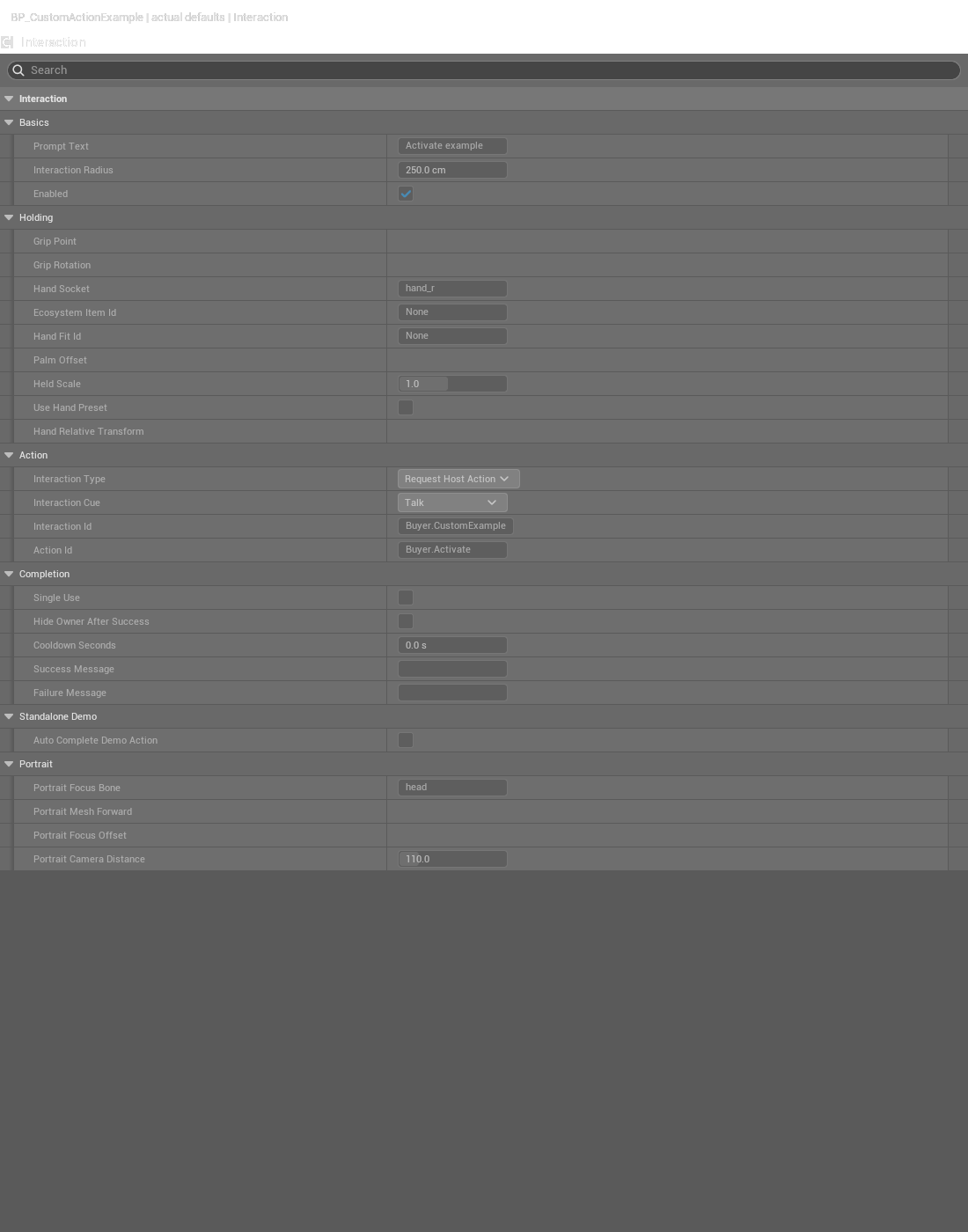
Action defaults and component
Open BP_CustomActionExample → Class Defaults → Example → Host.
The read-only capture below shows the default values; your Blueprint's Host fields
are editable. Result fields are observations, not setup switches.
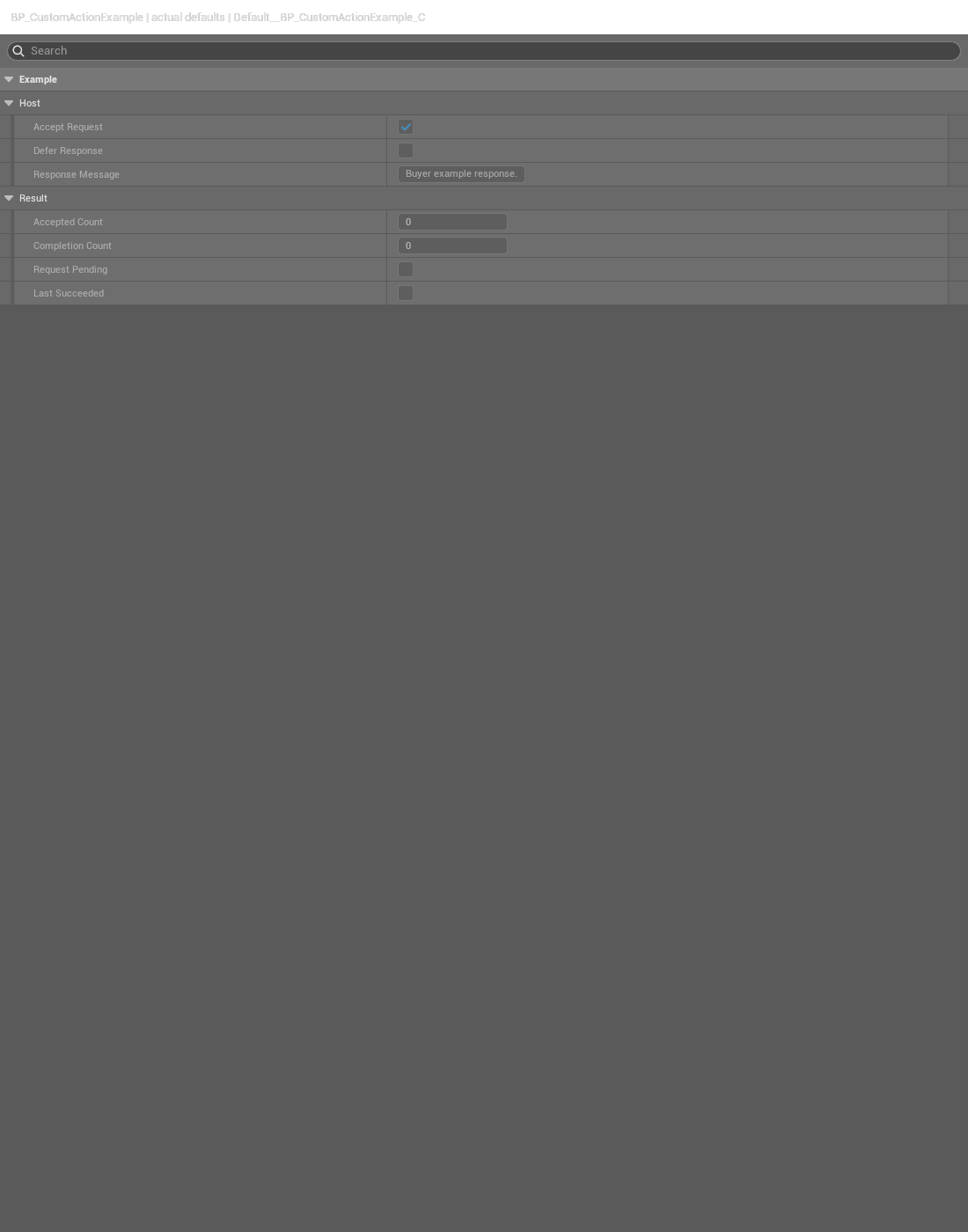
Select Interaction → Interaction → Action. Choose Request Host Action,
set your IDs, and leave Standalone Demo → Auto Complete Demo Action disabled.
The native capture expands relevant categories; you can expand them in the editor.
EventGraph section 1 — bind once
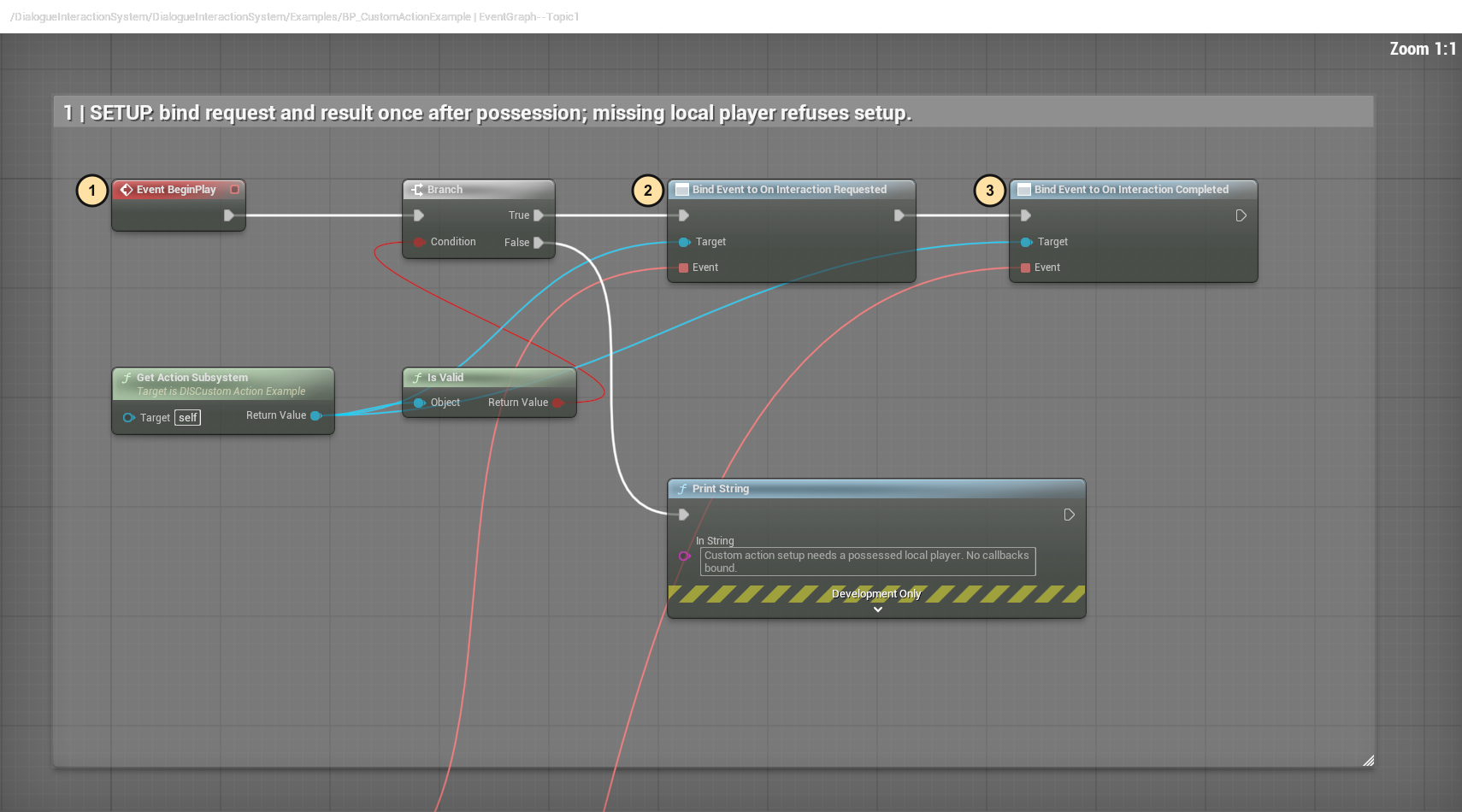
- Event BeginPlay gets the local subsystem and tests Is Valid. Keep the
false branch; missing possession must not bind a broken target.
- Bind Event to On Interaction Requested uses that subsystem as Target
and the HostActionRequested event's red delegate wire as Event.
- Bind Event to On Interaction Completed uses the same Target and the
HostActionCompleted delegate. Do not bind these again every tick.
EventGraph section 2 — request and acknowledgement
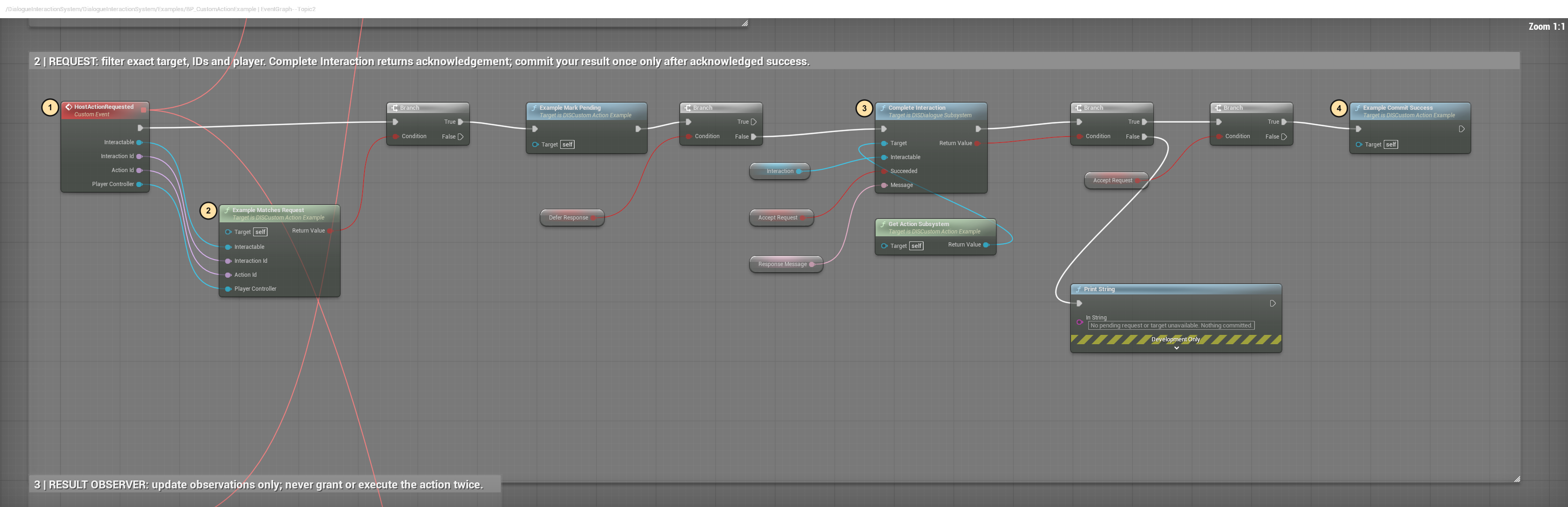
- HostActionRequested receives Interactable, both IDs and Player Controller.
- Example Matches Request checks all four. Keep equivalent checks when replacing
the helper so this actor never handles somebody else's request.
- Complete Interaction receives this Interaction, your Succeeded answer
and Message. Its Return Value goes to the acknowledgement Branch.
- Example Commit Success runs only after acknowledgement and accepted success.
Replace the counter with your validated host result; real transactions require
your reservation/rollback policy. Do not grant again from the result observer.
EventGraph section 3 — observe the result
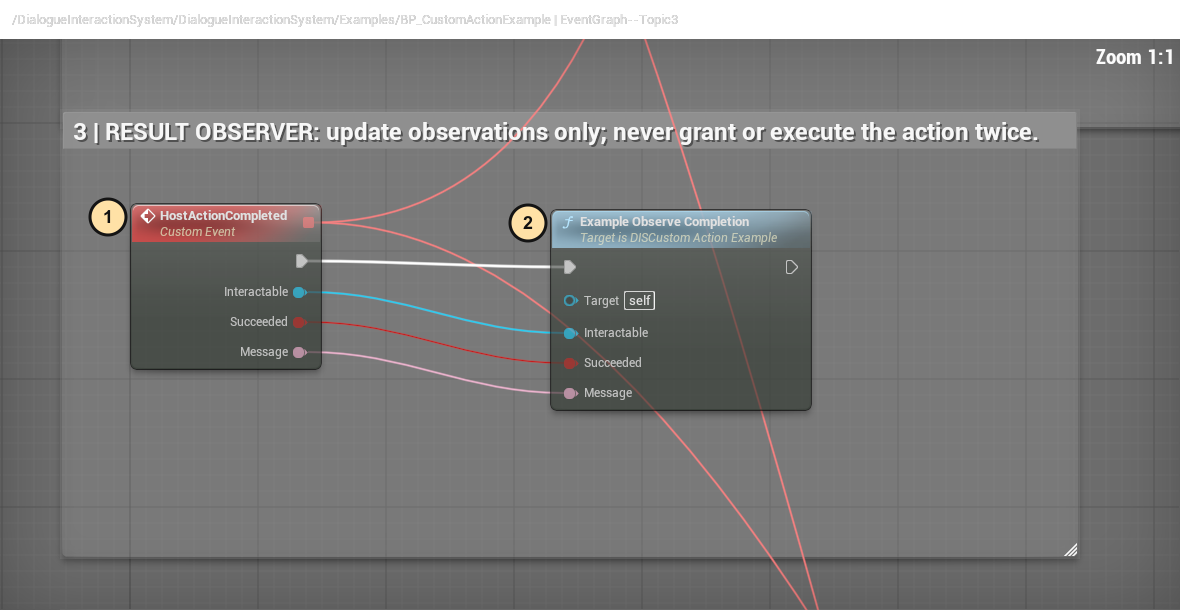
- HostActionCompleted receives the exact target, Succeeded and Message.
- Example Observe Completion checks that target and refreshes observations.
Replace or extend this with your UI update, not another gameplay grant.
EventGraph section 4 — defer or cancel
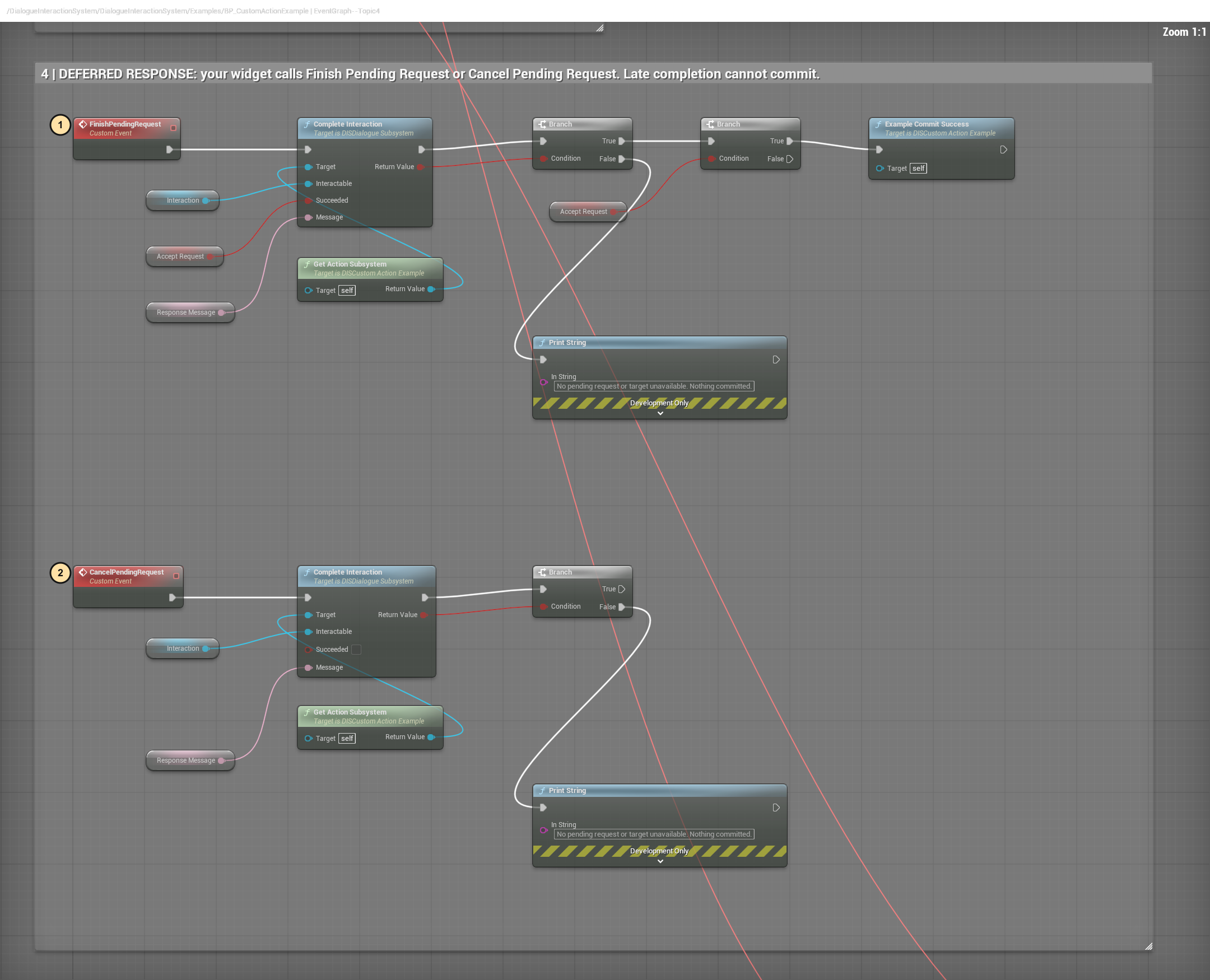
- Call FinishPendingRequest from your own widget/gameplay after enabling
Defer Response. Accept Request chooses success/refusal; acknowledgement
must still pass before a result commits.
- Call CancelPendingRequest on that same actor to answer false. Late/repeated
responses follow the failure branch without another commit.
EventGraph section 5 — clean up
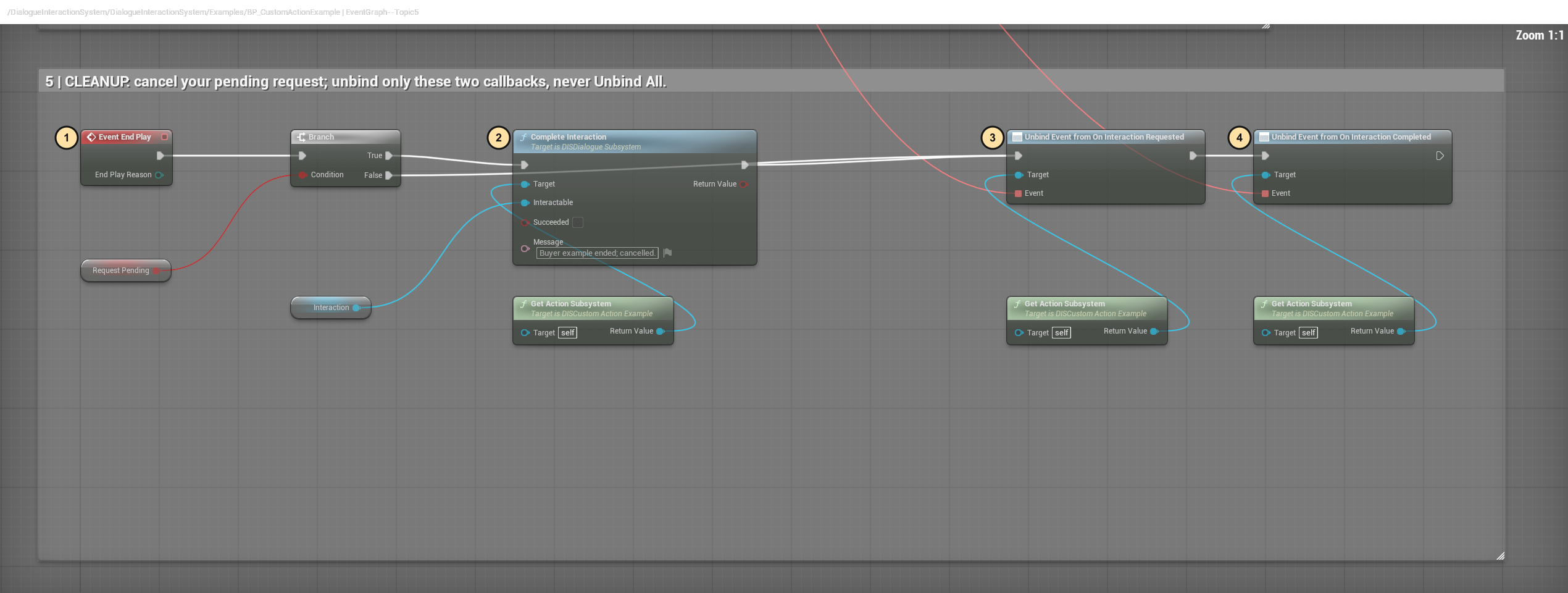
- Event End Play checks Request Pending.
- Complete Interaction answers false when pending. If the target is already
unavailable, DIS rejects completion without a grant.
- Unbind Event from On Interaction Requested removes this actor's callback only.
- Unbind Event from On Interaction Completed removes its result callback.
Never replace these with Unbind All.
Equipment child — TryEquipItem
Open BP_EquipmentCatalogExample → TryEquipItem. Its parent contains catalog
registration and the inventory provider graphs; the child adds the logical slot.
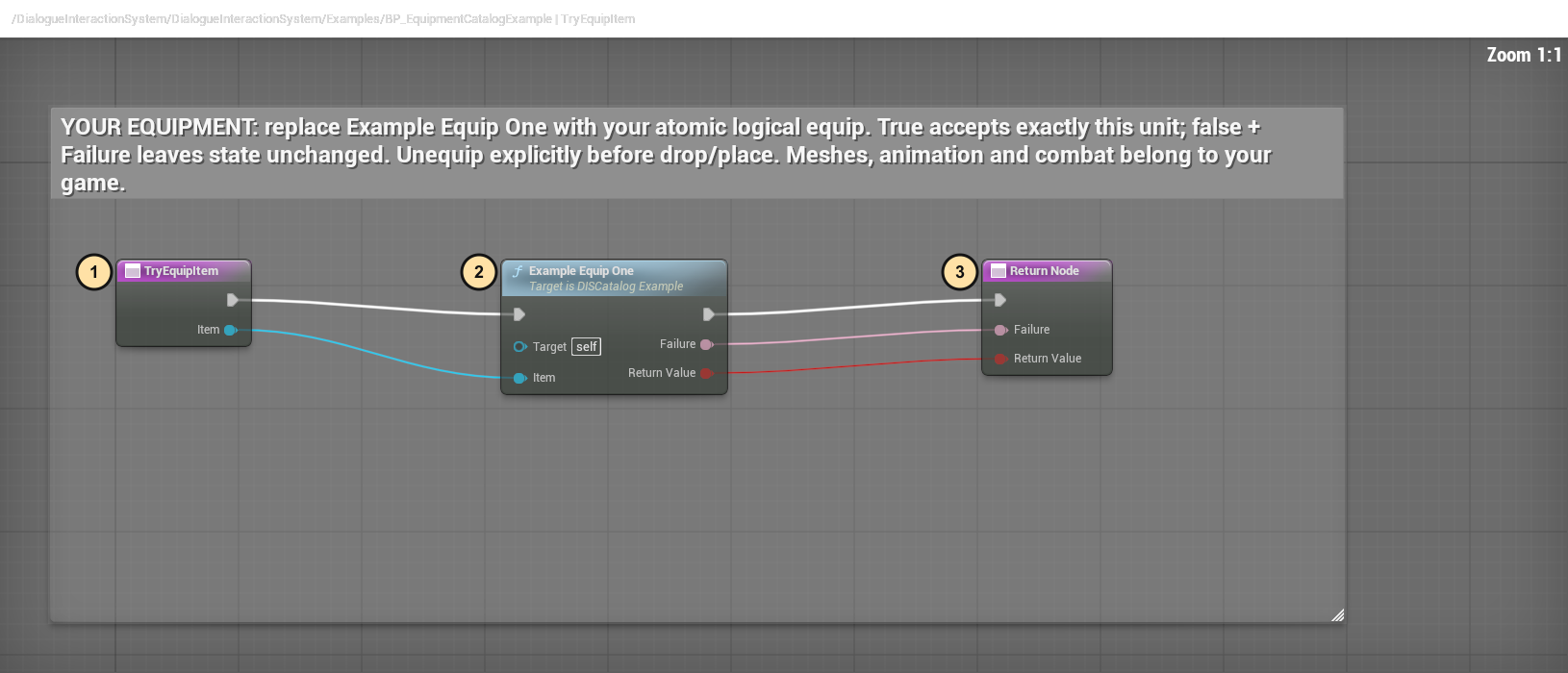
- TryEquipItem receives the exact owned Item, not its display name.
- Example Equip One is the replace-here operation for your atomic equipment
backend. True means this unit is equipped; false leaves ownership unchanged.
- Return Node returns both Return Value and Failure to DIS. Keep the
bool and message wires. Also reject equipped/locked units in Can Release Item.
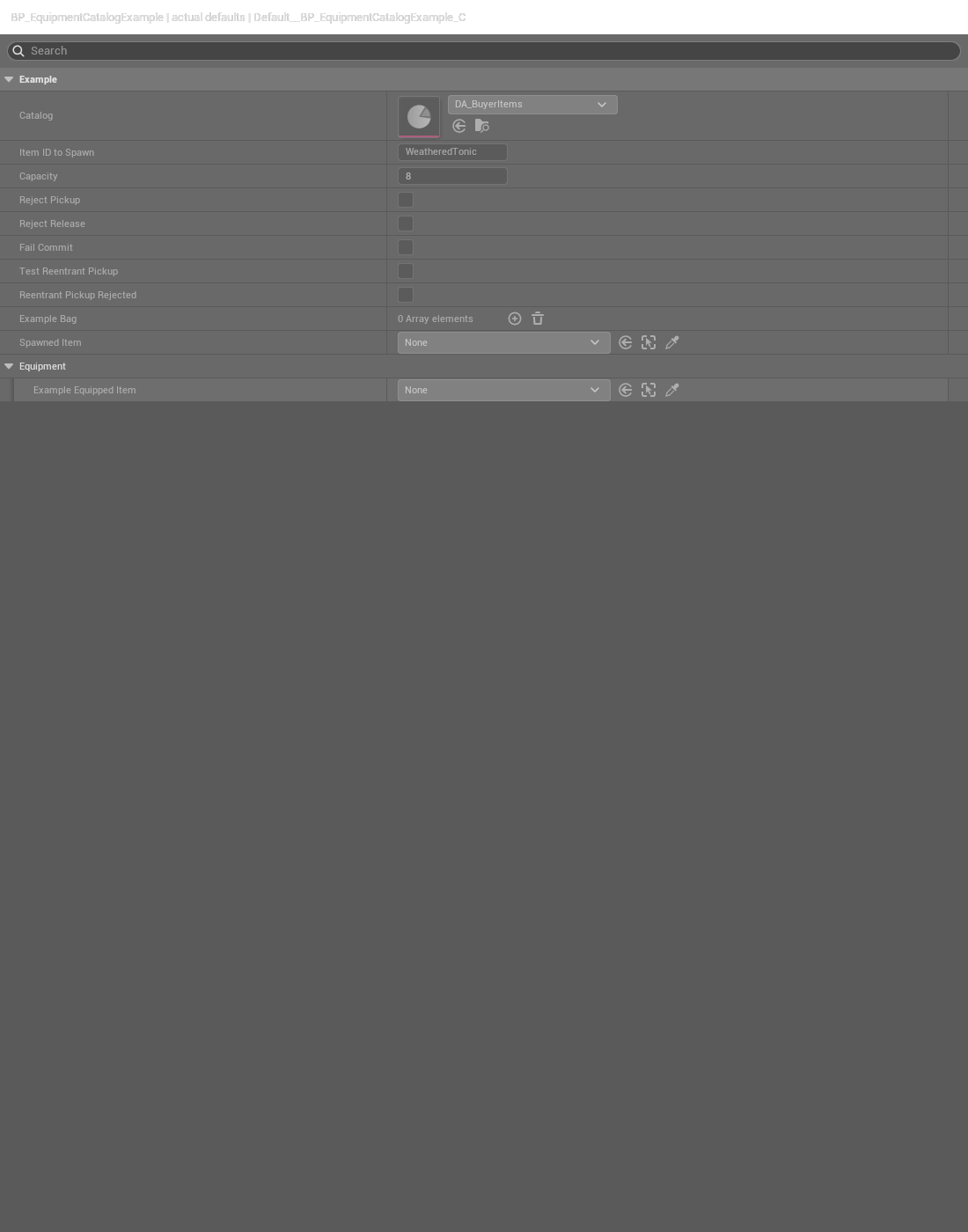
Select your Catalog and Item ID to Spawn under Class Defaults → Example,
then Compile/Save and perform the six equipment tests above. A missing catalog,
unknown ID or occupied slot should return a useful refusal, never a duplicate unit.
Optional native counterparts
Docs/NativeBuyerExample/SETUP.txt explains the optional public-header C++ examples.
They belong in YOUR module, not the plugin's runtime Source directory. Blueprint
buyers do not need to copy or compile them. The inventory example is session-only;
the equipment component adds one logical slot; the action component binds requests,
returns results and unbinds its own callbacks. No complete gameplay backend is supplied.
If nothing happens
Check possession/local player, your callback binding, the exact target and IDs,
enabled/range/cooldown settings, and the provider assigned to the unit. Check every
bool and failure text rather than assuming success. A setup error, refusal or
expired request must not create another item or lose an existing unit.
Add an NPC conversation or interaction
Start here if you want Rowan, a shopkeeper, a guard or your own NPC to respond to the player. You do not need to edit sample C++ to add NPCs or options.
Exact starting points
| Task |
Open this |
| Working Blueprint example |
Show Plugin Content > DialogueInteractionSystem > DialogueInteractionSystem > Examples > BP_RowanConversation |
| Example's editable backend data |
Same folder > DA_RowanConversation > Configuration |
| Defaults / automatic Rowan hookup |
Project Settings > Plugins > DIS NPC Conversation |
| Add to your own NPC Blueprint |
Add Component > DIS NPC Conversation |
| A scripted dialogue graph |
Create Miscellaneous > Data Asset > DISDialogueDefinitionAsset |
| Your custom service callback |
NPC Blueprint > Class Settings > Implemented Interfaces > DIS Conversation Provider |
| Item catalogs and inventory integration |
BuyerItemCatalog.md, BP_CatalogExample and DA_BuyerItems |
| Native implementation examples |
Plugin Source/DialogueInteractionSystem/Public/DISRowanConversationExample.h and Private/DISRowanConversationExample.cpp |
| Native API definitions |
Public/DISNPCConversationComponent.h, Public/DISConversationProfile.h, Public/DISInteractableComponent.h, Public/DISDialogueSubsystem.h |
The Unreal object path of the teaching NPC is /DialogueInteractionSystem/DialogueInteractionSystem/Examples/BP_RowanConversation. You can duplicate its profile without duplicating its C++ parent or using its item IDs. Your own NPC only needs the component and a usable collision target.
First successful Blueprint test: a simple reply
- Use an existing possessed character in a playable level. Add DIS NPC Conversation to your NPC Blueprint. Enable the component and make the NPC's mesh or capsule block Visibility for mouse targeting.
- Turn Use Profile off. Expand Inline Configuration. Enter the NPC Name and Greeting. For reusable data, instead create a DISConversationProfile Data Asset, edit Configuration there and assign it with Use Profile on.
- In Options, add an entry with Option ID
AskAboutTown, Label Ask about town, Action Response, Response The market is just up the road, Available on and Close On Success off. Each option ID must be unique; visible names may change without changing IDs.
- Press Play, approach the NPC and tap E or right-click without dragging. Choose Ask about town: the text should change inside the halo. Close with the themed X, reopen, and walk away to verify cleanup.
- Press L while speaking. Settings and the halo stay open together; right-drag outside UI to control the camera. Adjust Panel size or Text size. Closing Settings must leave the conversation open.
This response example uses no provider, inventory, vendor or quest system. Hide an option with Set Option Available on the component. Change one NPC at runtime with Get Conversation Configuration > Set Members > Set Conversation Configuration; this creates an NPC-local copy, not an edit to the shared Data Asset.
Second example: a multi-line scripted dialogue
Create a DISDialogueDefinitionAsset. Give it a unique Dialogue ID, set Start Node ID to Welcome, and add a Node whose Node ID is also Welcome. Fill Speaker Name and Line. Add choices with unique Choice IDs and destination Node IDs for branching; destinations must exist. See BuyerQuickStart.md — Write your first conversation and the full dialogue API in DISDialogueDefinitionAsset.h for validation rules.
Add a halo option with Action Dialogue and assign that asset. Choosing it hands off to the existing DIS dialogue window after releasing halo input. This is intentionally a separate scripted-dialogue presentation, not an AI chat or a quest engine. For a reply that should remain in the halo, use Response instead.
Third example: Trade, Quests, Learn or another service
- On your NPC Blueprint implement DIS Conversation Provider. Add an option with Action Host Action, a stable Action ID such as
OpenTraining, and a visible label such as Learn.
- Open Is Conversation Action Available. Use Switch on Name for Action ID. Return true only when your service is ready. This is a read-only repeated check: do not open windows, grant items or start gameplay here.
- Open Execute Conversation Action. Use the same Action ID, call your own service and return true only when it successfully opens. False must mean no gameplay change. Use Close On Success for an external UI; leave it off for a reply inside the halo.
- Compare with the neatly labelled availability/action graphs in BP_RowanConversation. Its working Learn callback demonstrates these return paths; Talk demonstrates a simple Response. Quests remains hidden until supplied by a provider.
Do not also execute the service from On Option Selected: that event observes success and would otherwise duplicate the action. Callbacks here are synchronous; asynchronous services need a buyer-owned lifecycle adapter.
C++ equivalent
Add DialogueInteractionSystem to your game module's dependencies. The following constructor/BeginPlay fragments belong inside your existing NPC class; declare Conversation as a UPROPERTY(VisibleAnywhere, BlueprintReadOnly) TObjectPtr<UDISNPCConversationComponent> in its header. Include DISNPCConversationComponent.h. No sample ID is required.
// Inside your NPC constructor:
Conversation = CreateDefaultSubobject<UDISNPCConversationComponent>(TEXT("Conversation"));

// Inside your NPC BeginPlay, after Super::BeginPlay():
auto Config = Conversation->GetConversationConfiguration();
Config.NPCName = FText::FromString(TEXT("Town Guard"));
Config.Greeting = FText::FromString(TEXT("Need directions?"));
FDISConversationOption Reply;
Reply.OptionId = TEXT("AskAboutTown");
Reply.Label = FText::FromString(TEXT("Ask about town"));
Reply.Action = EDISConversationAction::Response;
Reply.Response = FText::FromString(TEXT("The market is just up the road."));
if (!Config.Options.ContainsByPredicate([&Reply](const auto& O) { return O.OptionId == Reply.OptionId; }))
    Config.Options.Add(Reply);
Conversation->SetConversationConfiguration(Config);
For native custom services, your NPC implements IDISConversationProvider and overrides IsConversationActionAvailable_Implementation(FName, APlayerController*) const and ExecuteConversationAction_Implementation(FName, APlayerController*). Their read-only/success contracts are identical to Blueprint. The interface is declared in DISNPCConversationComponent.h, not a separate provider header. See the compiled Rowan example for native helper functions used by its Blueprint graphs.
For an ordinary non-conversation world interaction, use DIS Interactable instead, configure its interaction type, stable Action ID and prompt, and connect the subsystem's public interaction callbacks to the game's authority. For example, set a door's Custom Action to OpenDoor, disable Auto Complete Demo Action, bind On Interaction Requested on the local player's DIS Dialogue Subsystem, check the Action ID, perform your door operation, then call Complete Interaction with success or failure. Use the request's target rather than a fixed sample actor. Do not add competing interaction components to the same NPC for the same click; the conversation component already derives from DIS Interactable. Item pickups should use the catalog/provider route documented in BuyerItemCatalog, not a custom callback that duplicates inventory grants.
Modular ownership and dependencies
- DIS owns target discovery, interaction dispatch, conversation presentation, item handling/placement/drop support and integration callbacks. Its optional Demo Bag is temporary, not a production inventory.
- Your game or companion plugin owns authoritative inventory/equipment, transactions, quest rewards, training rules, persistence and replication. Route a Host Action or item provider to that system; DIS must not also grant the same result.
- Dependencies: Unreal's built-in InterchangeAssets plugin and normal engine modules. The included Rowan example is self-contained; QuartermasterRowanCore and other BIS plugins are not required. Generic NPCs need not inherit Rowan.
- Inventory: use the Blueprint item provider/catalog contract for your own backend. BIS UI's host inventory bridge takes over inventory presentation; a configured host inventory must not leave a duplicate DIS demo bag. Do not register both provider and native pickup grants for the same item.
- Commerce: standalone DIS has no hard dependency on Loot, Vendors & Economy. BIS UI's adapter connects supported Rowan Trade to its existing vendor/market UI. Unsupported services remain hidden. Provider-owned action handling takes priority; failure must not also dispatch to a second handler.
- Other BIS plugins: connect through providers, observation events and suite adapters, not by making shared DIS depend on every companion plugin. Enabling a plugin alone does not implement its gameplay or make every NPC eligible for it.
Checked combinations are standalone DIS and the existing BIS UI host composition. Arbitrary plugin combinations, asynchronous UI ownership, multiplayer and split-screen require specific integration tests; “100% compatible with everything” is not a validated claim. Keep customer profile/NPC/soft asset references in your cooking rules and verify a packaged build before distribution.
Actual Blueprint hookup screenshots
Open /DialogueInteractionSystem/DialogueInteractionSystem/Examples/BP_RowanConversation.
Duplicate it and its DA_RowanConversation profile into your game before editing.
These numbered screenshots show the existing editable graph, not generated artwork.
Use full-size access when viewing this guide on a small screen.
EventGraph — profile setup
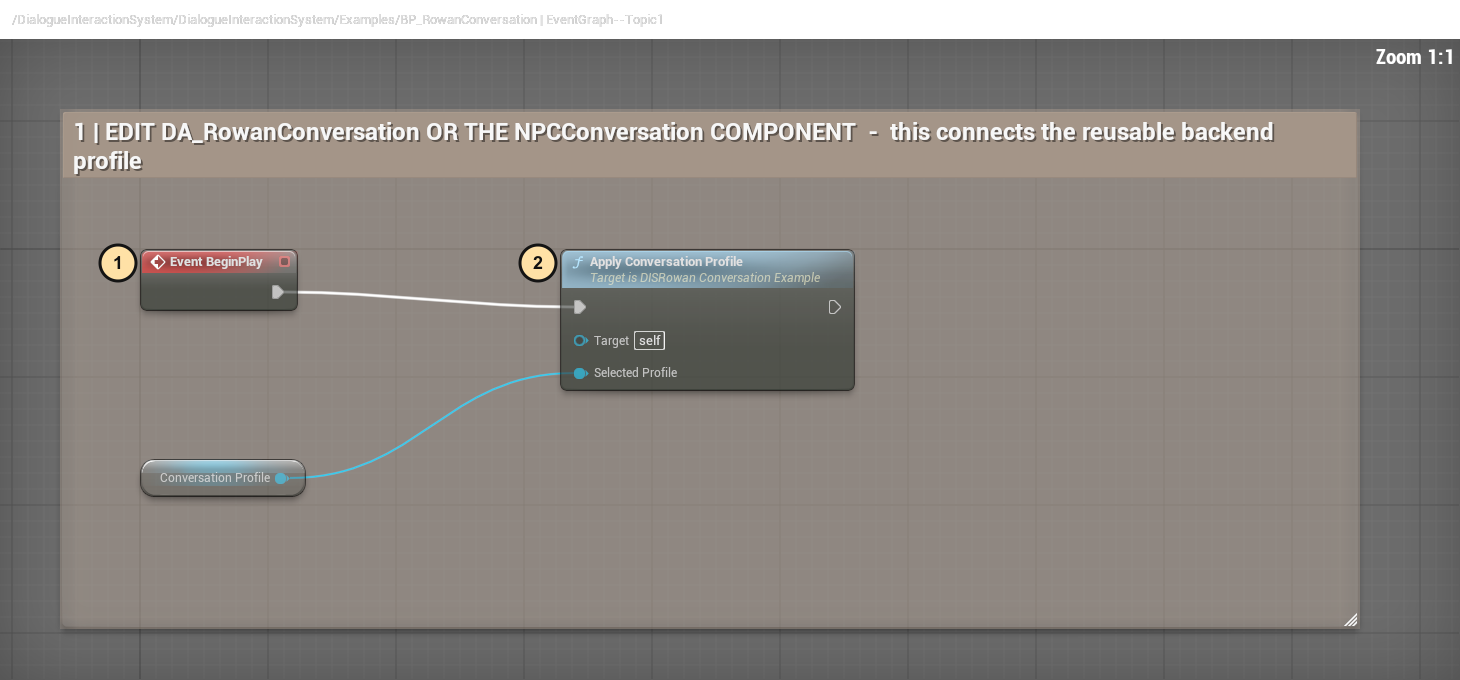
- Event BeginPlay initializes the example after the actor starts.
- Apply Conversation Profile → Selected Profile receives Conversation Profile.
Choose your copied profile in the Blueprint defaults; edit greeting/options in
that Data Asset. For a different NPC, use its DIS NPC Conversation component
with your own profile rather than assuming Rowan's mesh or skeleton fits.
IsConversationActionAvailable — read-only availability
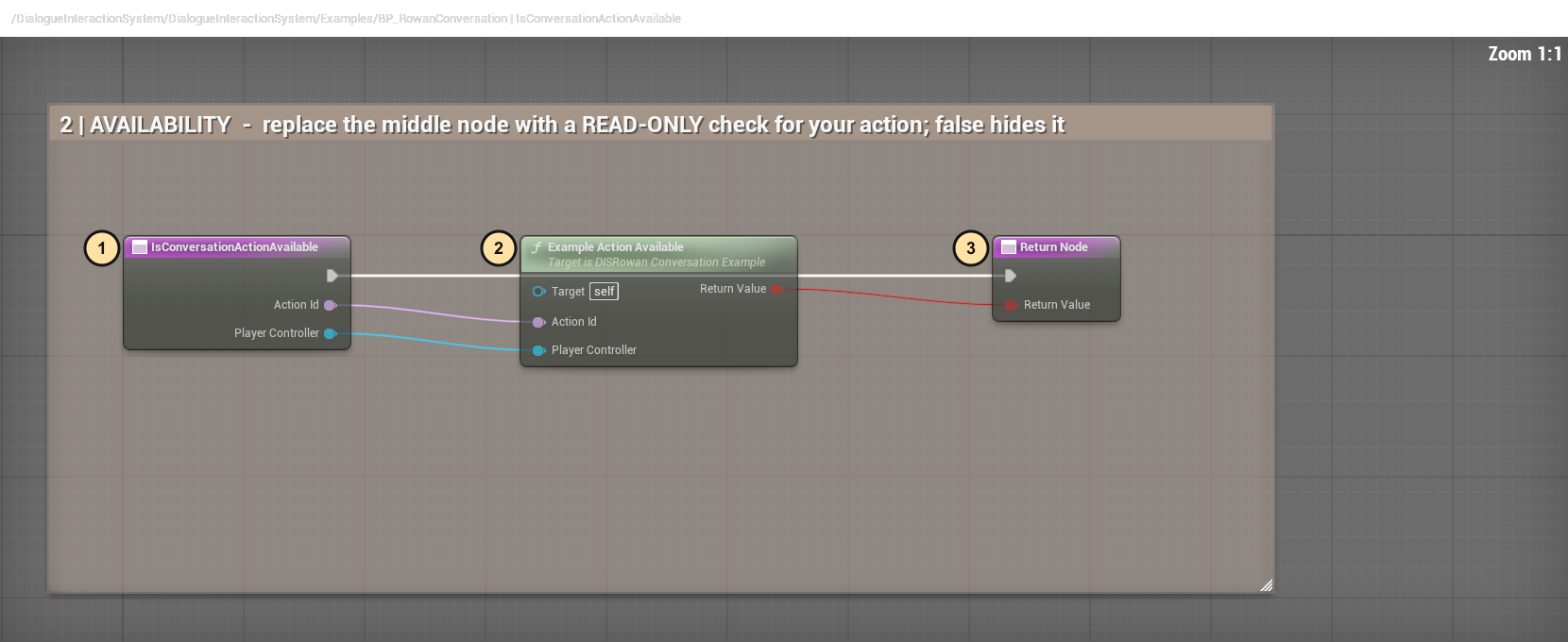
- IsConversationActionAvailable receives Action Id and Player Controller.
- Replace Example Action Available with your own read-only eligibility check.
Never spend currency, grant an item or execute an action during this check.
- Return Node → Return Value receives true only for an available action;
false hides an option configured to hide when unavailable.
ExecuteConversationAction — your service
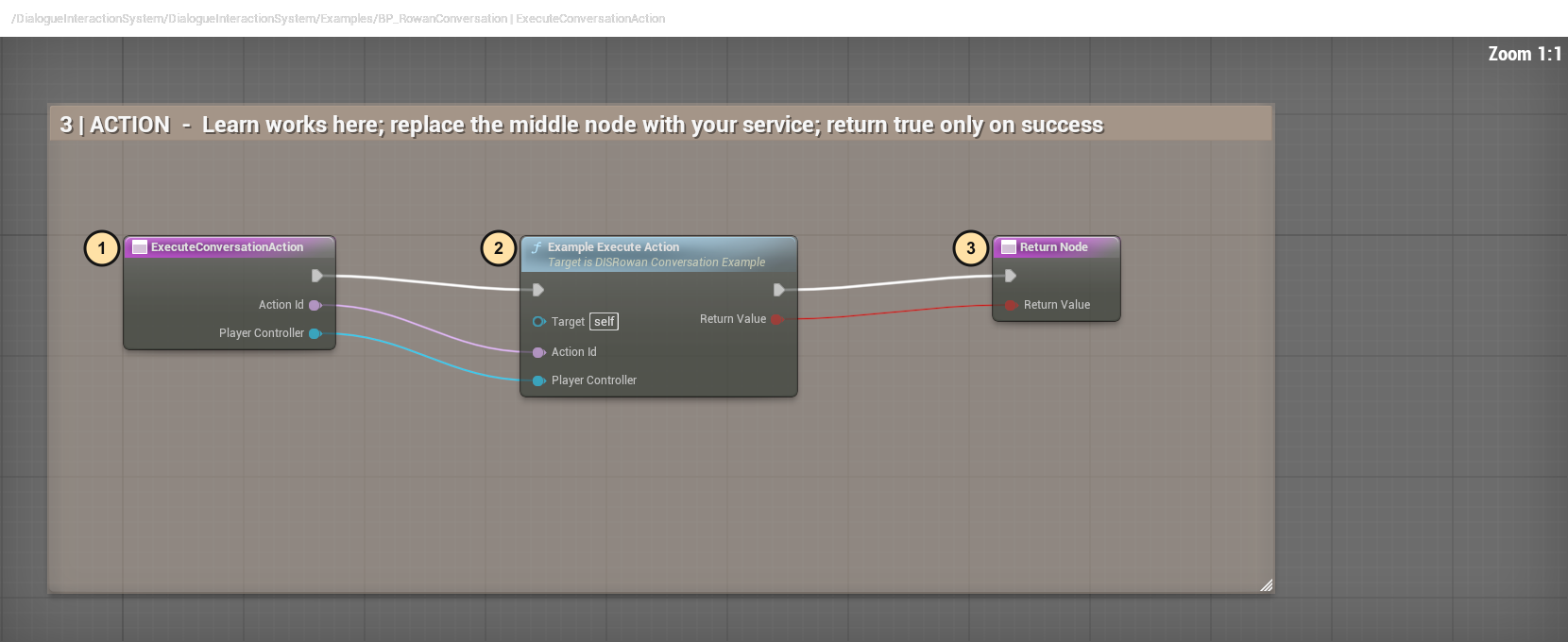
- ExecuteConversationAction receives the selected Action Id and player.
- Replace Example Execute Action with your own service. The example's Learn
behavior is supplied; a full shop, quest or training system is not.
- Return true only when your service accepts the action. False must not also
trigger a second handler or grant a result. Compile/Save, play, open the halo
and select the option; verify the result in your own system. Then test refusal,
walk-away closure and NPC removal. See the first-test steps above for setup.
Streamlined presentation settings
Main controls: Panel size, Text size, back glass/artwork/option opacity, and reset. Advanced: layout and colors contains dimensions, offsets, tracking, screen bounds, rounding and named text/hover/border presets. Other UI and interaction settings contains the retained legacy dialogue, portrait, launcher, item and interaction controls. Existing values are preserved; collapsing a group changes no gameplay or setting. Custom colors still use the full Blueprint/backend configuration. Preset buttons change only their named color target.
NPC Conversation Halo — customer guide
This optional NPC menu uses the included BIS backdrop, black glass, black border and neutral hover light, with gently rounded corners and the suite's themed X. Copper detail is in the artwork, not the frame. It has no tail or arrow. The panel follows the NPC smoothly, clamps to the screen, fades in and closes on cancellation, distance or NPC removal.
First successful test
- Enable DIS and its declared dependencies. Open an existing playable level with a possessed local player.
In the standalone DIS sample project, open the Demo Bag and press + Rowan in its header. It changes to − Rowan for removal. No NPC spawns until requested. BIS UI uses its existing host Spawn Rowan control. L opens Settings only; it no longer automatically displays the legacy sample dialogue.
- Enable Show Plugin Content. Open DialogueInteractionSystem Content > DialogueInteractionSystem > Examples and drag BP_RowanConversation into the level, away from another NPC.
- Press Play, approach Rowan, then tap E or right-click him without dragging. The panel appears beside his right shoulder: screen-left when facing him. Talk and Learn work immediately. Quests stays hidden until connected. Trade appears in BIS UI when its commerce adapter can open this NPC's vendor or market.
- Select Talk to change the text inside the halo. Learn runs the example Blueprint provider graph and opens an editable branching setup guide, with Next, Back and Topics links. See Rowan Learn and stacking for exact editing locations.
- Cancel with Escape or the close button. Reopen several times, then walk away while it is open. The panel should clear without disturbing the host's camera/input ownership. Removing the NPC also closes it.
In BIS UI the existing Rowan spawn button still creates its usual character. Automatic attachment adds the halo without spawning another NPC. It uses Project Settings defaults or the selected Rowan Profile. Its built-in Learn action opens the editable lesson tree directly; the example opens the same tree through a provider callback to demonstrate customer wiring. Context-specific lessons distinguish the demo bag from BIS UI's integrated inventory.
Rowan discovery enables Visibility queries on his existing capsule for right-click, including the teaching example. It restores the previous response when the conversation is disabled or removed. Customer-authored non-Rowan NPCs still choose their own Visibility-blocking collision component as described below.
Mouse, Enter, Up/Down, gamepad D-pad/confirm/cancel and number keys 1–9 select visible options. Movement and the host's normal camera controls remain available; right-button dragging is not treated as an interaction tap. The halo stays screen-facing beside the NPC and never forces camera or character rotation. An existing host look lock remains respected. Additional options scroll, and scrolling over the panel is consumed by its UI. Normal item controls remain unchanged.
Where to edit
Viewport safety applies after sizing and tracking, including resized or very small player canvases and the configured Unreal editor toolbar clearance. The player-canvas layer also clips as a final guard; the halo stays hidden until its initial position is fitted and hides when the viewport is unavailable or the NPC cannot project onto the screen. Visual resize/camera checks are still part of the publisher's play-test.
In live Settings, the main conversation controls include Panel scale, Panel width and Panel height. Width and height change independently; scale multiplies both dimensions. Long content scrolls inside the selected height, and the viewport safety limits can temporarily reduce the displayed size. Adjustments preview immediately and use the existing saved presentation fields; reset restores the NPC's authored settings. Blueprint/Data Asset configuration retains Width and Max Height (the legacy stored height field), so existing customer values are preserved.
| Change |
Location |
| Example greeting, options and styling |
DA_RowanConversation > Configuration. |
| Defaults for new components |
Project Settings > Plugins > DIS NPC Conversation > Default Configuration. Existing authored components retain saved values. |
| Automatically attached Rowan |
Same settings page: Default Configuration, or select Rowan Profile. |
| One NPC's local values |
Its DIS NPC Conversation component: turn off Use Profile and edit Inline Configuration. |
| Reuse settings across NPCs |
Create Miscellaneous > Data Asset > DISConversationProfile and assign it to their components with Use Profile enabled. |
| Blueprint runtime edits |
Get Conversation Configuration, Set Members in DISConversationConfiguration, then Set Conversation Configuration. This changes a local copy, not the shared asset. |
| Availability during Play |
Set Option Available with the permanent Option ID. Unsupported services still remain hidden. |
| Per-NPC enable/disable |
Set Conversation Enabled closes the halo and updates click ownership. |
| Optional feature/discovery gates |
Project Settings: Enable Conversation Halo and Auto Attach To Rowan. |
Configuration exposes name, greeting, option labels/tooltips/icons, availability, actions, interaction/closing distances, head socket, world/screen offsets, tracking speed, UI scale, width/height, panel/button rounding, glass/art/button opacity, copper/text/hover colors, border width, font asset/sizes, padding, fade time and screen margin. Empty font uses the suite font; empty backdrop uses the included unique black-iron/copper conversation artwork. Restart Play after backend edits, or call Refresh Conversation after editing a live profile from Blueprint.
Player appearance controls
Open DIS Settings > PRESENTATION. Main controls are Panel size, Text size, back glass/artwork/option opacity and reset. Expand Advanced: layout and colors for dimensions, title font size, rounding, border, padding, offsets, tracking, fade, screen margin and named color presets. Individual RGB sliders are replaced by labelled text/hover/border presets; custom colors remain editable through Blueprint and backend data. Other UI and interaction settings holds the retained legacy controls, and Demo tools holds the sample spawn buttons. Changes apply immediately and save locally with the other appearance settings. Reset Conversation Presentation restores each NPC's authored profile/defaults. The whole panel fits the player viewport; long content scrolls instead of extending off-screen.
Settings has an X beside its information button. It closes Settings only, not an active NPC conversation. You may open Settings with L while speaking, or approach/right-click an NPC with Settings already open, to customize the real halo live. Pointer interaction works outside the settings panel; the panel itself blocks interaction with world targets behind it. The standalone sample bag is labelled Demo Bag, with matching text toggles + Rowan / − Rowan and + Items / − Items. Their tooltips explain spawning/removal. The underlying Test Bag Blueprint APIs keep their existing names for compatibility.
Unreal editor toolbar clearance (PIE only) reserves extra space while the halo follows an NPC. Default: 64 DPI-scaled UI units, plus the normal screen margin. The Editor Toolbar Clearance field is editable in Blueprint/profile/backend configuration and persists with player presentation settings. It is a configurable reserved strip, not automatic detection of every editor layout. Manual Shift-drag bypasses this reserve and the screen margin: the complete panel can touch the actual player viewport border but cannot move beyond it. Packaged games do not use the editor reserve.
Blueprints expose Get Conversation Presentation, Set Conversation Presentation and Reset Conversation Presentation on the DIS Dialogue Subsystem. These are player-wide presentation overrides only: they cannot rewrite NPC greetings, options/actions, head sockets, interaction distances or availability. For those, use the NPC component/profile. Custom font/backdrop assets are selected in the profile/backend or passed through the presentation Blueprint API, not a runtime asset browser.
Opening uses Interaction Distance (Rowan default: 450 cm / 4.5 metres). Close Distance gives extra room before walking away closes the menu (Rowan default: 500 cm / 5 metres). Distance is measured between the player and NPC, not from the camera; zooming alone does not close the halo. Both values are editable in the NPC configuration/Data Asset or Blueprints. A missing head socket falls back to collision bounds; adjust World Offset for your rig. Runtime values are sanitized to keep dimensions, distances and opacity finite.
Compact defaults use a 280-unit width, 260-unit maximum height at 0.85 scale, 16-unit corner radius, 18/12 inner padding, a 16 cm world head offset and a -4 screen Y offset. Standard suite opacity defaults are 25% back glass, 75% backdrop art, 55% option surfaces and 100% black border. Tracking Speed 32 follows the head more tightly while retaining smooth movement. Change these in the profile or backend configuration; screen-edge clamping still takes priority when there is not enough room above the NPC. Border Color is independent of NPC Title Color (the legacy Blueprint/save field name CopperColor is retained for compatibility). Foreground icons and text do not inherit background opacity. Hovering options shows the existing BIS chat-bubble cursor; disable Use Talk Cursor For Options in the profile/Blueprint presentation for a host-owned cursor. Trade retains its commerce route; the old bottom Vendor/Market strip is hidden.
Add your own NPC and options
For step-by-step Blueprint and C++ examples, start with NPCIntegrationQuickStart.md. It includes exact asset/header paths and the companion-plugin ownership boundaries.
- Add the DIS NPC Conversation component to your NPC Blueprint. Configure mesh/capsule collision to block Visibility for right-click. E uses proximity interaction.
- Assign a profile or edit Inline Configuration. Set name/greeting, then add Options. Every entry requires a unique Option ID and a Label. Unreal Names are case-insensitive. Renaming labels does not change gameplay identity. There is no fixed option-count list.
- Choose the action route below and optionally set icon/tooltip. Unavailable or unsupported options hide automatically.
- For custom services, add DIS Conversation Provider under Class Settings > Implemented Interfaces, then implement its two functions. No C++ editing is required.
Use one conversation component per NPC. Customer NPCs need no Rowan class, mesh, tag or sample ID.
| Action route |
What to connect |
| Response |
Fill Response with text. It replaces the halo greeting; leave Close On Success off to keep the menu. |
| Lesson |
Set Lesson Page to a page ID in Configuration > Lessons. It opens the informational tree inside the halo without changing gameplay. |
| Dialogue |
Assign an existing DISDialogueDefinitionAsset. A valid graph opens through the existing DIS dialogue UI after halo input is released. |
| Host Action |
Supply Action ID and implement availability/execution in your NPC provider. Suitable for quests, teaching, trade or any other service. |
Is Conversation Action Available is read-only: compare Action ID with a Switch on Name and return whether the service is ready. False hides it. It runs repeatedly and again on selection; do not grant rewards, open windows or mutate gameplay here.
Execute Conversation Action opens your service and returns true only after success. False must leave gameplay unchanged. Leave Close On Success off for a callback that updates the halo (example Learn); enable it for an external window. DIS then releases input before calling the service and restores the menu on failure if the NPC is usable. These callbacks are synchronous: avoid Delay or nested Select Conversation Option calls.
BP_RowanConversation has three labelled graphs: EventGraph connects its backend profile; IsConversationActionAvailable contains the read-only replacement point; ExecuteConversationAction contains the working Learn callback. Replace the middle example nodes with your own checks/actions and keep their return values wired. A simple Response needs no provider.
The component's On Halo Opened, On Option Selected and On Halo Closed events support observation, sounds and UI updates. Option Selected fires after success; do not also launch the same service from that notification.
Viewport containment
Move and remember: hold Shift, press and hold the left mouse button anywhere on the halo, drag, then release. This gesture moves the panel instead of clicking an option or its X. Normal clicks still select options. Releasing saves the position in this project's existing appearance settings; it survives closing/reopening conversations and restarting the project. The saved screen pin does not follow the NPC or camera. It is stored relative to the usable viewport so resizing still keeps the complete panel on screen. Distance, Escape and NPC removal still close the conversation. Interrupted dragging also saves the current position.
Use Position: beside shoulder, Position: above head, or presentation Reset to unpin and resume NPC tracking. The factory shoulder placement is higher and farther screen-left: Shoulder Drop 10 cm, Shoulder Gap 64 UI units, and the panel extends above the shoulder anchor. Only the prior untouched saved shoulder defaults (35/24) migrate to 10/64; custom offsets and pinned positions remain intact.
Blueprint/backend customization: the configuration fields Pin to Screen and Pinned Screen Position work through the existing Set Conversation Presentation / Get Conversation Presentation nodes, profiles and Project Settings. Pinned Screen Position is a normalized top-left travel position: (0,0) is the top-left safe corner and (1,1) is the bottom-right safe corner. Change both fields together to create a saved placement without C++ edits. Appearance persistence is local per project/player settings, not a replicated multiplayer UI state.
The default is beside the NPC's right shoulder (screen-left when facing them). In Settings > Advanced, Position: beside shoulder and Position: above head switch placement without resetting other choices. Shoulder height adjustment (cm) lowers the head anchor, and Space beside NPC adjusts the horizontal gap. Blueprint configurations, backend profiles and Project Settings expose Beside Shoulder, Shoulder Drop and Shoulder Gap. Existing world/screen offsets still apply. The viewport clamp has priority near an edge, so the panel can move inward to remain accessible.
The canvas slot explicitly uses top-left alignment, matching the position calculation. This prevents Slate's default centre alignment from shifting the drawn panel upward/left by half its measured size. Verification must check the actual arranged Slate geometry, not just the requested offset.
The halo anchor and whole-panel bounds use the actual player UI layer's geometry. This keeps pixel projection, DPI scaling and the camera's rendered rectangle in the same coordinates. Black bars are excluded from its usable area. If the view is unavailable while opening or resizing, the halo waits hidden for valid geometry rather than using the editor window's dimensions. Tracking is clamped again after smoothing.
Panel width, panel height, scale and margins remain editable; an oversized panel fits the available view and its content scrolls. Existing saved appearance choices are retained. Editor Toolbar Clearance remains a PIE-only inset, not extra padding in packaged games. Verify the entire frame and themed X when zooming, changing window size or editing panel dimensions in your actual play viewport.
Companion kits and limits
BIS UI's adapter connects Trade to Loot, Vendors & Economy: vendor first, otherwise market. The existing commerce window owns vendor/market navigation, transactions, prices and inventory. Existing vendor capability checks still apply. NPC provider actions take priority when available; a failed provider execution is not also sent to another handler.
Buyers can use their own gameplay or the studio's companion kits, including Inventory Kit and Loot, Vendors & Economy. Configure the companion's vendor identity/provider according to its guide; installing a kit does not make every NPC a vendor. Shared DIS has no hard dependency on those gameplay kits.
Talk/Learn supply replies and examples. Quests is a prepared hookup, not quest gameplay. This menu does not implement rewards/progression, training rules, commerce transactions, saves or AI conversations. Item pickup, holding, placement, physics and inventory hooks remain independent.
If the panel does not open, check the feature gate, enabled component, local possessed player, distance and unique IDs. For a missing option, check its availability/override, response or dialogue asset, and provider return. Right-click needs Visibility collision. Behind-camera NPCs temporarily hide the panel; Escape still closes it.
Keep cooked references to customer profiles/NPC Blueprints and include their soft-referenced icons/fonts/backdrops/dialogues in your cook policy. Test the packaged game. Checked scope is local single-player Win64, Unreal Engine 5.8.3. Multiplayer, split-screen, asynchronous services and extremely small viewports need specific integration. Editor checks do not certify a release archive or Fab submission. The publisher performs the visual play test.
Dialogue & Interaction: Plug&Play — Placement and Holding
These functions are optional local demonstrations. Production inventory ownership, quantities, persistence, replication, physics, animation, and authority remain host responsibilities.
Choose SPAWN ITEMS in Settings to spawn the enabled physical-preview catalog directly in front of your character, including its display surface on uneven ground. Carryable items can enter the temporary Test Bag; left-drag an icon outside the bag to drop that item in front of you, or right-click for Place, Hold or Drop. Configured placement surfaces remain direct world targets and block the character, allowing landing on the bench; loose samples do not obstruct walking. The same control changes to REMOVE COLLECTION and removes only plugin-owned preview actors. The item-spawn cue plays once for a successful spawn, not for removal. Standalone Settings also has an optional Spawn/Remove Rowan row for testing the conversation halo; it is independent of item placement. Project Settings > Plugins > Dialogue & Interaction contains the developer switches, audio settings and editable catalog; see BuyerQuickStart.md.
Demonstration controls
- Tap and release
E before 1 second: collect the hovered or nearby demonstration item.
- Hold
E for at least 1 second and release before 2 seconds: begin precision placement.
- Keep holding
E until 2 seconds: take the item into hands.
- Move the pointer away during the hold: cancel the pending action.
- Hold
F continuously for 1 second: drop the held item; releasing early cancels.
R: hold the explicitly hovered world item or stow the held item. It never chooses an arbitrary bag item.- Bag-menu Place, Hold, and Drop are deliberate immediate commands.
Bag drag-out and Drop release the item near the character's current position, in the direction the character faces. Walk away from the collection before dropping to see this clearly. Loose preview items appear a short distance above the ground and fall under gravity; they do not return to their original collection position. Weapons start on their broad face and settle with low bounce. If no landing surface is found below the forward point, the item stays in the bag. Precision Place remains the deliberate way to arrange an item on a surface.
In Project Settings > Plugins > Dialogue & Interaction > Preview Physics, Item Drop Distance and Item Drop Height control release. Each catalog entry exposes physics, mass, damping, CCD, friction, bounce, drop tumble and collision choice. Bag drops check occupied space before releasing ownership and are not forced back into a ground-rest layout. Assist Physical Settle remains optional initial-spill assistance. The display bench retains its stability assistance. See Item safety and physics for configurable reach, walking with the hologram and conservative overlap checks. Placement defaults to 25 metres from the current character position; pickup remains short-range.
During precision placement:
- mouse wheel changes heading;
- Shift + wheel changes surface clearance from 0 to 100 cm;
- Ctrl + wheel tilts;
- Alt + wheel rolls;
- left-click confirms;
- Escape cancels;
- holding the right mouse button pauses placement aiming so the host can process camera input.
The preview preserves the source mesh and authored scale. Collision must represent a real placement surface; unsupported mid-air placement is not provided. Simulated props remain physical after confirmation and react when their support moves. Only explicitly fixed display items retain their relative transform to a registered movable surface.
The Weathered Display Bench is the included ready-to-use movable-surface example. Place an included item on it, then hold E over the bench to enter precision movement. Moving the bench away releases physical contents to fall; cancellation restores the original bench transform. Wide furniture samples supporting ground across its footprint to avoid corner penetration on uneven ground. See Rowan Learn and stacking for settings and limits.
Registering local examples
Call RegisterPlaceableMesh with a static-mesh actor, readable display name, unique ID, and optional pickup icon. Call RegisterPlacementSurface for a valid single-static-mesh surface. Both functions reject invalid actors and duplicate registrations. Registration may configure movement, visibility-query collision, and a small world label for the local example.
Holding uses the component's hand socket, palm offset, grip point, grip rotation, held scale, or optional exact hand-relative preset. Weapon preview fits are edited in Project Settings > Plugins > Dialogue & Interaction > Preview Weapons. A fit may target a specific pawn class and body mesh; other compatible bodies use a bounded height ratio as a starting point. The weapon's EcosystemItemId is exposed on its interactable component for a host inventory/equipment adapter. The Silver Blade uses the existing Character & Equipment ID CEKPreviewSilverblade; the Nightfall axe uses BISNightfallAxe. The preview StableId and instance IDs are separate and unchanged.
When Character & Equipment is installed, Dialogue reads its measured Silver Blade reference asset if the two localized meshes have matching bounds. Character & Equipment remains the owner of that reference. Without that plugin, Dialogue uses its editable local fit, so each plugin remains independently installable. These are starting fits: inspect each target pawn in play and author an exact fit when needed. The axe is ready for a future equipment adapter, but Character & Equipment does not yet provide an axe equipment catalog entry. Dialogue does not transfer inventory or equip an item automatically; the host handles that through the stable ID. Quinn is shown only in the Ironos validation host and is not included in the plugin download. The plugin does not supply hand poses, two-handed IK, or automatic anatomy matching.
Capturing an item hand fit in the editor
Hold any carryable preview item, press F8, and select the actor named DIS Grip - ... in the World Outliner. Adjust its position, rotation, and scale. A yellow capture message appears, followed by a green Hand fit saved to project message after the gizmo settles. Save All is supported; the capture also commits automatically to survive PIE teardown. Repeat for each item you want fitted. The table is a placement surface, so it cannot be held or fitted to a hand. The asset is Preview/DA_DIS_WeaponGripReferences in the plugin Content Browser. It records the item key, pawn class, body mesh, item mesh, socket, body height and relative transform. The same body and item mesh restore that fit exactly; other compatible bodies use a height ratio clamped from 0.7 to 1.3. Different anatomies may still need their own fit. For a custom carryable actor, set HandFitId on its interactable component. The axe and Silver Blade keep their existing ecosystem IDs as fit keys.
The standalone is a capture host: before the next canonical synchronization, review and promote its changed grip asset into canonical. The synchronization script blocks rather than overwriting an unpromoted capture. An earlier PIE adjustment made before this capture feature existed cannot be recovered by Save All alone.
Production inventory adapter
Bind OnInventoryItemActionRequested and call RequestInventoryItemAction(ItemInstanceId, Action) with stable instance IDs and supported actions such as Place or Drop. A true return value means the request was dispatched, not that inventory was consumed. The host must reserve the item while aiming, commit consumption only after successful placement, and release the reservation on cancellation or failure.
BeginCarriedItemPlacement accepts a valid physical item actor already tracked as carried by DIS. That can be a local demonstration item or a registered buyer-catalog actor successfully picked up through its inventory provider. The provider can veto release for placement; cancellation retains the carried item. Pass the actor, not an inventory ID. This is not a general inventory-ID placement API; see BuyerItemCatalog.md for registration, provider callbacks and bag-button wiring.
Item reach, safe drops and loose physics
These settings apply to the existing Dialogue & Interaction item paths in standalone DIS and BIS UI. They do not replace your authoritative inventory or equipment system.
Where to change settings
- Project Settings > Plugins > Dialogue & Interaction > Item Safety: Item Interaction Distance (default 325 cm) limits starting world pickup, holding and moving. A smaller per-item Interaction Radius still wins. Item Placement Distance defaults to 2500 cm / 25 metres, measured from the character's current position to the placement target. Walking with the hologram does not cancel it. Existing explicit customer distance overrides remain respected; change that setting or use Set Item Manipulation Distances to choose another range.
- Blueprint > DIS Dialogue Subsystem: Set Item Manipulation Distances changes those limits for this local player's session. Get Item Interaction Distance and Get Item Placement Distance return the effective limits. Is Item Transform Clear tests a proposed actor transform without moving it or changing inventory ownership.
- Your DIS Item Catalog / Data Table / Preview Collection > item's Physics: simulation, CCD, mass, linear/angular damping, friction, restitution, drop angular speed, simple-mesh collision preference, pawn collision, flat-rest preference and optional box half-extents. These same definition fields are Blueprint-readable/writable. Re-spawn a representation after changing its creation settings.
- BIS UI loose armour actor > Loose Physics: garment damping and boot-pair slack. These host-specific settings affect dropped garments, not fitted character meshes. The paired boots remain one item with two connected physical pieces.
Collision and ownership
Loose rigid items prefer authored simple mesh collision when usable. Complex-as-simple meshes are not used for rigid-body simulation. If suitable simple collision is missing, an item uses a local bounds box; explicit Collision Proxy Extent selects a box. Furniture retains the separate stable proxy path. No shared Static Mesh BodySetup is rewritten at runtime. Improve an asset's authored simple collision in Unreal if a box is too coarse for its silhouette.
CCD and increased solver iterations reduce tunnelling and unstable contact. Dropping enables gravity, clears old velocities and adds a small editable tumble. Pickup/holding stops simulation; confirmed placement releases simulated movable props to settle. Stable furniture and explicitly fixed displays remain fixed. Flexible armour uses its existing skeletal physics bodies, not a rigid hollow static garment. This is constrained-body physics, not cloth simulation.
BIS UI clothing is the exception to fixed placement: confirmed placement releases the garment under gravity. Quiet, supported chest and legs can adopt a flattened resting mesh while retaining simulated collision. Per-item sleep controls and the garment limitations are explained in Weapons, inspection and clothing at rest.
Bag drops trace ground in front of the current character, then check the destination volume and approach before releasing inventory ownership. If the initial volume intersects a pile, the release point searches upward within a bounded space, then tries nearby grounded spots to either side. Every candidate is checked for occupancy and a clear approach. No clear space means failure: the item remains carried/equipped. Loose drops are no longer run through the preview's forced-ground resting correction. Furniture keeps its separate stability assistance.
Placement checks current player-to-target distance and occupied space; touching a supporting surface is allowed with a small contact tolerance. A rejected confirmation leaves the item reserved so the player can move, choose another spot or cancel. Walking keeps the hologram active, while confirmation rechecks reach from the current character position. Cancellation retains the reserved bag/world state. Target or preview destruction clears placement. Inventory/provider vetoes are respected; DIS must not remove a second unit or fall back to the demonstration bag.
The occupied-space test uses authored simple mesh shapes on mesh-root props when their physics body is available, with a conservative oriented box for proxy/fallback actors. A box may reject a narrow gap that an irregular mesh would physically fit through. This protects placement from penetration but is not exact per-triangle packing. Your own externally registered actors retain their authored bodies; registration does not generate a cloth rig or repair broken physics assets. See Rowan Learn and stacking for footprint probes and simulated placement settings.
First visual test
Preview spawning uses nearby ground probes rather than rays starting far overhead. Table feet are checked individually; missing or moving support leaves physics active instead of inventing a fixed resting pose. Initial spawn requires real ground. Penetration recovery supports both simple-mesh roots and box proxies without disabling loose-item simulation. Delayed settling belongs to its original spawn batch, so old callbacks cannot reposition a newly spawned batch. Failed creation or registration names the affected item in feedback and the log.
- Spawn items, pick up a small prop, move elsewhere, and drag it out of the bag. It should drop near your current feet and settle naturally.
- Drop several props at the same spot. They should start clear of existing bodies and fall into a pile. If the area is blocked, the item should remain in the bag with feedback.
- In BIS UI, repeat with Marauder loot and unequipped armour. Impulse or nudge a boot: its partner should follow, and either boot should resolve to the same collectible item.
- Try grabbing a distant item; move closer and retry. Begin placement and walk: the hologram should remain active. Confirmation rechecks reach from your current character position and rejects an out-of-range or obstructed destination without consuming the reserved item. Reposition, or explicitly cancel with Escape: cancellation clears the hologram without losing the reserved item.
- Reopen Rowan: the compact defaults are 280-unit width, 260-unit maximum height at 0.85 scale. Hover Talk, Trade or Learn to see the suite talk cue. Trade still opens the existing commerce service; the old bottom vendor/market strip is hidden.
Unchanged hotkeys: E tap/hold interaction, R hold/stow, F hold-to-drop, left-click placement, Escape cancellation, wheel/Shift/Ctrl/Alt placement adjustments. Appearance settings do not increase gameplay reach.
Visual settling, unusual meshes, custom physics assets, network authority and packaged cooking require testing in your game. Command-line checks do not approve the visual result or certify arbitrary companion-plugin combinations.
Rowan Learn and physical placement
First successful test
- In standalone, use + Rowan in the Demo Bag. In BIS UI, use the existing host Spawn Rowan button. Approach and tap E or right-click without dragging.
- Choose Learn, then My items and catalogs. Follow Next through adding, customizing and removing an item. Back returns one page; Topics returns to the topic menu; Back to conversation returns to Rowan's usual options.
- Spawn the item collection. Hold E on the table for one second and release before two seconds. Aim at clear uneven ground and left-click. The footprint checks nearby ground height rather than embedding a corner into a bump.
- Pick up a tonic or lantern; choose that icon's Place action. Place it on the table, then place another item on it. Movable props retain gravity and collision after confirmation and settle instead of becoming fixed decorations.
- Move the table away from underneath the props. Physical contents should fall/react, not teleport with the table. Try an occupied spot and cancel; the hologram should clear without losing the reserved unit.
Exactly where to edit Learn
Open DialogueInteractionSystem Content > DialogueInteractionSystem > Examples > DA_RowanConversation > Configuration > Lessons. The existing BP_RowanConversation provider graph calls Example Execute Action for Learn; that helper now opens the topic tree. It does not spawn items, change settings or grant inventory.
For your own NPC, add DIS NPC Conversation and assign a DISConversationProfile. Alternatively turn off Use Profile and edit Inline Configuration. Set an option's Action to Lesson and its Lesson Page to Topics (or your own page ID). This route needs no provider or C++ changes. Automatically attached Rowan uses Project Settings > Plugins > DIS NPC Conversation > Default Configuration, or the selected Rowan Profile. Existing authored profiles remain separate from those defaults.
Each page has Page ID, Title, Body, Available, Context and Links. Each link has a readable Label, destination Page ID, optional Tooltip and Icon. Add a page, give it a unique permanent ID, then link to it from another page. Next, Back and Topics are ordinary editable links; no fixed number of pages is imposed. A missing destination or duplicate page ID rejects navigation with feedback rather than invoking gameplay. Lesson Return Label edits the final return-to-NPC button.
Context Any is shared. Demo Bag hides a lesson when that bag is disabled or a suite host owns the UI. Integrated Host shows the BIS-specific guidance only when the suite coordinator is active. This is an explicit integration flag, not automatic detection of every buyer inventory plugin. A buyer using another host can edit the contexts/text to suit their actual integration.
Blueprint runtime path: Get Conversation Configuration > Set Members in DISConversationConfiguration > Set Conversation Configuration on the NPC component. Edit Lessons/Links with the normal array and struct nodes. Refresh Conversation refreshes a modified profile. Open Conversation Lesson, Get Conversation Lesson ID and Return To Conversation Menu are on the local player's DIS Dialogue Subsystem. Live edits update the current lesson's text; disabling/removing it returns to the NPC menu. The Learn tree is informational, not a gameplay-action executor.
C++ roots: FDISLessonPage/FDISLessonLink and FDISConversationConfiguration in DISConversationProfile.h, default lesson data in DISLearnDefaults.cpp, navigation in DISConversationRuntime.cpp. Customer-authored Data Assets override the defaults; editing those files is not required. Existing custom Learn replies/providers are not replaced. Only the exact shipped introductory response is upgraded automatically.
Placement settings and boundaries
- Per item: DISItemCatalog / DISPreviewItemDefinition > Physics > Simulate Physics / Simulate After Placement. Simulated movable props settle after confirmation. Turn Simulate After Placement off only when you deliberately want a fixed display object. Placement Surface retains stable furniture behavior.
- Project Settings > Plugins > Dialogue & Interaction > Item Safety: Placement Contact Clearance defaults to 1 cm; Placement Support Probe Depth defaults to 40 cm. Both are Blueprint/backend-editable developer settings. The probes sample the wide furniture footprint and raise it above nearby support. They are not terrain deformation or automatic adjustment of individual table legs.
- For live Blueprint tuning, call Set Placement Contact Settings on DIS Dialogue Subsystem; Get Placement Contact Clearance / Get Placement Support Probe Depth read the effective values. Overrides are local to this player session and do not rewrite settings or saves.
- Authored simple collision on mesh-root props is used for clearance when an active physics body is available; proxy/fallback actors use conservative box tests. Contact does not permit meaningful penetration. Clearance checks do not ignore the entire support actor, so an obstacle on the same mesh still counts.
- Range limits, occupied-space checks and ownership transactions remain active. Invalid confirmation keeps the item reserved for repositioning/cancellation. Dynamic props are not attached to a table after placement. Explicit fixed displays retain the legacy relative-transform relationship to registered tables.
Flexible BIS garments still use the BIS-specific loose/collapsed representation; that does not add clothing content to standalone. This is local demonstration physics and configurable integration, not guaranteed packing of arbitrary meshes, a cloth solver, a complete inventory or multiplayer authority.
Visual approval still required
Headless checks cannot approve natural-looking piles, every terrain profile, item silhouettes, panel readability or real mouse/key interaction. Test the actual table, small props and clothing in both projects. Exact package cooking, Shipping/BuildPlugin validation and Fab archive/listing gates are separate from this implementation pass.
Loot, table placement and physical stacking
Using the BIS UI demo
Spawn a fresh Marauder and take its loot into Inventory Kit. Approach the interactable table and use its existing placement action. You do not have to choose Place from the bag first. Existing eligible carried items retain their established priority; otherwise the BIS host looks for a selected eligible catalog item, then available catalog stock.
Only one unit is represented/reserved. The inventory quantity changes only after a successful placement or drop. Cancel keeps the quantity. Equipped, held and movement-locked inventory units are not table candidates. A second available unit in the same stack can still be used while another unit is held. Selling/consuming reserved stock removes excess representations through the existing inventory-removal hook.
Movable items are released with collision, gravity and simulation. They are not attached to their supporting item. Two round objects may roll apart or fall; valid placement is not a promise of a stable stack. Moving a support does not teleport its dynamic contents. Furniture retains its configured stable behavior.
Connecting your catalog
- Add a row to your DIS Item Catalog, or a Data Table with DISPreviewItemDefinition rows.
- Set Stable Id to the same identity used by your inventory/loot definition. Set mesh, icon, display name, scale and per-item collision/physics fields. Do not create a new ID merely because the item came from loot.
- Call Register Item Catalog or Register Item Data Table on DIS Dialogue Subsystem before reconstructing items. Registered definitions take priority over preview settings. The BIS adapter accepts registered catalog definitions; it has no fixed Marauder ID list.
- Use authored simple mesh collision for realistic shapes. The bounded box fallback is safe for missing collision, but a box cannot reproduce a ball rolling. Supply suitable simple collision for round items. Simulate Physics and Simulate After Placement control release. Collision Proxy Extent explicitly selects a box; leave zero to prefer authored mesh collision.
Blueprint inventory integration
Adding your own table (no C++ edits)
The existing BP_CatalogExample and DA_BuyerItems (plugin content → DialogueInteractionSystem → Examples) demonstrate all included items and the bench. Duplicate that catalog for your game. Add your table row with a unique Stable Id, your table mesh, display name, scale and interaction radius. Enable Placement Surface and disable Simulate Physics for stable furniture. Give the mesh suitable simple collision; the demo bounded box works as a broad surface, not detailed table-leg collision.
In your setup Blueprint: Get Item Subsystem → Register Item Catalog → Spawn Catalog Item. Choose your table ID, a transform and an empty Instance Id (a fresh ID is generated). The catalog's Placement Surface flag routes it to the same table interaction and move/quick-place controls automatically. For an existing table Blueprint actor, call Register Catalog Item Actor instead of spawning; use the same table definition and a new instance ID. Its Static Mesh Component must have a valid mesh and blocking collision. Register Placement Surface is also a direct Blueprint-callable option when you only need a surface, not catalog metadata.
For a standalone example inventory, call the ConnectTablePlacement example event after catalog registration. Its Resolve Table Placement Item interface graph returns one eligible unit in its example bag. Replace the labelled example helper with your own inventory's reservation logic when integrating your game. It will not replace an existing host table resolver. SpawnPlacementSurface shows the complete Blueprint spawn path using the existing WeatheredBench definition; change its Definition Id to your own table row. Tables and other surfaces use the same hooks; there is no required table mesh, name or sample item ID.
Implement DISItemInventoryProvider on your inventory actor/component. Assign it to the subsystem's Table Inventory Provider.
Resolve Table Placement Item runs only on a requested table action, not hover. Return one registered carried actor from your available inventory units; reject equipped, held, locked or unavailable units. Do not decrement quantity here. Maintain a one-unit reservation and never create more representations than available stock.
For inventory-only stock that has no actor yet, call Create Carried Catalog Item, using its Stable Id and Inventory Provider = self. This creates one hidden registered representation without granting inventory or removing stock. Cache it for cancellation/retry instead of making another copy each time. If the node returns None, retain your stock and report that the catalog/mesh/provider could not be resolved. Never omit Inventory Provider in a buyer-owned bag: it is the ownership link used by the release callbacks and fails closed if the provider disappears.
Existing Can Release Item, Try Release Item, Try Accept Item and Item Representation Removed callbacks remain the ownership boundary. A release succeeds only after your inventory atomically commits one unit. On failure return false with a useful Failure message and do not change quantity. A registered item must keep its inventory provider; do not substitute demo-bag ownership.
Request Table Quick Placement accepts a registered placement surface and retains the same distance/eligibility controls as normal interaction. Try Place Carried Item On Surface accepts a blocking surface hit, applies the same reach, support and occupancy validation, and cancels invalid attempts without consuming the carried unit. Use genuine collision traces, not fabricated hits. Ordinary mouse placement remains unchanged.
C++ host composition
UDISDialogueSubsystem::ExternalTableItemResolver is the native counterpart to the Blueprint table provider. ExternalItemRelease atomically releases one unit before DIS exposes its world representation; OnCarryChanged is a notification, not a second debit. Bind/unbind only services owned by your host. An item-specific Blueprint provider takes priority over the native release bridge.
In BIS UI, UBISDialogueInventoryBridge::EnsureLootActor, ResolveTableItem and ReleaseWorldItem reuse the shared catalog reconstruction and the original Inventory Kit definition. Loot/Vendor owns commerce; Inventory Kit owns stock; Character Equipment Kit owns equipment; DIS owns the physical interaction lifecycle. Standalone DIS does not acquire a dependency on those plugins.
What this does not supply
This is not a universal inventory/equipment adapter, server-authoritative replication or a replacement combat/commerce system. Buyers must supply their inventory transaction/reservation rules and appropriate collision assets. Headless checks do not establish visual physics quality or release readiness. Use fresh loot for the play test; older world actors can retain old construction settings.
Dialogue & Interaction runtime content manifest
Product folder and existing-project compatibility
All Unreal assets belong below Content/DialogueInteractionSystem. Do not copy the earlier top-level Preview or UI folders into a new installation. The package paths in this guide include both the plugin mount and its product folder, for example /DialogueInteractionSystem/DialogueInteractionSystem/Examples/DA_BuyerItems.
The runtime keeps exact aliases for previously authored package paths so existing catalogs and saved soft references can continue resolving. New Blueprints and catalogs should use the current paths. These aliases do not change your item IDs, quantities, controls or appearance saves. BIS UI retains its own measured hand-fit rows; the standalone example's fit is not a universal character fit.
NPC conversation teaching assets
Resources/UI/BIS_DIS_ConversationBackdrop_v1.png: unique black-iron and copper conversation panel artwork. The runtime style loads this plugin-relative resource as its default; buyers may select a replacement texture through the conversation profile or presentation Blueprint API. Keep this resource when distributing the plugin. Verify resource staging in any packaged release.
/DialogueInteractionSystem/DialogueInteractionSystem/Examples/DA_RowanConversation: editable four-option conversation profile with appearance, anchor and distance settings.
/DialogueInteractionSystem/DialogueInteractionSystem/Examples/BP_RowanConversation: the bundled Rowan character with DIS NPC Conversation, a visible profile hookup and neatly labelled availability/action provider graphs. Its Learn callback works through Blueprint; unavailable services hide. Both packages are registered for cooking. See NPCConversationHalo.md.
Buyer catalog teaching assets
/DialogueInteractionSystem/DialogueInteractionSystem/Examples/BP_CustomActionExample:
optional Actor Blueprint with visible request/result binding, target filtering,
acknowledged success/refusal, deferred response, cancellation and targeted cleanup./DialogueInteractionSystem/DialogueInteractionSystem/Examples/BP_EquipmentCatalogExample:
optional child of BP_CatalogExample with an editable TryEquipItem provider graph.
Its sample slot is logical only; the buyer owns wearable meshes, animation and combat.Docs/NativeBuyerExample: six optional public-header C++ example files plus setup
and build-rule instructions. These belong in the buyer's own module, are not an
extra plugin module, and are not required for the Blueprint-only workflow.
See BuyerActionExamples.md for setup, first successful tests,
ownership rules and failure/cancellation behavior.
/DialogueInteractionSystem/DialogueInteractionSystem/Examples/DA_BuyerItems: editable catalog containing all 17 included definitions (16 loose items and the display bench), retaining their existing IDs, meshes, icons and settings./DialogueInteractionSystem/DialogueInteractionSystem/Examples/BP_CatalogExample: neatly sectioned whole-catalog registration on Begin Play, one optional callable spawn hook for any chosen Stable ID, and three Blueprint inventory-provider overrides. It adds no keys or automatic world items. No BIS UI character or Inventory Kit asset dependency.
See BuyerItemCatalog.md for the first successful pickup/placement test and replacement nodes. These teaching assets are not automatically spawned and need not be referenced by a production level. Projects that use them must cook the referenced Blueprint/catalog and soft asset dependencies.
The current BIS dialogue/launcher/world-marker texture is /DialogueInteractionSystem/DialogueInteractionSystem/UI/T_DIS_BISDialogue. Its transparent source PNG and the separate dialogue backdrop are in Resources/UI. Legacy Rowan assets remain unmodified for compatibility. Standalone DIS enables the optional Rowan Test Bag header button; composed BIS UI keeps its host control instead. The collectible catalog has sixteen item-specific icon textures across /DialogueInteractionSystem/DialogueInteractionSystem/UI/Pickups and the three original-item texture folders. The Test Bag uses /DialogueInteractionSystem/DialogueInteractionSystem/UI/T_DIS_SpillItems, and world pickup hover uses /DialogueInteractionSystem/DialogueInteractionSystem/UI/T_DIS_PickupHand. These dynamic packages are explicitly registered for cooking. See BISPresentation.md for replacement controls.
The successful item-spawn button cue is /DialogueInteractionSystem/DialogueInteractionSystem/Audio/S_DIS_SpawnItems, explicitly registered for cooking. It contains only the first 1.8 seconds of Scrap metal dropping / crashing by SamsterBirdies, with a 30 ms end fade. The source sound is listed as Creative Commons 0 on its Freesound page (checked September 30, 2026). The full 17.69-second FLAC is not included. Preview Audio settings allow replacing, muting or clearing this cue.
The following earlier assets remain preserved for compatibility in this pass:
/DialogueInteractionSystem/DialogueInteractionSystem/UI/T_DIS_DialogueIcon/DialogueInteractionSystem/DialogueInteractionSystem/UI/T_DIS_ChatBubble/DialogueInteractionSystem/DialogueInteractionSystem/UI/T_DIS_PickupHand/DialogueInteractionSystem/DialogueInteractionSystem/UI/T_DIS_SpawnRowan/DialogueInteractionSystem/DialogueInteractionSystem/UI/T_DIS_SpillItems/DialogueInteractionSystem/DialogueInteractionSystem/UI/Pickups/T_DIS_FlyAgaric/DialogueInteractionSystem/DialogueInteractionSystem/UI/Placement/M_DIS_PlacementHologram
The old dialogue and chat textures are superseded by the new BIS emblem; the pickup hand remains active. The fallback mushroom pickup texture and placement hologram are discovered through their authored references. The superseded, unreferenced T_DIS_InteractionMarker asset is intentionally absent.
The optional Content/DialogueInteractionSystem/Preview tree preserves the original mushroom, sword, axe and stable display bench. Content/DialogueInteractionSystem/Preview/LVEPhysicalCollection contains thirteen additional loose sample families with their local materials and textures. They resolve under the Dialogue & Interaction mount and do not require Loot, Vendors & Economy to be installed. The delivery omits obsolete, unreferenced importer duplicates; working development projects may retain those originals for compatibility. Active normal maps use the item-specific Textures folders, with exact aliases for the prior package paths.
All default mesh and icon roots are registered for cook. Dependencies follow through their local materials and textures. The collection appears when the buyer uses the Test Bag header control or chooses SPAWN ITEMS; core dialogue remains independent of the preview tools. The factory catalog includes one mushroom. Cobalt ore derives its presentation size from copper ore, while buyers can remove that reference and author a larger mining-node scale in Project Settings. Each catalog entry exposes its mesh, material, icon, display scale, mass, damping, collision proxy and flat-rest preference in Project Settings.
